Appearance
AI Builder Quick Reference Guide
AI Builder Reference Guide Overview
This quick reference guide provides essential information for using AI Builder effectively. Use this as a handy companion to the comprehensive guides for quick lookups and reminders.
AI Builder Modes Comparison
| Aspect | Simple Mode | Advanced Mode |
|---|---|---|
| Steps | 3 Steps | 6 Steps |
| Time Required | 3-10 minutes | 20-60 minutes |
| Complexity | Low | High |
| Control Level | Basic | Full Control |
| Best For | Quick setup, beginners | Complex requirements, experts |
Simple Mode Workflow
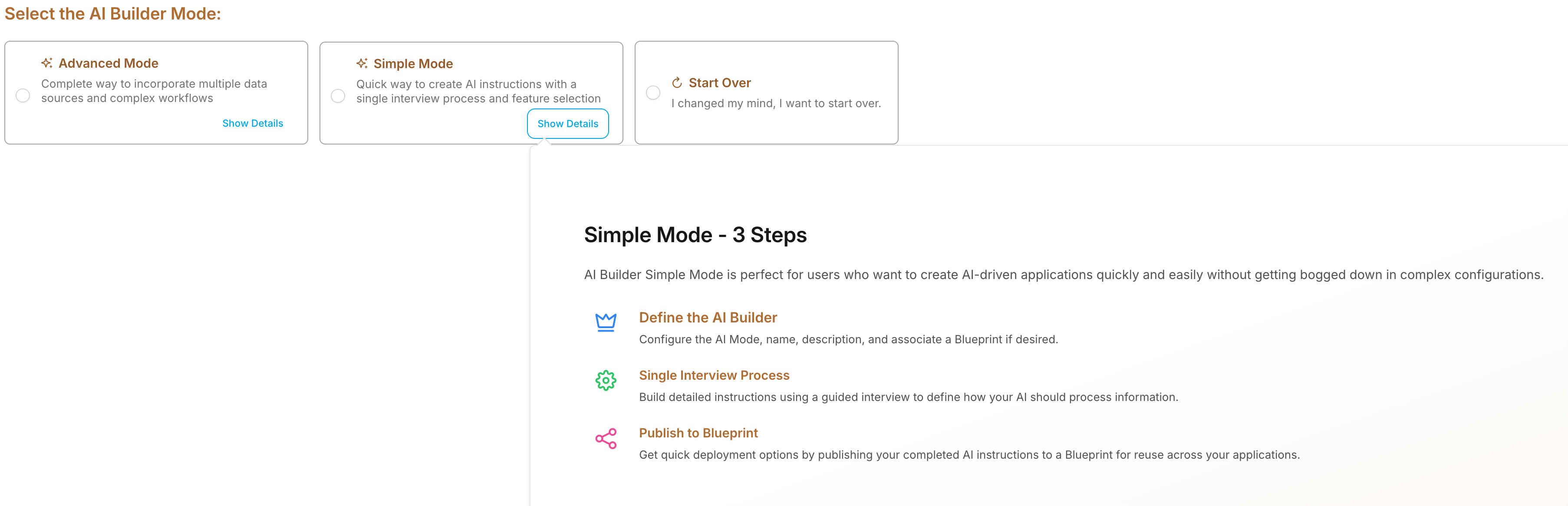
- Settings → Configure name, description, Blueprint association
- AI Instructions → Single interview process for comprehensive setup
- Output → Review and publish
Advanced Mode Workflow
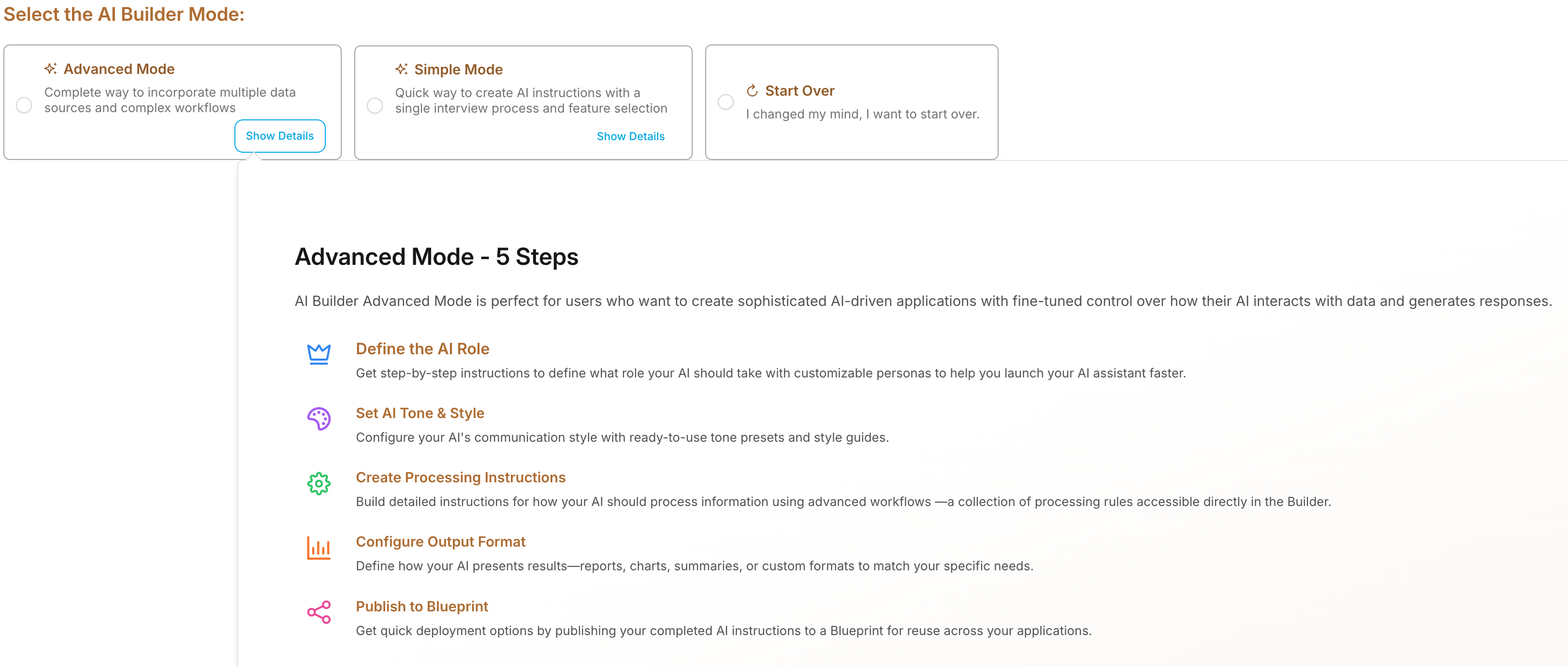
- Settings → Configure basic properties
- Role → Define AI expertise and personality
- Tone & Style → Set communication approach
- My Instructions → Create processing workflows
- Output Format → Define response structure
- AI Instructions → Review and finalize
Getting Started Options
Option 1: New AI Instructions

- Start completely from scratch
- Full control over all settings
- Best for: Custom requirements
Option 2: Open/Copy AI Builder

- Work with existing AI Builder
- Choose "Open" to edit or "Copy" to duplicate
- Best for: Building on proven patterns
Option 3: Open/Copy Blueprint

- Start from existing Blueprint
- Inherits Blueprint's AI instructions
- Best for: Blueprint-centric workflows
Role Definition Cheat Sheet
Role Categories
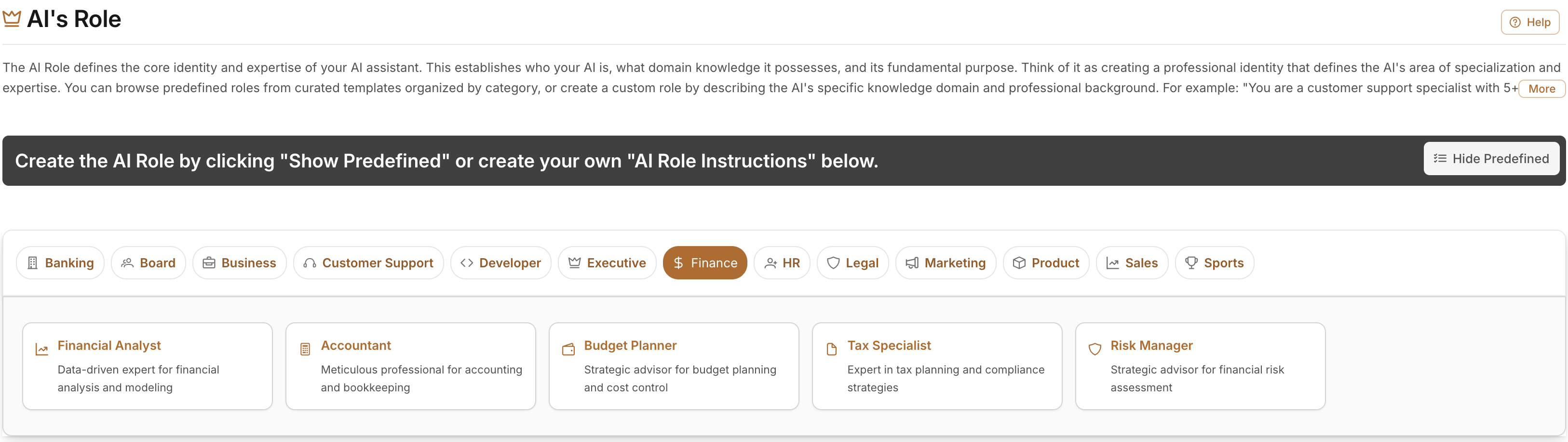
- Analyst: Data analysis, research, insights
- Creative: Writing, design, content creation
- Technical: Programming, engineering, troubleshooting
- Business: Strategy, management, consulting
- Support: Customer service, help desk, training
Essential Role Elements
- ✅ Expertise Areas: What the AI knows
- ✅ Personality Traits: How it communicates
- ✅ Behavioral Guidelines: What it should/shouldn't do
- ✅ Target Audience: Who it serves
- ✅ Professional Context: Industry/domain focus
Role Template
text
You are a [PROFESSION] with [X years] experience in [SPECIALTY].

Your expertise includes:
- [Primary skill area]
- [Secondary skill area]
- [Additional specializations]

You communicate with [TONE] and always [KEY BEHAVIOR].
When [SITUATION], you [RESPONSE APPROACH].
Communication Styles Quick Guide

Professional Business
- Language: Formal, structured
- Tone: Respectful, objective
- Use For: B2B, finance, legal, executive
Conversational Friendly
- Language: Casual, approachable
- Tone: Warm, encouraging
- Use For: Customer support, consumer apps, onboarding
Technical Expert
- Language: Precise, technical
- Tone: Authoritative, detailed
- Use For: Developer tools, IT support, engineering
Educational Mentor
- Language: Patient, explanatory
- Tone: Encouraging, supportive
- Use For: Learning platforms, training, skill development
Customer Service
- Language: Empathetic, solution-focused
- Tone: Understanding, helpful
- Use For: Support systems, help desks, troubleshooting
Instruction Writing Checklist
Clarity Requirements
- [ ] Use specific, precise language
- [ ] Define all terms and concepts
- [ ] Provide concrete examples
- [ ] Avoid ambiguous phrases
Structure Requirements
- [ ] Logical step-by-step flow
- [ ] Clear conditional logic (if/then)
- [ ] Priority guidance for conflicting requirements
- [ ] Error handling instructions
Quality Standards
- [ ] Output quality criteria defined
- [ ] Self-correction procedures included
- [ ] Boundary conditions addressed
- [ ] Safety and ethical guidelines specified
Context Awareness
- [ ] User experience level considerations
- [ ] Situational adaptation guidelines
- [ ] Cultural and accessibility requirements
- [ ] Brand alignment instructions
Testing Quick Checklist
Pre-Deployment Testing
- [ ] Unit Tests: Each component works individually
- [ ] Integration Tests: Components work together
- [ ] System Tests: Complete end-to-end workflows
- [ ] User Acceptance: Stakeholder validation
Test Scenarios to Cover
- [ ] Normal Use Cases: Common, straightforward requests
- [ ] Edge Cases: Unusual or boundary conditions
- [ ] Error Conditions: Incomplete/ambiguous inputs
- [ ] Safety Tests: Inappropriate or harmful requests
- [ ] Performance Tests: Speed and efficiency under load
Success Metrics
- [ ] Accuracy: Factual correctness ≥95%
- [ ] Completeness: Full request coverage ≥90%
- [ ] Satisfaction: User satisfaction ≥4.5/5
- [ ] Efficiency: First-response resolution ≥80%
- [ ] Consistency: Style/tone consistency ≥95%
Blueprint Integration Guide
Creating New Blueprint from AI Builder
- Complete AI Builder configuration
- Click "Create Blueprint" in final step

- Configure Blueprint settings (AI model, content sources)
- Set access permissions and deployment options
- Save and activate Blueprint
Updating Existing Blueprint
- In Builder Settings, click "Change" next to Associated Blueprint

- Select target Blueprint from list
- Complete AI Builder configuration
- Save changes to update Blueprint
- Test updated Blueprint functionality
Blueprint-Specific Considerations
- AI Model Selection: Choose appropriate model for complexity
- Content Sources: Configure knowledge bases and web access
- Access Controls: Set user permissions and restrictions
- Performance Settings: Optimize for response time vs. quality
Common Troubleshooting
AI Builder Won't Save
- ✅ Check user permissions
- ✅ Complete all required fields
- ✅ Refresh and retry
- ✅ Contact admin if permissions issue
Instructions Not Working as Expected
- ✅ Review role definition for clarity
- ✅ Check instruction logic and flow
- ✅ Test with simpler queries first
- ✅ Validate tone/style settings
Poor Response Quality
- ✅ Increase instruction specificity
- ✅ Add more examples and context
- ✅ Review and refine quality standards
- ✅ Test with diverse scenarios
Inconsistent AI Behavior
- ✅ Check for conflicting instructions
- ✅ Verify role and style alignment
- ✅ Review conditional logic
- ✅ Test systematically across scenarios
Performance Optimization Tips
Improve Response Quality
- Be Specific: Use precise language in all instructions
- Add Examples: Include concrete examples of desired behavior
- Set Priorities: Clarify what's most important when instructions conflict
- Test Iteratively: Make small changes and test frequently
Enhance User Experience
- Match User Expertise: Adapt complexity to user level
- Provide Context: Include relevant background information
- Offer Alternatives: Give multiple options when appropriate
- Enable Follow-up: Design for conversation continuation
Optimize Performance
- Streamline Instructions: Remove unnecessary complexity
- Focus Scope: Define clear boundaries for AI capabilities
- Batch Similar Tasks: Group related instructions efficiently
- Monitor Metrics: Track key performance indicators regularly
Best Practices Summary
Role Definition
- Be Specific about expertise and limitations
- Define Personality clearly and consistently
- Set Boundaries for appropriate behavior
- Test Thoroughly with diverse scenarios
- Iterate Based on real user feedback
Communication Style
- Match Audience needs and expectations
- Stay Consistent across all interactions
- Align with Brand voice and values
- Consider Context and adapt appropriately
- Test User Reactions to style choices
Instruction Writing
- Write Clearly with specific, actionable language
- Structure Logically with step-by-step processes
- Handle Edge Cases and error conditions
- Prioritize Requirements when conflicts arise
- Document Everything for future maintenance
Testing and Validation
- Test Systematically across all components
- Use Real Scenarios with authentic user requests
- Measure Performance against defined criteria
- Gather User Feedback from diverse perspectives
- Improve Continuously based on data and insights
Resources and Support
Documentation Links
- AI Builder User Guide
- Role Definition Best Practices
- Tone & Style Guide
- Instruction Writing Guide
- Testing and Validation Guide
Getting Help
- Built-in Help: Use the AI Assistant in AI Builder for guidance
- User Community: Join forums for tips and best practices
- Support Team: Contact technical support for issues
- Training Resources: Access video tutorials and training materials
- Documentation: Reference comprehensive guides for detailed information
Version Information
- Last Updated: October 27, 2025
- Compatible Versions: AI Builder v2.0+
- Related Systems: Blueprint Manager, Content Management
This quick reference guide is designed for easy printing and desktop reference. For complete details, consult the full documentation guides.