Appearance
AI Assistant Settings Guide
Introduction
The AI Assistant Settings panel allows you to customize how the AI assistant works, including which AI model it uses, what content it can access, and how it interacts with external information. These settings can be configured for individual chat sessions or saved as reusable Blueprints that can be shared with others.

Accessing AI Settings
The AI Settings panel is located on the right side of the AI Assistant interface. To access it:
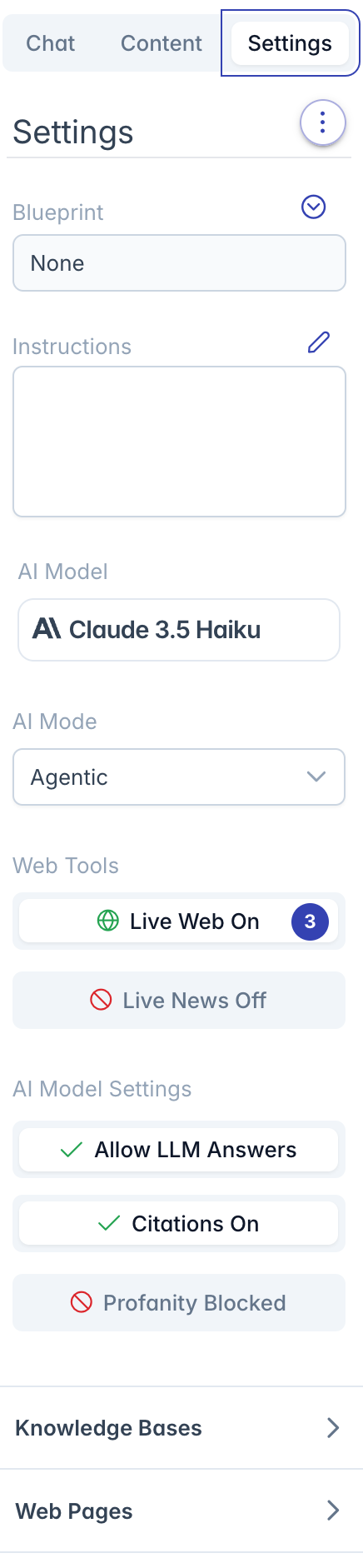
- Click the Settings icon in the top-right corner of the assistant interface
- The settings panel will slide open, displaying the current configuration
Settings Interface Overview
The AI Settings interface is organized into several sections:
- Header: Contains the "Settings" title and options menu
- Blueprint Selection: Controls which predefined configuration is active
- Instructions: Custom guidance for how the AI should respond
- AI Model Settings: Configure which AI model is used and how it works
- Web Tools: Controls for accessing external information
- Knowledge Sources: Select specific content to inform AI responses
Blueprint Management
Blueprints are saved configurations that can be reused across chat sessions.
Loading a Blueprint
To use a previously created Blueprint:
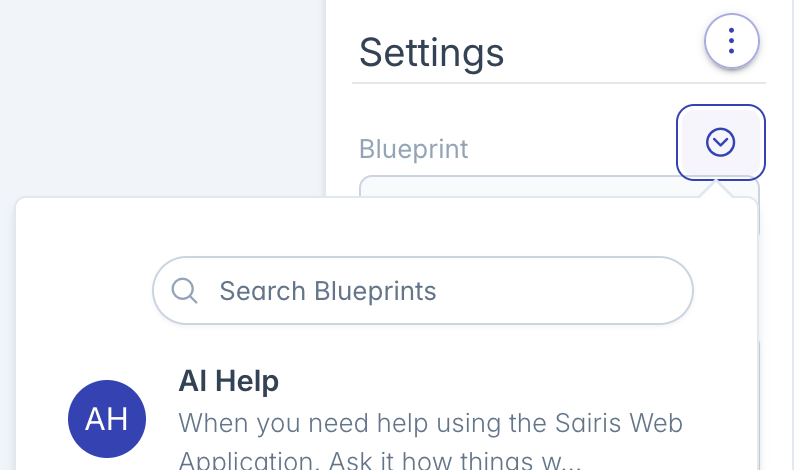
- Click the dropdown arrow next to the Blueprint field
- Search for a Blueprint by name or tags if needed
- Click on the desired Blueprint
- The settings will update to match the selected Blueprint
Saving Blueprint Changes
If you modify settings from a loaded Blueprint:
- A warning message will appear indicating the Blueprint has changed
- Click "Show Diff" to see exactly what settings were changed
- Click "Save" to update the original Blueprint with your changes
Note: Some Blueprints may be read-only or locked if they are managed by a Knowledge Base or if you don't have edit permissions.
Customizing AI Instructions
Instructions provide specific guidance to the AI about how it should respond to questions.
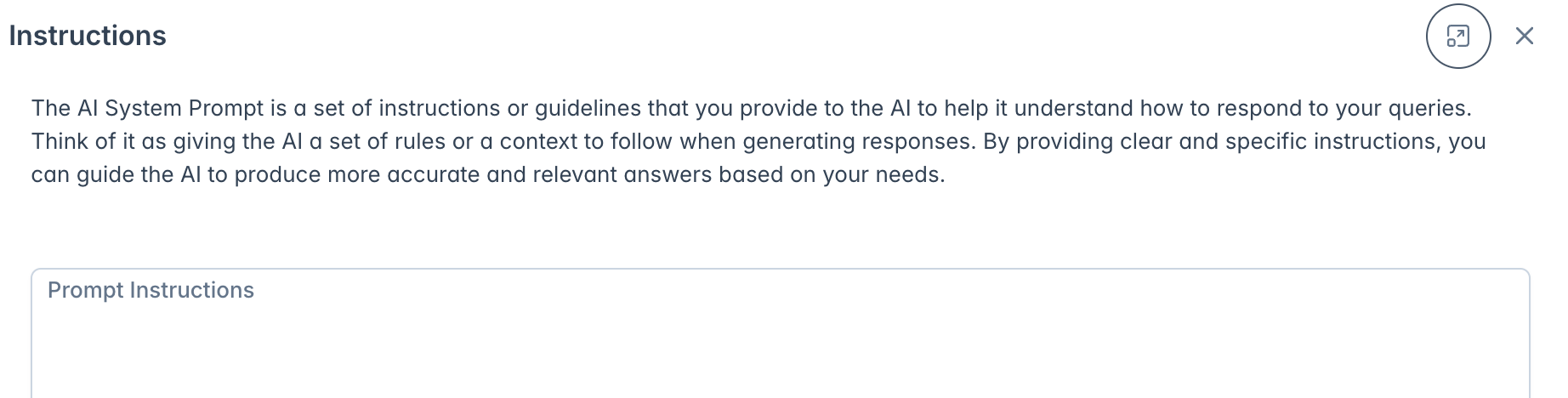
To modify instructions:
- Click the pencil icon next to "Instructions"
- Enter your custom instructions in the dialog that appears
- Specific, detailed instructions will help the AI respond more accurately
- Click outside the dialog to save
Best Practices for Instructions
- Be specific about the AI's role and expertise
- Define preferred response formats or structures
- Specify information to include or exclude
- Establish the tone and style of responses
Configuring AI Model Settings
Selecting an AI Model
To change which AI model powers the assistant:
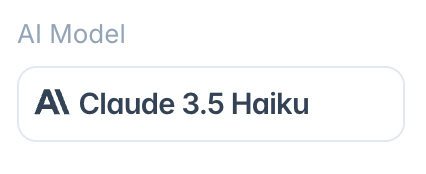
Before selecting or changing your Language Model you may wish to review the differences between the models. Understanding Large Language Models
- Click on the model name in the AI Model section
- Select from available models in the dialog that appears
- The dialog shows information about each model's capabilities and strengths
Setting AI Mode
Choose between two fundamental modes of operation:
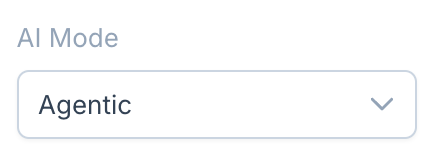
- Question & Answers: Simple query response without additional capabilities
- Agentic: Enhanced abilities including web search, research, and reasoning
Web Tools Configuration
When using Agentic mode, you can enable various web tools:
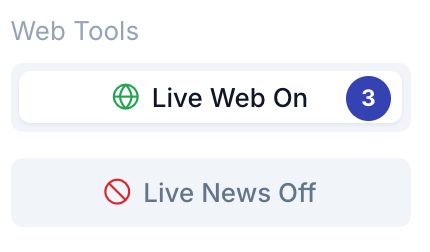
Live Web Search
- Toggle "Live Web" on to allow the AI to search the internet
- Click the badge number to configure search settings
- Set the maximum number of search results (0-25)
News Search
- Toggle "Live News" on to allow the AI to search recent news articles
- Click the badge to configure news settings
- Set the number of news results and how many days back to search
Model Behavior Settings
Control how the AI generates responses:
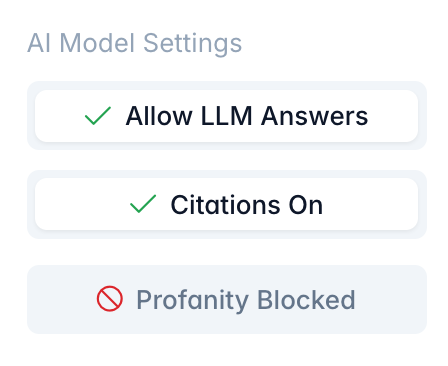
- Allow LLM Answers: When on, the AI can use its training data; when off, it will only use provided content
- Citations On/Off: When on, the AI will provide sources for information
- Profanity: Control whether the AI filters explicit language
Knowledge Sources
Managing Content Sources
To control what information the AI can access:
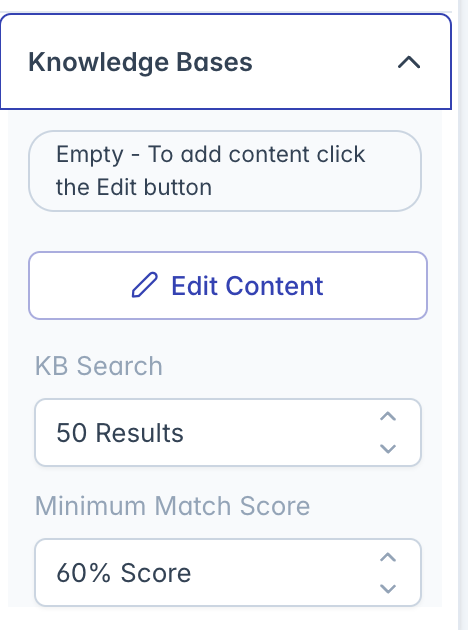
Click "Edit Content" in the Knowledge Bases section
In the dialog that appears, you'll see two panels:
- Knowledge Bases: Collections of related documents
- Assigned Content: Individual files and documents
Select content by clicking on it (selected items will be highlighted)
Filter available content using the search boxes
Your selections are saved automatically
Configuring Knowledge Base Search
Fine-tune how the AI searches through knowledge bases:
- KB Search Results: Set how many matching document chunks to retrieve (1-500)
- Minimum Match Score: Set the minimum relevance threshold (1-100%)
- Higher values ensure more accurate but possibly fewer matches
- Lower values provide more comprehensive but potentially less relevant results
Web Pages Configuration
When using Agentic mode, you can specify up to 15 web pages for the AI to include in its knowledge:
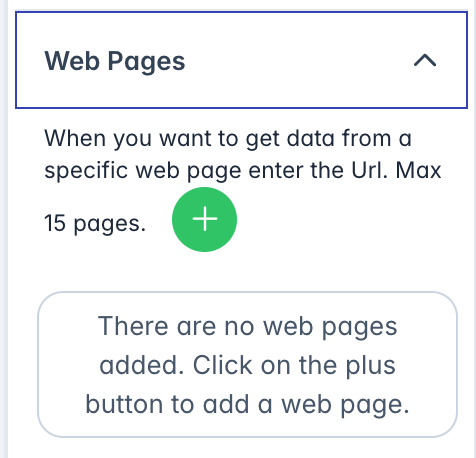
- Expand the "Web Pages" accordion panel
- Click the + button to add a new web page
- Enter the complete URL including https://
- Add additional pages as needed
- Remove pages by clicking the trash icon
Options Menu
The options menu in the top-right corner provides additional actions:
- Show Settings Page: Opens the full settings interface
- Save This Blueprint: Saves current settings to the active Blueprint
- Copy to New Session: Creates a new chat with the current settings
- Create New Blueprint: Saves current settings as a new Blueprint
Secure Blueprints
Some Blueprints may have their settings marked as secure, meaning:
- Only owners can view the actual settings
- Non-owners will see a "Secure Blueprint" message
- You can still use the Blueprint, but cannot view or modify its configuration
Troubleshooting
Issue: Cannot save Blueprint changes
- Check if the Blueprint is marked as Read-Only
- Verify you have edit permissions for the Blueprint
- Confirm the Blueprint isn't locked by a Knowledge Base
Issue: Web search not working
- Ensure Live Web toggle is enabled
- Check that the search results count is greater than 0
- Verify your organization has web search permissions
Issue: Knowledge Base content not appearing in responses
- Check that content is properly selected
- Verify the minimum match score isn't set too high
- Ensure the content contains information relevant to your queries
Issue: Blueprint changes not applying
- Click "Show Diff" to verify your changes
- Check if you have permissions to modify the Blueprint
- Ensure you clicked Save after making changes
For additional assistance with AI Settings, click the question mark icons next to each section heading for contextual help.