Appearance
Chat Token Counter User Guide
Introduction
The Chat Token Counter provides insights into the resource usage of your AI conversations. This component displays metrics about the number of tokens used in your interactions, helping you understand the computational resources consumed during your conversations. Tokens are the basic units that AI models process - each word is typically broken into multiple tokens, and token counts directly relate to processing cost and response time.
Accessing Token Counts
The Token Counter is accessible from the chat history panel:
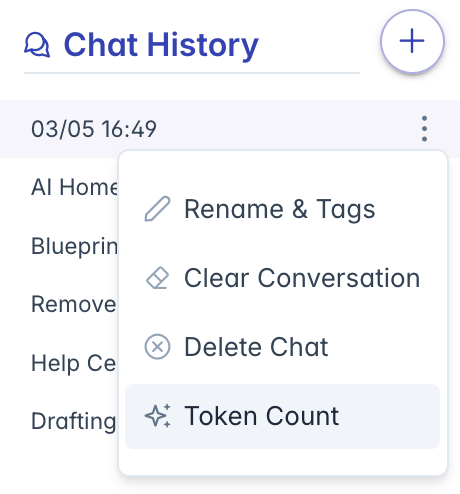
- Open the Chat History sidebar in the AI Assistant
- Click the three-dot menu next to a conversation
- Select "Token Count" from the menu
- The Token Counter dialog appears, showing metrics for that conversation
Token Counter Interface
The Token Counter displays information in a clean, card-based layout:
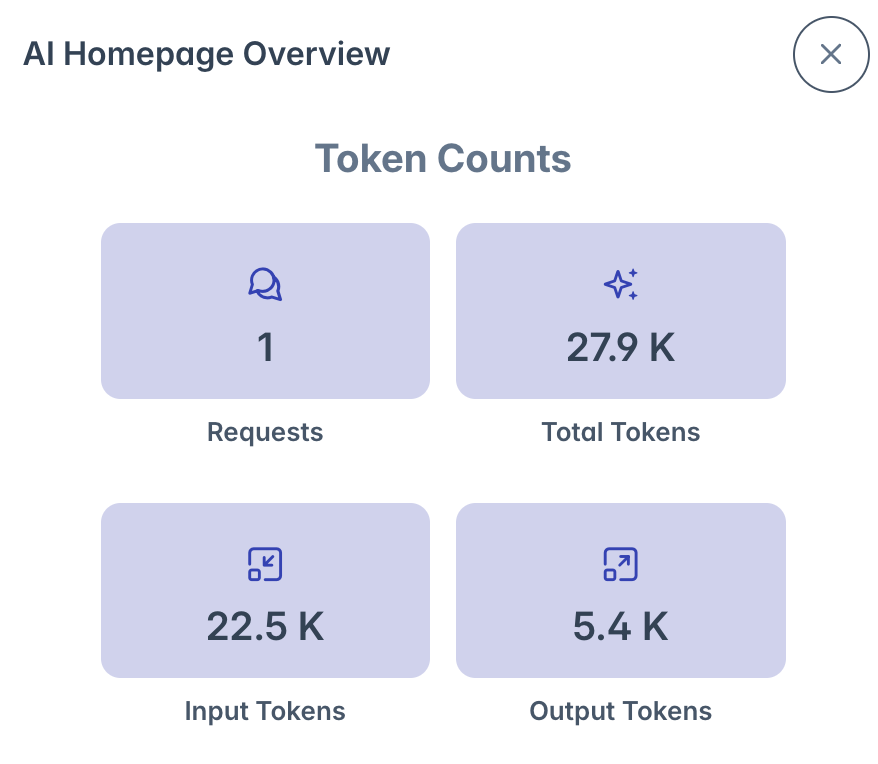
- Header: "Token Counts" title at the top of the dialog
- Metric Cards: Four visual cards showing different token metrics
- Icons: Visual indicators for each metric type
- Values: Numerical displays of token counts, formatted for readability
- Labels: Descriptive text below each card explaining the metric
Each metric card uses a consistent design with:
- Light blue background
- Icon representing the metric type
- Large numerical display
- Descriptive label underneath
Understanding Token Metrics
Total Requests
The Requests card displays:
- Comment bubble icon (pi-comments)
- The total number of interactions/questions in the conversation
- Label "Requests" below the value
- Each request typically consists of your question and the AI's response
This metric helps you understand how many back-and-forth exchanges occurred in the conversation.
Total Tokens
The Total Tokens card displays:
- Sparkle icon (pi-sparkles)
- The sum of all tokens used in the conversation (input + output)
- Label "Total Tokens" below the value
- Represents the total computational resources used
This is the most important metric for understanding overall resource usage of the conversation.
Input Tokens
The Input Tokens card displays:
- Minimize window icon (pi-window-minimize)
- The number of tokens used in your questions and prompts
- Label "Input Tokens" below the value
- Represents how much information you've provided to the AI
Input tokens include your questions, any document context provided, system instructions, and conversation history.
Output Tokens
The Output Tokens card displays:
- Maximize window icon (pi-window-maximize)
- The number of tokens generated in AI responses
- Label "Output Tokens" below the value
- Represents how much information the AI has generated
Output tokens typically cost more computationally than input tokens and represent the AI's work in generating responses.
Token Formatting
Large token numbers are automatically formatted for readability:
Numbers under 1,000 display as exact values
- Example: 750 appears as "750"
Numbers between 1,000 and 999,999 display with "K" suffix
- Example: 5,400 appears as "5.4 K"
Numbers between 1,000,000 and 999,999,999 display with "M" suffix
- Example: 2,500,000 appears as "2.5 M"
Numbers over 1 billion display with "B" suffix
- Example: 1,200,000,000 appears as "1.2 B"
Extremely large numbers (over 1 trillion) display with "T" suffix
- Example: 1,500,000,000,000 appears as "1.5 T"
This makes large numbers easier to read at a glance while maintaining a clean interface.
Empty States
If a conversation has no token data:
- The metric cards do not display
- Instead, a light blue message box appears
- Text states "There are no tokens counts for this session"
- This typically indicates a new or unused conversation
This empty state helps you understand when token data is unavailable rather than simply showing zeros.
Loading States
While token data is being retrieved:
- A loading spinner appears in the center of the dialog
- The spinner uses the primary theme color
- The animation indicates that data is being fetched
- Once data loads, the spinner disappears and metrics display
The loading state provides visual feedback during data retrieval, especially important for conversations with extensive history.
Best Practices
For effectively using the Token Counter:
Regular Monitoring:
- Check token usage for long conversations
- Monitor trends in your token consumption
- Identify unusually token-heavy conversations
Optimizing Conversations:
- Keep questions concise to reduce input tokens
- Ask for more specific responses when possible
- Begin new conversations for new topics rather than continuing very long ones
Resource Planning:
- Use token metrics to estimate AI usage costs
- Plan for resource allocation based on conversation patterns
- Identify opportunities to optimize token usage
Troubleshooting:
- Check token counts when responses seem slow
- Very high token counts may indicate inefficient conversations
- Abnormally low counts might suggest incomplete responses
Troubleshooting
Issue: Token counts not loading
- Wait a few moments as data retrieves
- Check for error messages in the interface
- Try reopening the token counter dialog
- Verify network connectivity
Issue: Unexpected zero counts
- New conversations may not have metrics yet
- Ensure the conversation has completed requests
- Check if the conversation was recently cleared
- Try refreshing the token counter
Issue: Token counts seem unusually high
- Long conversations accumulate many tokens
- Document attachments significantly increase token count
- Complex queries with extensive context use more tokens
- Consider starting a new conversation if counts are very high
Issue: Error messages when loading tokens
- Note any specific error messages displayed
- Service unavailability may be temporary
- Try again later if system errors appear
- If persistent, contact your administrator
Issue: Token counts don't match conversation length
- Remember that tokens are not equivalent to words (usually more tokens than words)
- Hidden context and system instructions also consume tokens
- Document processing adds significant token usage
- Each AI model tokenizes text differently
For additional assistance with token counter information, please contact your system administrator or refer to the platform documentation.