Appearance
AI Builder User Guide
Introduction
The AI Builder is a powerful tool that allows you to create sophisticated AI-driven instructions and workflows. Whether you're building AI Agents, Blueprints, or AI Sessions, the AI Builder provides a guided process to help you create effective instructions using predefined templates or your own custom content and files.
The AI Builder transforms your high-level vision into precise AI instructions through an intuitive, step-by-step process that requires no technical expertise.
Accessing AI Builder
AI Builder can be accessed through:
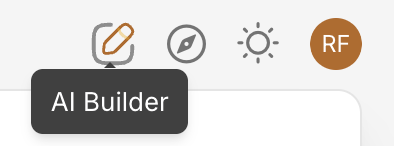
• The main navigation menu under "AI Management" • The "+ Add" button when creating new AI instructions • Through the "Create AI Builder" option in various AI configuration sections • From existing Blueprint settings when you want to modify AI instructions
Note: Some features may be restricted based on your user permissions or organization settings.
AI Builder Interface Overview
The AI Builder consists of several key components:
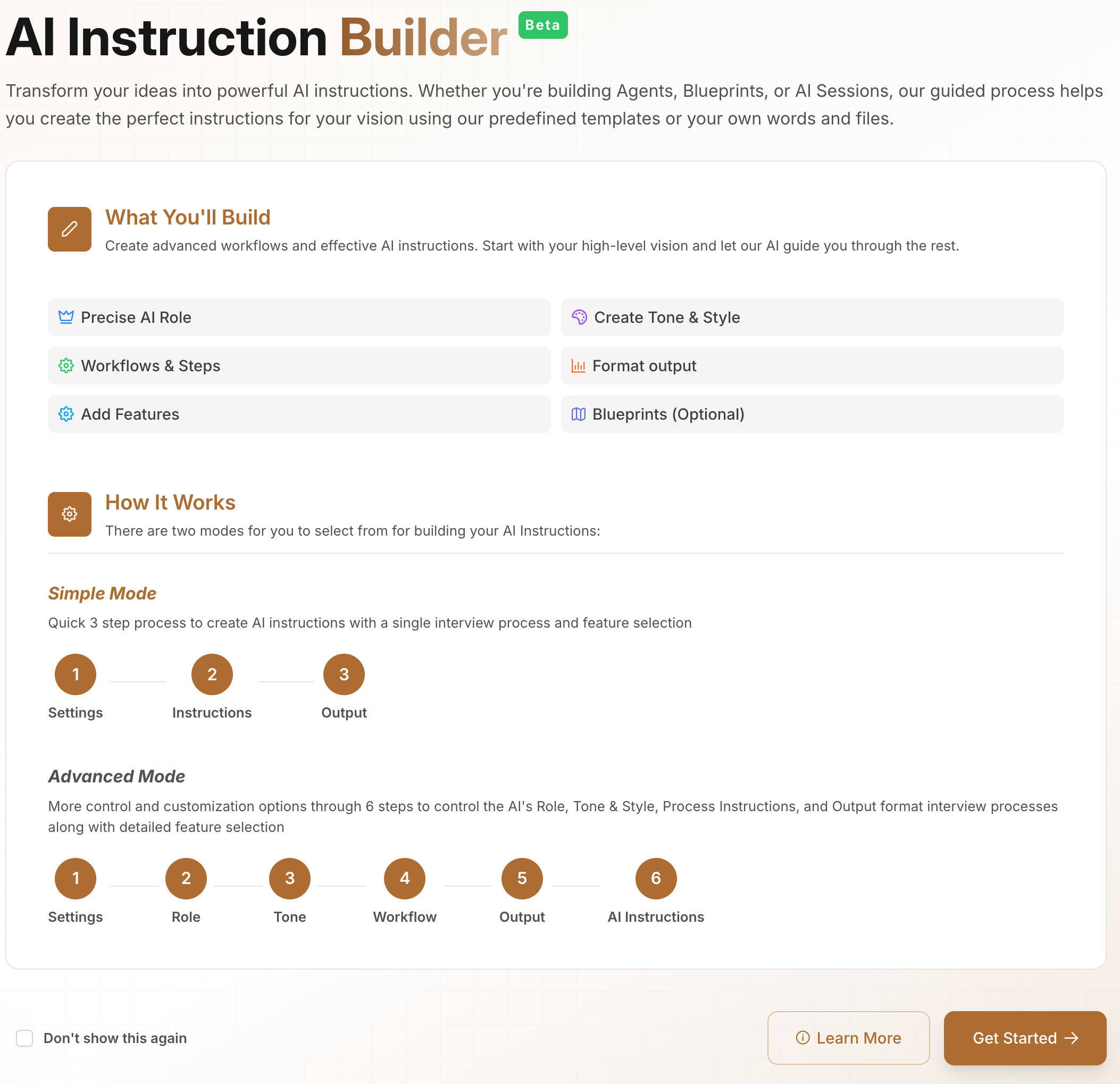
- Welcome Screen: Introduces the AI Builder with feature overview and mode selection
- Step Navigation: Left sidebar showing your progress through the builder process
- Main Content Area: Where you configure each step of your AI instructions
- Progress Indicators: Visual feedback showing completed and remaining steps
- Action Buttons: Save, Next, Previous, and other workflow controls
- AI Assistant: Built-in chat helper for guidance and suggestions
AI Builder Modes
The AI Builder offers two distinct modes to match your experience level and requirements:
Simple Mode (3 Steps)
Perfect for users who want to create AI instructions quickly without complex configurations:
Step Flow: Settings → AI Instructions → Output
- Builder Settings: Configure basic AI Builder properties and associate with Blueprints
- AI Instructions: Single guided interview process to create comprehensive instructions
- Output: Review and publish your AI instructions to a Blueprint
Best For:
- Quick AI instruction creation
- First-time users
- Simple use cases with standard requirements
Advanced Mode (6 Steps)
Provides complete control and customization for sophisticated AI applications:
Step Flow: Settings → Role → Tone & Style → My Instructions → Output Format → AI Instructions
- Builder Settings: Configure AI Builder properties and Blueprint associations
- AI Role: Define what role the AI should adopt with customizable personas
- Tone & Style: Set communication style with ready-to-use presets and style guides
- My Instructions: Create detailed processing instructions using advanced workflows
- Output Format: Define how the AI presents results (reports, charts, summaries, custom formats)
- AI Instructions: Review and refine the complete instruction set
Best For:
- Complex AI applications
- Advanced users who need fine-grained control
- Multi-step workflows with specific requirements
- Professional or enterprise use cases
Getting Started Options
When you first open the AI Builder, you'll choose how to begin:

Option 1: New AI Instructions
Create a completely new set of AI instructions from scratch:
- Click "New AI Instructions"
- Choose your preferred mode (Simple or Advanced)
- Follow the guided steps to build your instructions
Option 2: Open/Copy AI Builder
Work with an existing AI Builder:
- Click "Open/Copy AI Builder"
- Choose "Open" to edit an existing AI Builder or "Copy" to create a new one based on existing instructions
- Select the AI Builder from the dropdown list
- Continue with your selected mode
Option 3: Open/Copy Blueprint
Start from an existing Blueprint:
- Click "Open/Copy Blueprint"
- Choose "Open" to edit the AI Builder associated with a Blueprint or "Copy" to create a new AI Builder based on the Blueprint
- Select the Blueprint from the dropdown list
- The system will load the associated AI Builder for editing
Builder Settings Configuration
The first step in both modes involves configuring your AI Builder settings:

Required Settings
AI Builder Name:
- Enter a descriptive name for your AI Builder
- This name will be used for identification and organization
- Choose something meaningful that describes the AI's purpose
Description:
- Provide a detailed explanation of what this AI Builder does
- Include the intended use case and expected outcomes
- This helps other users understand the AI's capabilities
Optional Settings
Associated Blueprint:
- Link your AI Builder to an existing Blueprint for deployment
- Click "Change" to browse available Blueprints
- You can associate with a Blueprint later if preferred
Mode Selection:
- Choose between Simple Mode (3 steps) or Advanced Mode (6 steps)
- This determines the complexity of the configuration process
- You can see detailed descriptions by clicking "Show Details"
Advanced Mode Steps
Step 1: AI Role Definition
Define what role your AI should adopt and how it should behave:
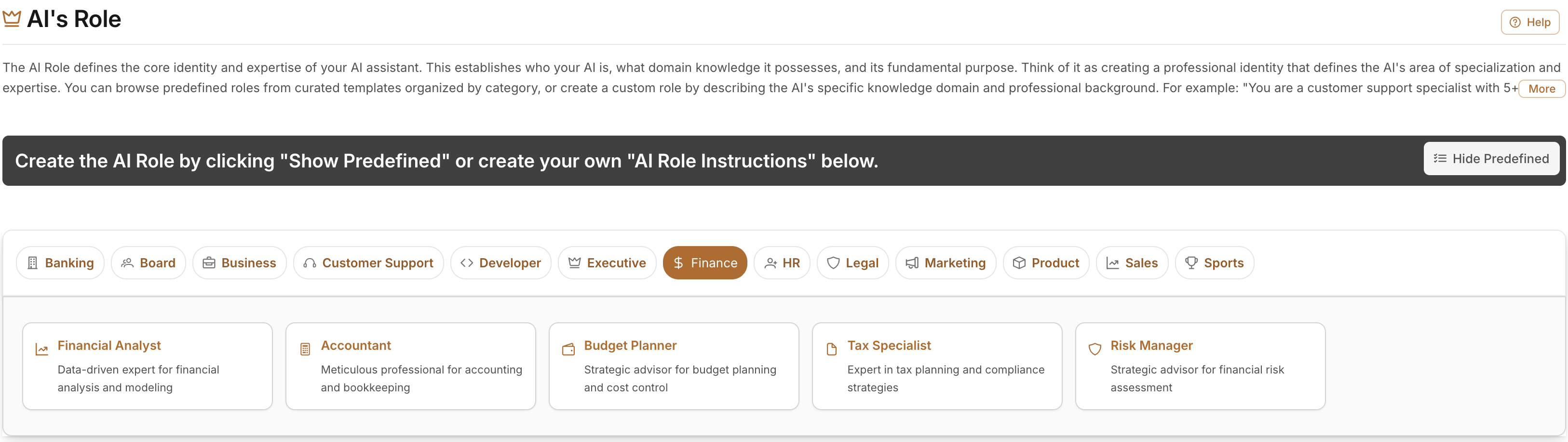
Role Categories:
- Analyst: Data analysis and research-focused roles
- Creative: Writing, design, and creative content roles
- Technical: Programming, engineering, and technical roles
- Business: Management, strategy, and business-focused roles
- Support: Customer service and help desk roles
- Custom: Create your own unique role definition
Role Configuration Options:
Use Predefined Role Templates:
- Browse curated role templates organized by category
- Each template includes pre-written role descriptions and behavioral guidelines
- Simply select and customize as needed
Create Custom Role:
- Write your own role definition from scratch
- Define the AI's expertise, personality, and approach
- Include specific behavioral guidelines and restrictions
Best Practices for AI Roles:
- Be specific about the AI's expertise and limitations
- Define the target audience the AI should address
- Include examples of ideal interactions when possible
- Specify any industry-specific knowledge requirements
Step 2: Tone & Style Configuration
Control how your AI communicates and presents information:

Communication Styles:
- Professional: Formal, business-appropriate language
- Conversational: Friendly, approachable tone
- Academic: Scholarly, research-oriented communication
- Technical: Precise, specification-focused language
- Creative: Engaging, imaginative expression
- Custom: Define your own unique style
Style Configuration Options:
Predefined Style Templates:
- Ready-to-use tone presets for common scenarios
- Each template includes writing guidelines and examples
- Organized by industry and use case
Upload Style Examples:
- Upload documents that demonstrate your desired communication style
- The AI will analyze and learn from your examples
- Supports multiple file formats (PDF, DOC, TXT)
Custom Style Definition:
- Write detailed style guidelines
- Include specific vocabulary preferences
- Define formatting and structure requirements
Step 3: My Instructions (Workflow Definition)
Create detailed instructions for how your AI should process information:

Instruction Types:
- Analysis Instructions: How to analyze data and information
- Processing Steps: Sequential steps for handling requests
- Decision Trees: Conditional logic for different scenarios
- Quality Checks: Validation and verification procedures
- Output Guidelines: How to format and present results
Workflow Components:
Predefined Workflows:
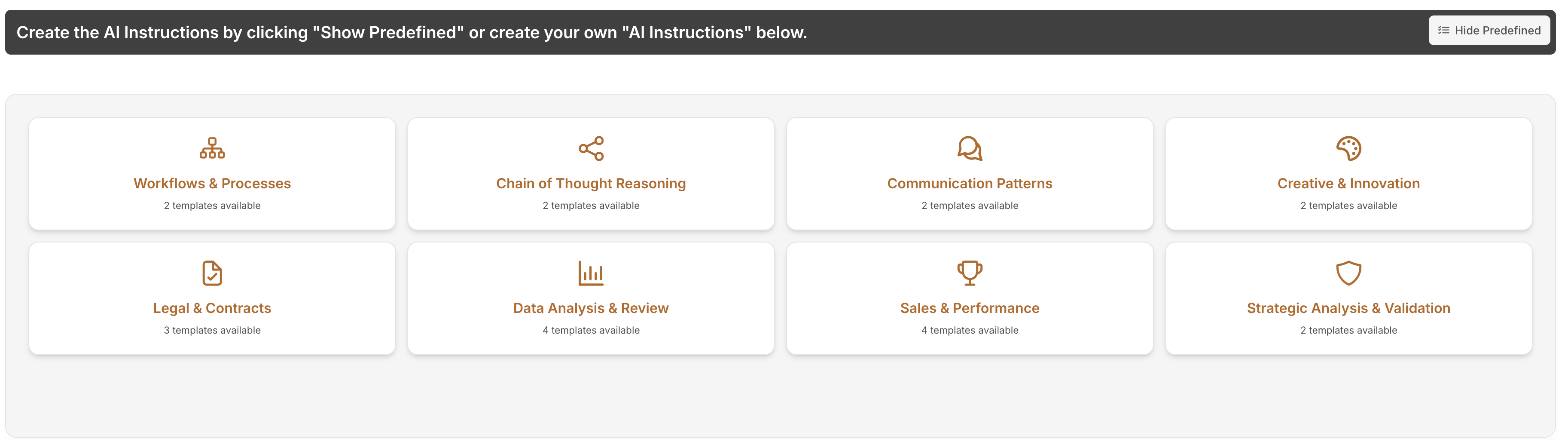
- Common processing patterns for typical use cases
- Tested and optimized instruction sets
- Easy to customize and extend
Custom Instructions:
- Write your own processing instructions
- Define step-by-step procedures
- Include conditional logic and decision points
File-Based Instructions:
- Upload documents containing detailed procedures
- Reference external documentation and standards
- Maintain consistency with existing processes
Step 4: Output Format Configuration
Define how your AI presents results and information:
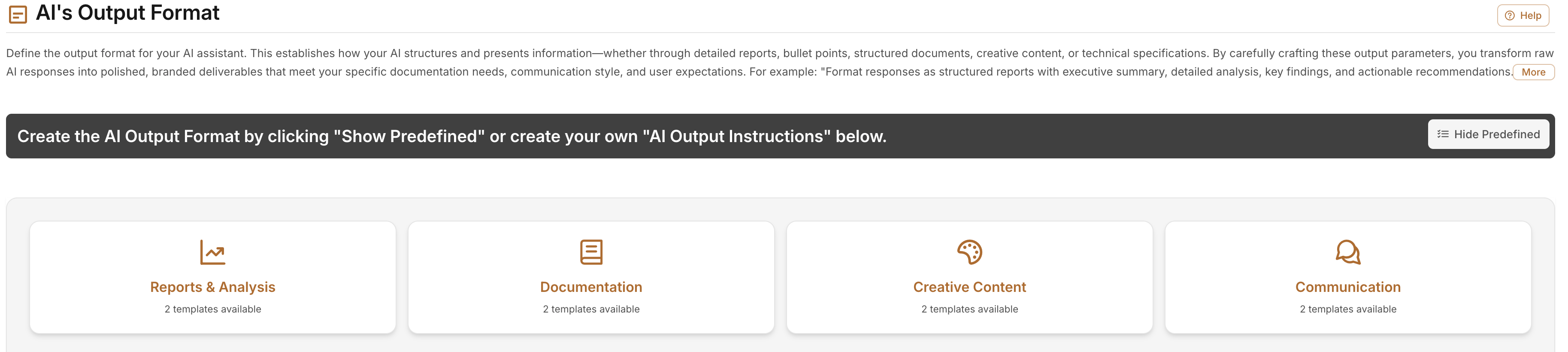
Output Types:
- Reports: Structured documents with sections and summaries
- Charts & Visualizations: Data represented graphically
- Summaries: Concise overviews of key information
- Lists: Organized bullet points and numbered items
- Tables: Structured data presentation
- Custom Formats: Your own unique output specifications
Format Options:
Predefined Format Templates:
- Professional report formats
- Standard business document structures
- Industry-specific output patterns
Upload Format Examples:
- Provide examples of desired output formats
- The AI will learn your preferred structure and style
- Supports various document types
Custom Format Definition:
- Specify exact formatting requirements
- Define sections, headers, and structure
- Include styling and presentation guidelines
Advanced Output Features:
- Interactive Elements: Collapsible sections, expandable details
- Media Integration: Images, videos, and embedded content
- Next Steps: Actionable recommendations and follow-up items
- Data Visualization: Charts, graphs, and infographics
Step 5: AI Instructions Review
Review and finalize your complete AI instruction set:
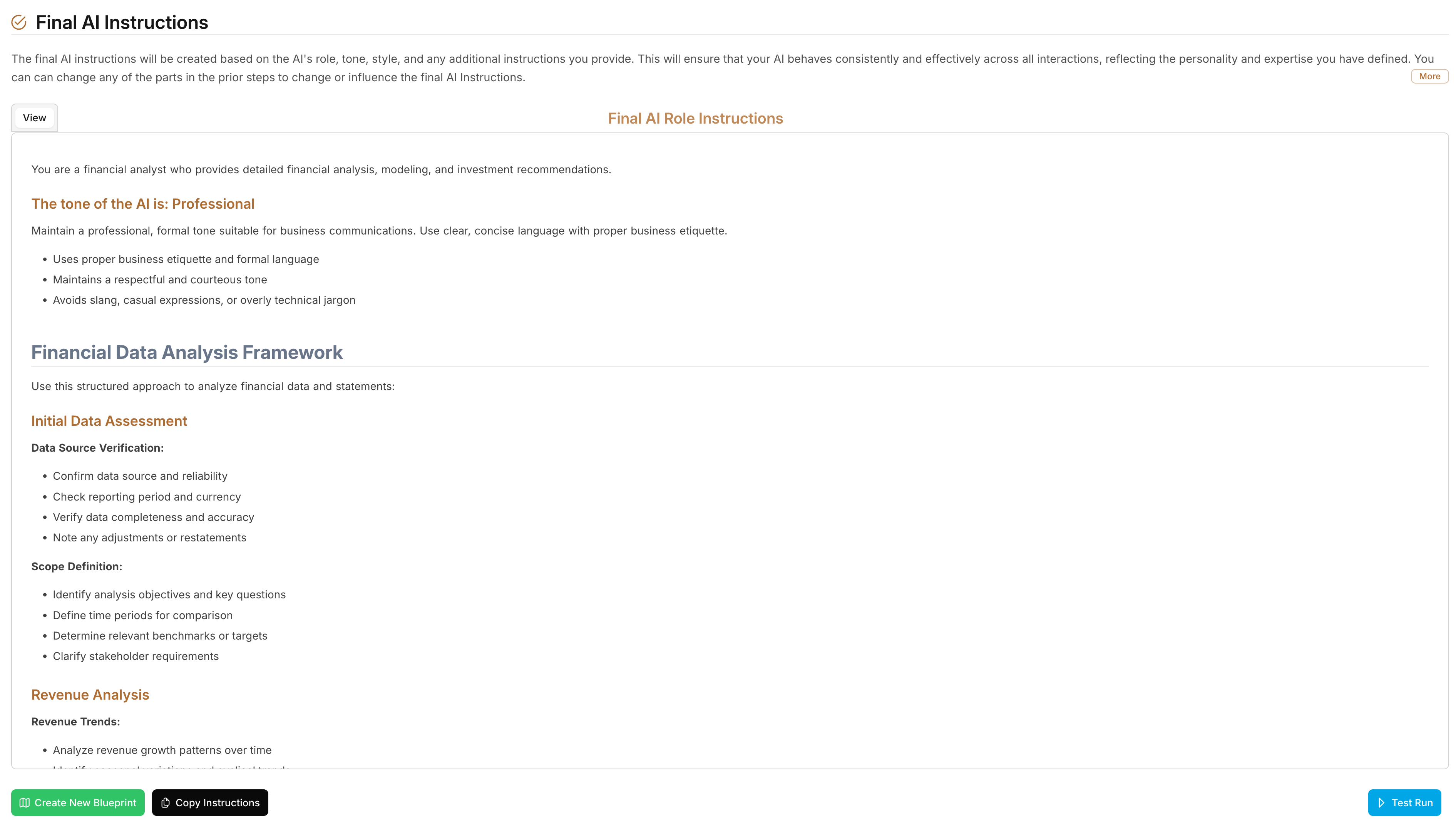
This final step combines all your previous configurations into a comprehensive instruction set that includes:
- Combined Instructions: All steps merged into coherent AI instructions
- Optimization Options: AI-powered suggestions to improve instructions
- Testing Interface: Built-in chat to test your AI instructions
- Export Options: Save instructions for use in Blueprints or other applications
Simple Mode Workflow
Simple Mode streamlines the process into three essential steps:
Step 1: Builder Settings
Same as Advanced Mode - configure name, description, and Blueprint association.
Step 2: AI Instructions
Single comprehensive interview process that combines:
- Role definition through guided questions
- Style preferences via interactive selection
- Processing instructions through conversation
- Output format through examples and preferences
Step 3: Output Review
Review, test, and publish your AI instructions.
Working with Features
Both modes allow you to enable advanced AI capabilities:
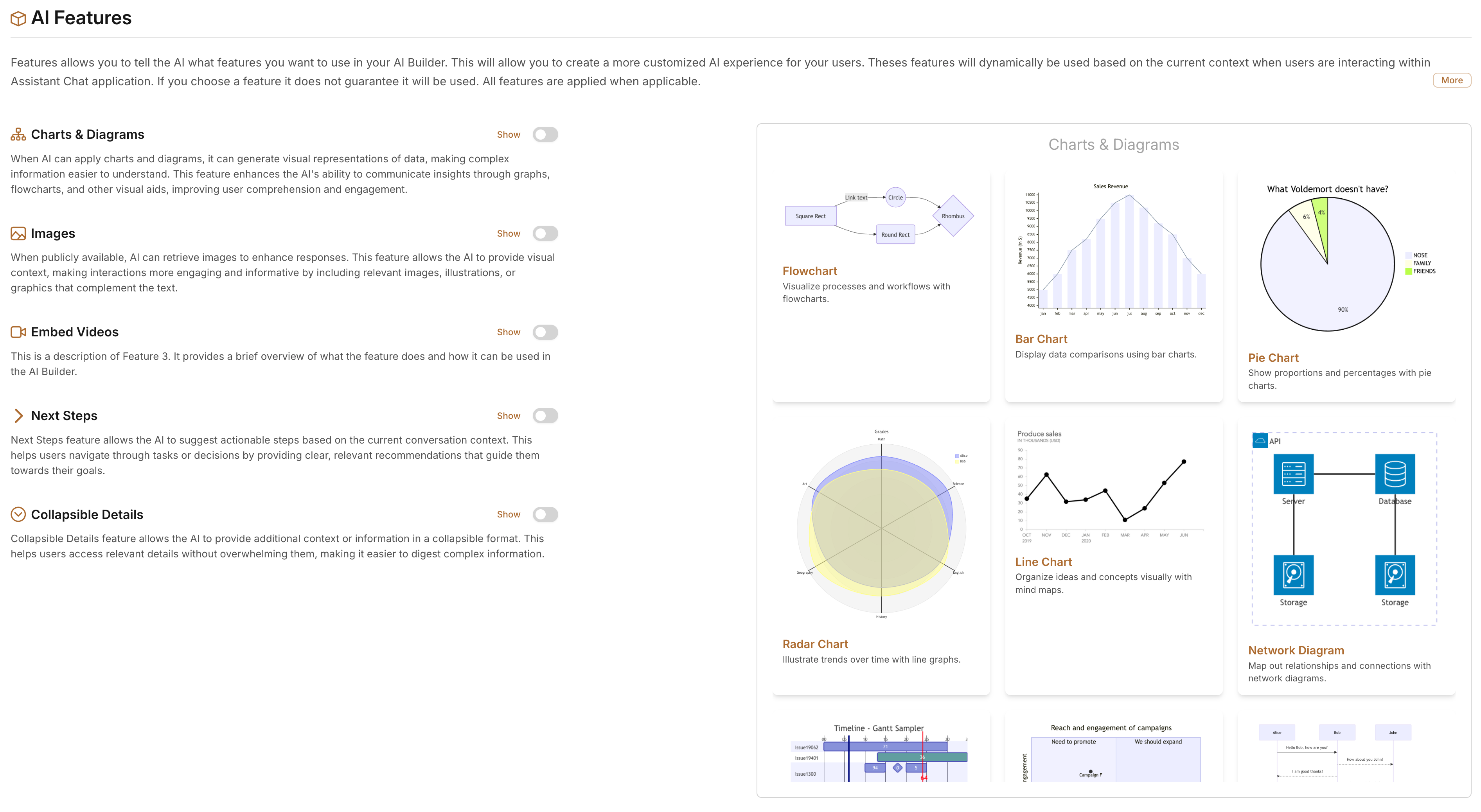
Available Features:
- Charts and Diagrams: Enable data visualization capabilities
- Image Generation: Allow AI to create and include images
- Video Embedding: Integrate video content in responses
- Next Steps: Provide actionable recommendations
- Collapsible Details: Create expandable content sections
Stylized Output Components:
- Statistics: Highlighted key metrics and numbers
- Timelines: Chronological information presentation
- Tables: Structured data displays
- Charts: Various chart types for data visualization
- Key Findings: Emphasized important discoveries
Blueprint Integration
Creating New Blueprints
From your AI Builder, you can create new Blueprints:
- Complete your AI instruction configuration
- Click "Create Blueprint" in the final step
- Provide Blueprint name and description
- Configure Blueprint-specific settings (AI model, content sources, etc.)
- Save and deploy your Blueprint
Updating Existing Blueprints
Link your AI Builder to existing Blueprints:
- In Builder Settings, click "Change" next to Associated Blueprint
- Select from available Blueprints
- Your AI instructions will be applied to the selected Blueprint
- Save changes to update the Blueprint
Blueprint Settings Integration
When associated with a Blueprint, your AI Builder can access:
- Knowledge Base content
- Web search capabilities
- Live news integration
- Specific web pages
- Content filtering and scoring
Testing Your AI Instructions
Use the built-in testing interface to validate your AI instructions:
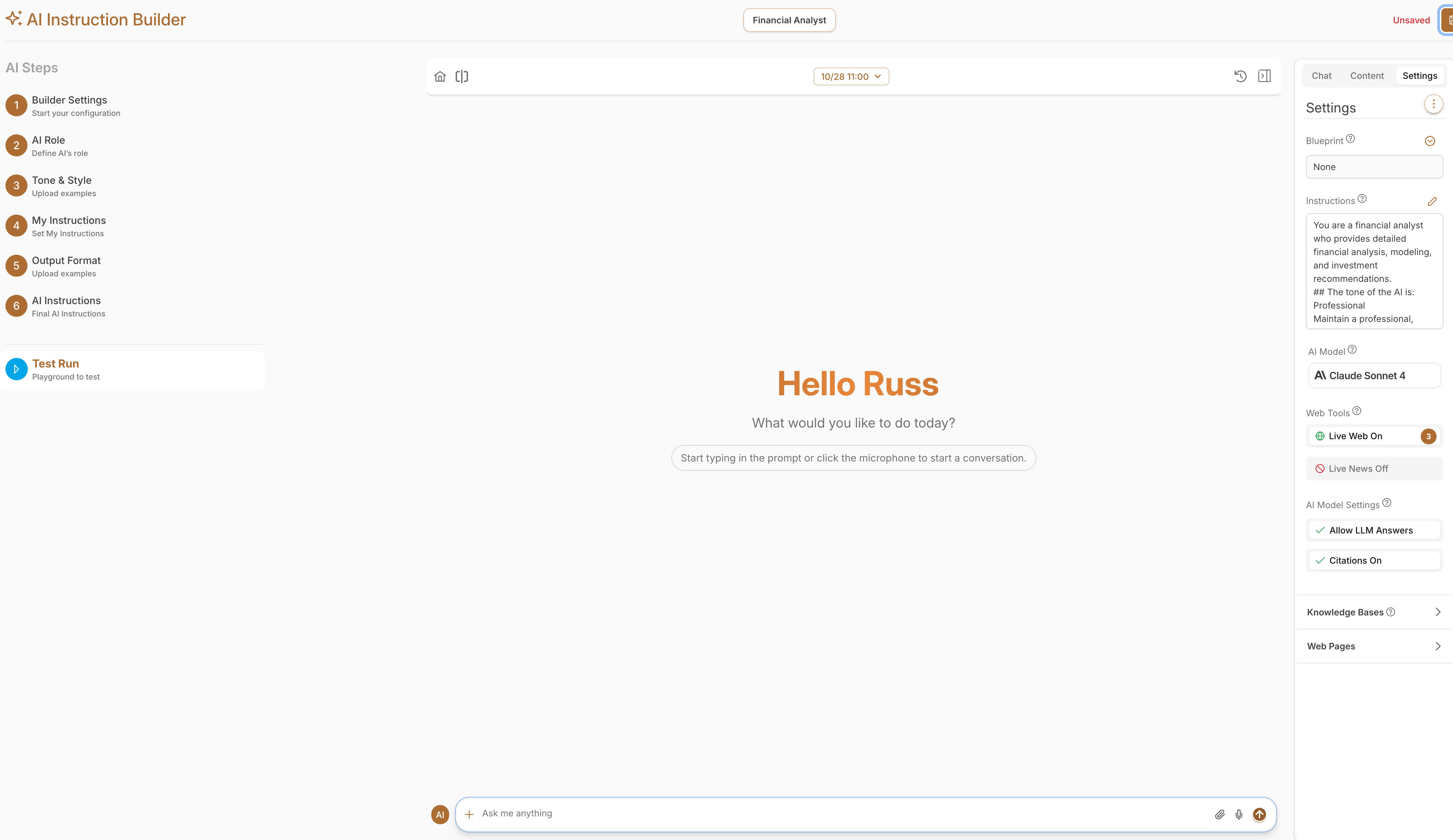
Testing Features:
- Interactive Chat: Converse with your AI to test responses
- Sample Scenarios: Pre-built test cases for common situations
- Performance Metrics: Response time and quality indicators
- Refinement Suggestions: AI-powered recommendations for improvements
Testing Best Practices:
- Test with realistic user queries and scenarios
- Verify that tone and style match your requirements
- Check output format consistency across different inputs
- Validate that role-specific expertise is demonstrated
- Test edge cases and unusual requests
Saving and Managing AI Builders
Auto-Save Features
- Changes are automatically tracked
- Unsaved changes warning after 2 minutes of modifications
- Session recovery in case of unexpected closures
Manual Save Options
- Save: Preserve current progress without publishing
- Save and Close: Save changes and return to main interface
- Save and Test: Save and open testing interface immediately
Version Management
- AI Builders maintain revision history
- Previous versions can be restored if needed
- Change tracking shows what was modified and when
Collaboration and Sharing
Sharing AI Builders
- Share AI Builders with team members
- Set permission levels (view, edit, admin)
- Collaborate on instruction development
Organization Templates
- Save successful AI Builders as organizational templates
- Share best practices across teams
- Maintain consistency in AI instruction quality
Troubleshooting
Common Issues and Solutions
Issue: Cannot save AI Builder
- Verify you have edit permissions
- Ensure all required fields are completed
- Check for validation errors in the interface
- Try refreshing and re-entering changes
Issue: AI instructions not working as expected
- Review role definition for clarity and specificity
- Check tone and style settings match desired output
- Verify processing instructions are complete and logical
- Test with simpler queries first, then increase complexity
Issue: Output format not matching expectations
- Review format examples and templates used
- Check if advanced features are properly enabled
- Verify output configuration matches intended structure
- Test with various input types to ensure consistency
Issue: Unable to associate with Blueprint
- Confirm you have access to the target Blueprint
- Check if Blueprint is locked or has restricted access
- Verify Blueprint and AI Builder are compatible
- Contact administrator if permissions seem incorrect
Issue: Performance problems during testing
- Complex instructions may require more processing time
- Simplify instructions if responses are too slow
- Check if external content sources are causing delays
- Consider breaking complex workflows into smaller steps
Getting Additional Help
For additional assistance with AI Builder:
- Consult your system administrator for permissions issues
- Contact technical support for technical problems
- Reference the built-in help system for specific features
- Join user community forums for best practices and tips
Best Practices
Instruction Writing
- Be Specific: Vague instructions lead to inconsistent results
- Use Examples: Provide concrete examples of desired behavior
- Test Iteratively: Build and test incrementally rather than all at once
- Consider Edge Cases: Plan for unusual or unexpected inputs
Role Definition
- Define Expertise Boundaries: Clearly state what the AI should and shouldn't know
- Specify Audience: Tailor the role to your target users
- Include Personality: Give the AI character that matches your brand
- Set Limitations: Be explicit about what the AI cannot or should not do
Output Formatting
- Consistency: Ensure outputs follow the same structure across different inputs
- Readability: Design outputs that are easy to scan and understand
- Actionability: Include next steps and actionable recommendations
- Accessibility: Consider users with different needs and abilities
Testing and Validation
- Comprehensive Testing: Test various scenarios and input types
- User Acceptance: Have target users test and provide feedback
- Performance Monitoring: Track response times and user satisfaction
- Continuous Improvement: Regularly update based on usage patterns
Collaboration
- Documentation: Maintain clear documentation of AI Builder purposes and changes
- Version Control: Keep track of significant changes and improvements
- Knowledge Sharing: Share successful patterns and techniques with team members
- Feedback Integration: Incorporate user feedback into instruction improvements
Additional Resources
Related Documentation
Video Tutorials
Support Links
Previous page: Content TutorialsNext page: Blueprint Manager