Appearance
AI Platform Home Dashboard User Guide
Introduction
The AI Platform Home Dashboard provides a centralized starting point for accessing all major platform features and management tools. This gateway interface presents a clear, visually appealing overview of available modules with quick-access navigation cards. The Home Dashboard is designed to help administrators, content managers, and other authorized users quickly access the tools they need to configure and maintain the AI platform.

Accessing the Home Dashboard
The Home Dashboard is accessible to users with specific roles:
- Admin
- Content
- Manager
To access the dashboard:
- Log in to the AI Platform
- You'll be automatically directed to the Home Dashboard
- Alternatively, click the "Home" icon in the main navigation menu from anywhere in the platform
Dashboard Overview
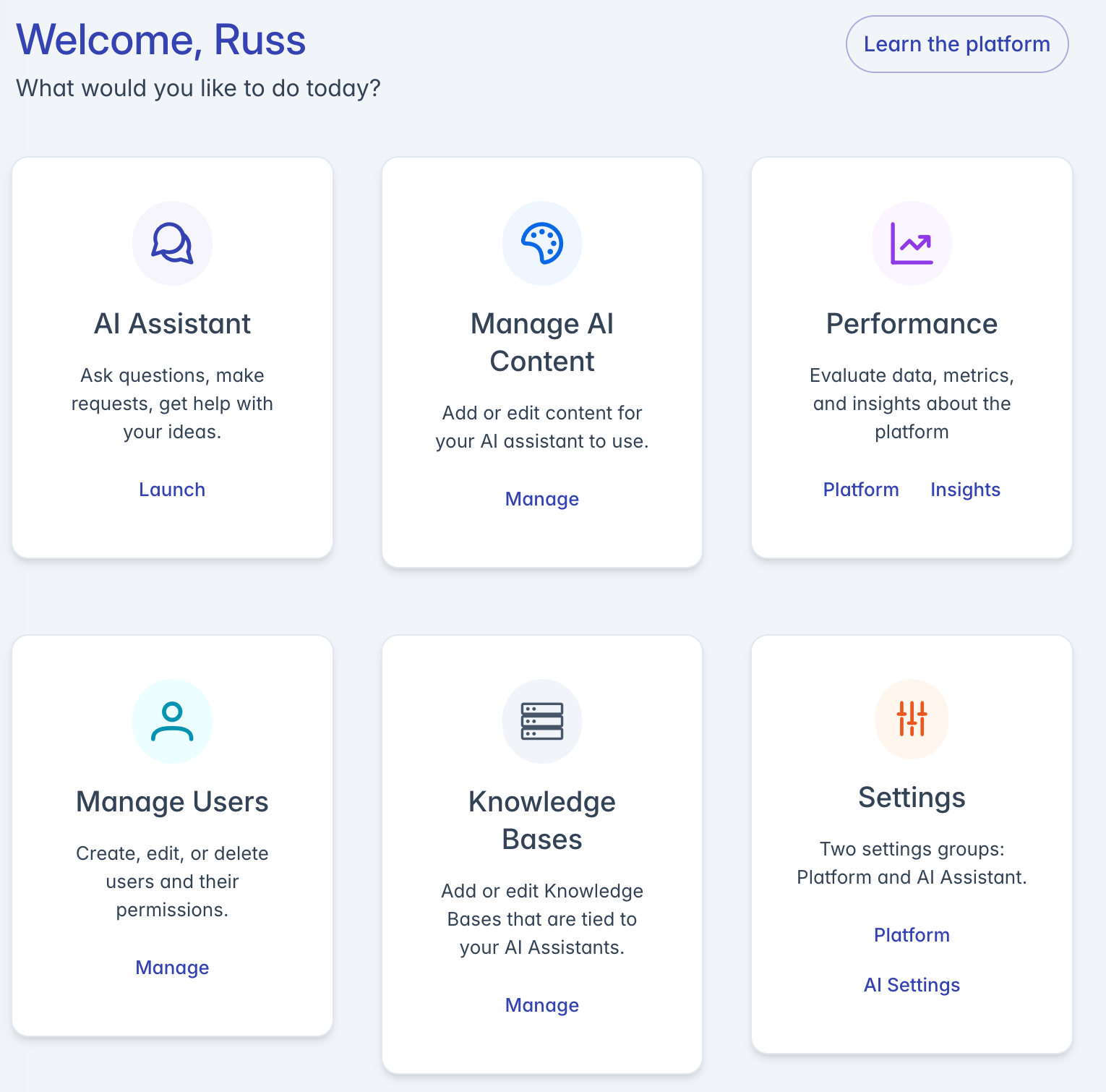
The Home Dashboard consists of these key components:
- Welcome Header: Personalized greeting with your name
- Action Prompt: "What would you like to do today?"
- Learning Button: Quick access to platform learning resources
- Navigation Cards: Six major feature cards organized in a grid layout
- Background Design: Subtle radial gradient using the platform's primary color
Navigation Cards
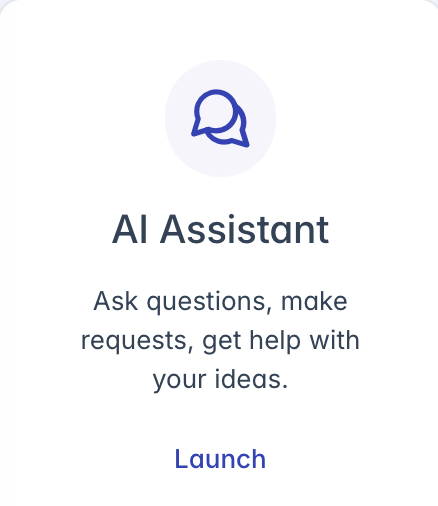
AI Assistant Card
Primary interface card for accessing the AI chat assistant:
Visual Elements:
- Primary color circular icon with chat/comments symbol
- "AI Assistant" heading in large text
- Brief description explaining its purpose
Functionality:
- Click anywhere on the card to launch the AI Assistant
- "Launch" button provides an additional click target
- Redirects to the /assistant path
Purpose:
- Main entry point for asking questions to the AI
- Access conversational interface
- Use AI capabilities for assistance
Manage AI Content Card
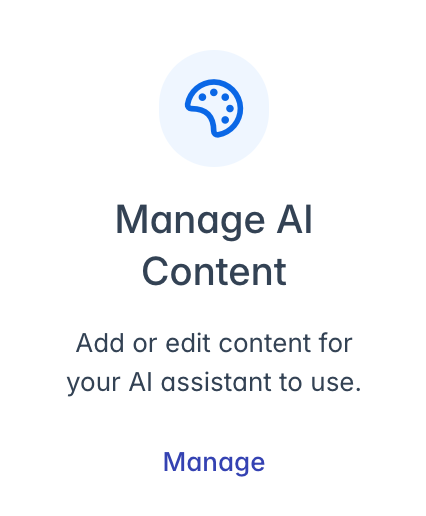
Card for accessing content management tools:
Visual Elements:
- Blue circular icon with palette symbol
- "Manage AI Content" heading
- Description explaining content management purpose
Functionality:
- Click to access the content management interface
- "Manage" button provides an additional click target
- Redirects to /content/ContentListView path
Purpose:
- Add new content for AI knowledge
- Edit existing content
- Manage documents and information the AI can access
Performance Card
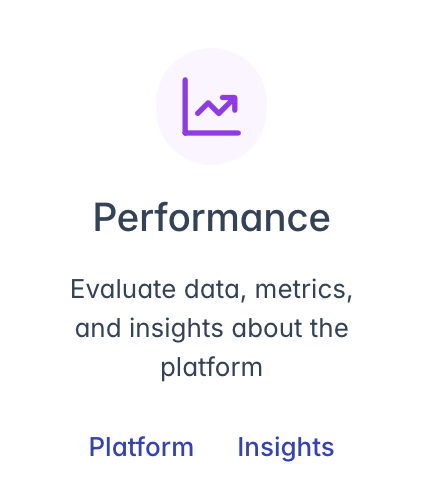
Analytics and reporting interface card:
Visual Elements:
- Purple circular icon with chart symbol
- "Performance" heading
- Description about data evaluation and metrics
Functionality:
- Click card to access insights home
- Two separate buttons: "Platform" and "Insights"
- Redirects to /insights/InsightsHome path
Purpose:
- View platform performance metrics
- Access analytics dashboards
- Review AI usage statistics and trends
Manage Users Card
User administration interface card:
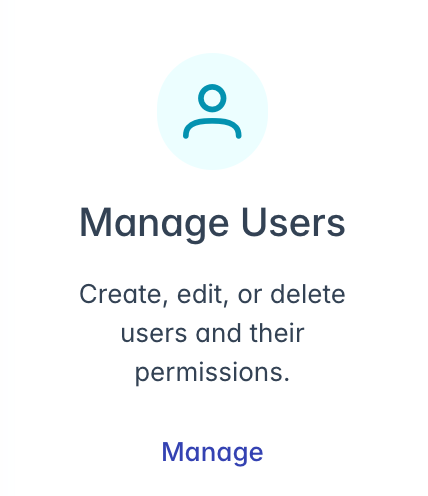
Visual Elements:
- Cyan circular icon with user symbol
- "Manage Users" heading
- Description explaining user management capabilities
Functionality:
- Click to access the user management interface
- "Manage" button provides an additional click target
- Redirects to /users/UserList path
Purpose:
- Create new user accounts
- Edit existing user information
- Manage permissions and roles
- Delete user accounts when needed
Knowledge Bases Card
Knowledge base management interface card:
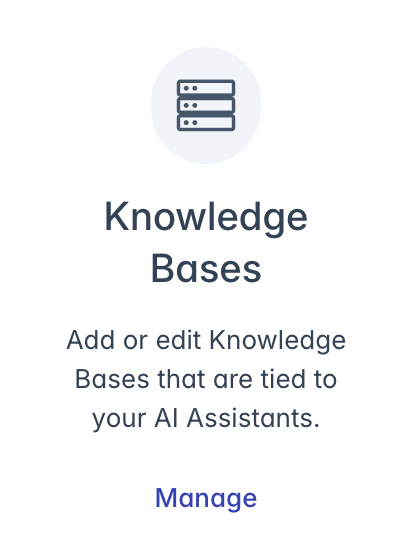
Visual Elements:
- Slate gray circular icon with server symbol
- "Knowledge Bases" heading
- Description explaining knowledge base purpose
Functionality:
- Click to access knowledge base management
- "Manage" button provides an additional click target
- Redirects to /assistant/kb/KBListView path
Purpose:
- Create and configure knowledge bases
- Manage AI information sources
- Organize content into specialized knowledge domains
Settings Card
Platform and AI configuration card:
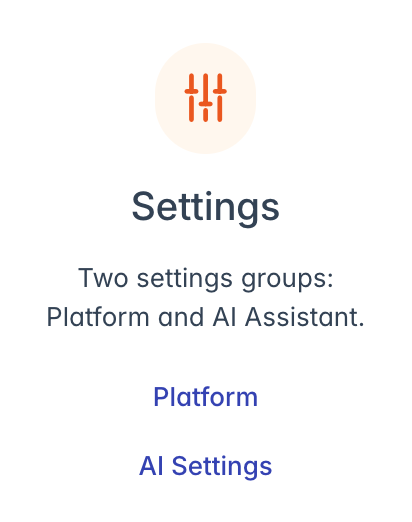
Visual Elements:
- Orange circular icon with sliders symbol
- "Settings" heading
- Description mentioning two settings categories
Functionality:
- Click card to access main settings interface
- Two separate buttons: "Platform" and "AI Settings"
- Redirects to /assistant/settings/AssistantSettings path
Purpose:
- Configure platform-wide settings
- Adjust AI behavior and capabilities
- Manage system preferences
Getting Started
For new users of the platform:
- The "Compass" button in the top-right provides quick access to learning resources

- This takes you to the AI Assistant where you can ask questions about using the platform
- Start with the AI Assistant card to familiarize yourself with basic functionality
- Explore other cards based on your specific role and responsibilities
Role-Based Access
Dashboard access and available features depend on your assigned role:
Admin Users:
- Full access to all dashboard cards
- Complete management capabilities
Content Managers:
- Access focused on content management features
- Limited access to administrative functions
General Managers:
- Access to operational features
- May have restricted access to certain configuration options
The interface adapts to show only the features your role is authorized to access.
Interface Features
Visual Design
The dashboard employs a clean, modern design philosophy:
Color Coding:
- Each card features a distinct color scheme
- Icons use consistent color patterns
- Primary platform color establishes visual identity
Card Layout:
- Uniform card sizing for visual consistency
- Adequate spacing between elements
- Clear visual hierarchy with icons, headings, and descriptions
Background:
- Subtle radial gradient using the primary color
- Creates depth without distracting from content
- Adapts to light/dark mode preferences
Responsive Layout
The dashboard adapts to various screen sizes:
Desktop View:
- 3×2 grid layout showcasing all cards
- Full spacing and complete descriptions
Tablet View:
- Adjusted padding for medium screens
- Maintains grid structure with slightly compressed spacing
Mobile View:
- Cards may stack vertically on very small screens
- Padding adjusts automatically
- Content remains accessible at all screen sizes
Interactive Elements
Cards include multiple interactive features:
Hover Effects:
- Cards display enhanced shadow on hover
- Visual feedback indicates interactivity
- Entire card area is clickable
Button Controls:
- Text buttons maintain consistent styling
- Cards with multiple functions show separate buttons
- All interactive elements have appropriate hover states
Best Practices
For effective dashboard usage:
Navigation Efficiency:
- Use cards as quick shortcuts to main features
- The dashboard serves as a home base for your workflow
- Return to the dashboard when switching between major tasks
Role-Appropriate Activities:
- Focus on the cards most relevant to your role
- Content managers should prioritize content and knowledge base cards
- Administrators may need to access all cards regularly
Learning Resources:
- Use the "Learn the platform" button when needed
- Ask the AI Assistant specific questions about platform features
- Revisit learning resources when exploring new capabilities
Regular Check-ins:
- Visit the Performance card to monitor system usage
- Check for new content requirements regularly
- Review user management needs as your organization evolves
Troubleshooting
Issue: Cards not appearing
- Check your user role permissions
- Consult with your administrator about access rights
- Try refreshing the page
- Verify you're signed in with the correct account
Issue: Cards appear but don't navigate when clicked
- Check for JavaScript errors in your browser console
- Try using the specific labeled buttons instead of clicking the card
- Verify that your session hasn't timed out
- Try using a different browser if issues persist
Issue: Dashboard loads slowly
- Check your internet connection
- Try refreshing the page
- Clear your browser cache
- Disable browser extensions that might interfere with performance
Issue: Visual elements display incorrectly
- Ensure your browser is updated to the latest version
- Check if dark mode settings match your preferences
- Try adjusting zoom level if text appears too large or small
- Test in a different browser to isolate browser-specific issues
Issue: Welcome header doesn't show your name
- Verify your user profile has a correctly configured first name
- Check user settings to update your profile information
- Sign out and sign back in to refresh session data
For additional assistance with the Home Dashboard, please contact your system administrator or refer to the platform documentation.