Appearance
Control Panel User Guide
What is the Control Panel?
The Control Panel puts you in the driver's seat of your AI experience. Whether you want to choose specific documents for the AI to reference, change how it responds, or adjust advanced settings, you can do it all right from this panel without interrupting your workflow. Ready to see what's possible? Let's explore.
How to Open the Control Panel
The Control Panel should already be open on the right side of your screen. If you don't see it, try this:
- Look for the Control Panel opener/closer icon in your AI chat

- Click it to show the panel
- You'll see three tabs at the top: Chat, Content, and Settings
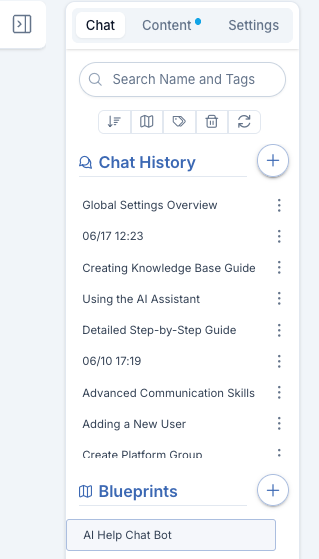
The Three Main Sections

- Chat - Your conversation history and saved templates
- Content - Choose what information the AI can access
- Settings - Change how the AI behaves and responds
Chat: Managing Your Chats
What You Can Do in Chat History:
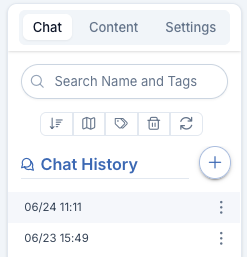
- View Chat History - See all your previous conversations
- Find Old Chats - Search through your conversation history
- Sort through Chats - Filter your chats by Tags, History or Search

What You Can Do in Blueprints:
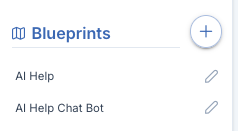
- Select pre existing Blueprints - Choose Blueprints you already have/made
- Make New Blueprints - Make a new Blueprint to use
Content: Choosing Content
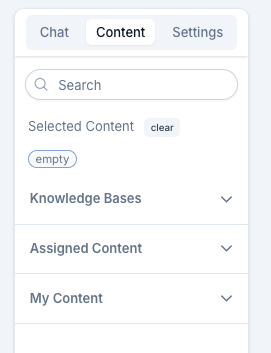
Knowledge Base Selection
- This is where you see and select your Knowledge Bases
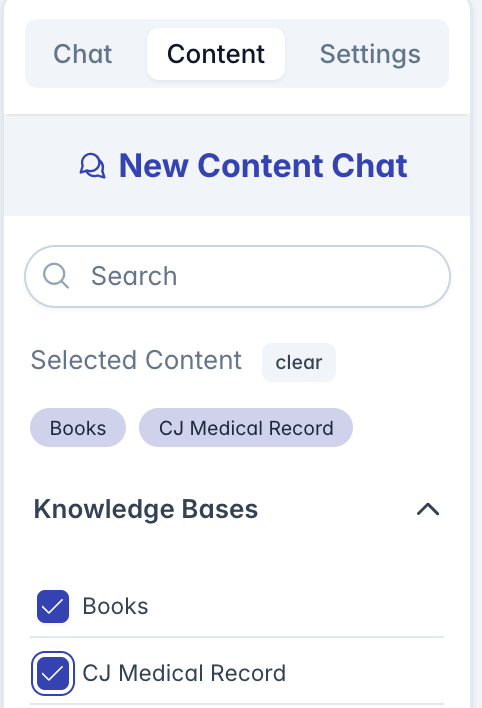
- Click the "Knowledge Bases" accordion panel to expand it
- View the list of available knowledge bases
- Each knowledge base appears with:
- Name
- Checkbox for selection
- Use the search box at the top to filter knowledge bases by name or description
Selecting Knowledge Bases
To select knowledge bases for your conversation:
- Click the checkbox next to each knowledge base you want to include
- Selected knowledge bases appear in the Selected Content area at the top
- Selecting a knowledge base includes all its content in the conversation context
- You can combine multiple knowledge bases for broader coverage
Assigned Content
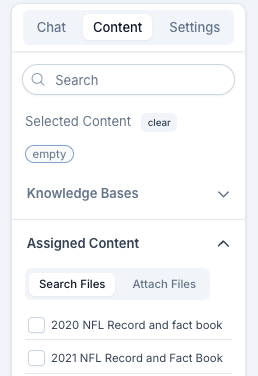
- Click the "Assigned Content" accordion panel to expand it
- Choose either search or Attach Mode
- View the list of available content items across all knowledge bases
- Each content item appears with:
- Name/title
- Use the search box to find specific content by name, type, or topic
- Click the checkbox next to each content item you want to include
- This approach is more precise than selecting entire knowledge bases
- Selected content items appear in the Selected Content area at the top
Diffrent Attaching Modes
Search Mode:
This is the default mode. It searches the AI database for your file and only pulls back data related to your conversation. This is useful for large files when you only need to find specific parts based on your questions. Uses fewer tokens for search results.
Attach Mode:
Makes the entire file content accessible to the AI. This attaches the whole file so you can reference any part of it. Uses more tokens to process the complete document with each request.
My Content
Upload your Own Files
- Click (+) Upload Files
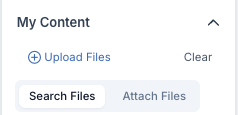
- Either Drag and drop OR click Add Files
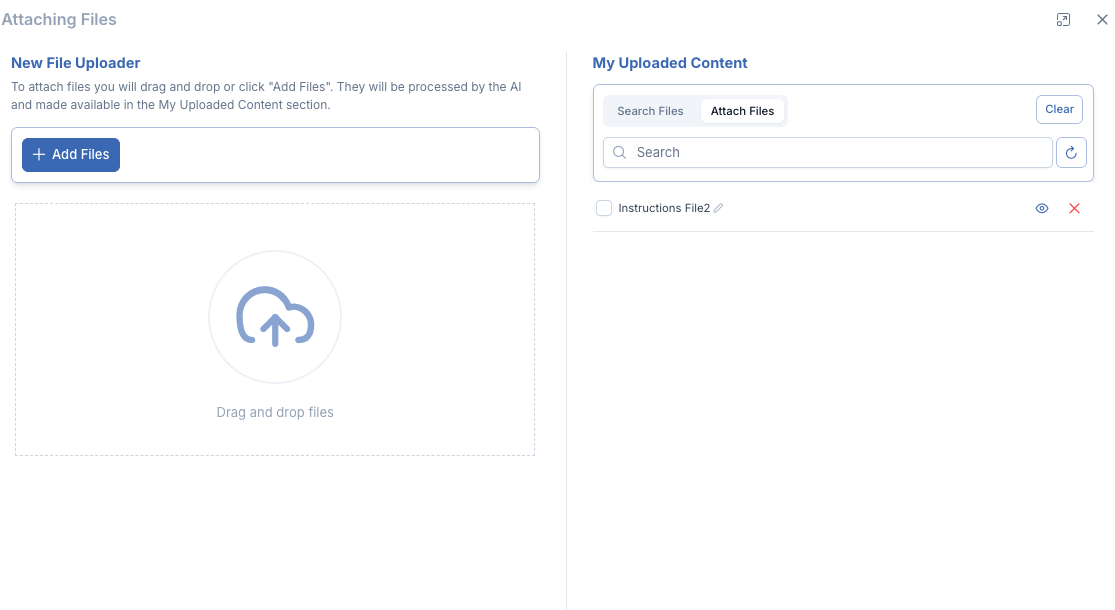
- Upload your files
- You can see them in 'My Uploaded Content' and in the Control Panel
Using your Selected Files
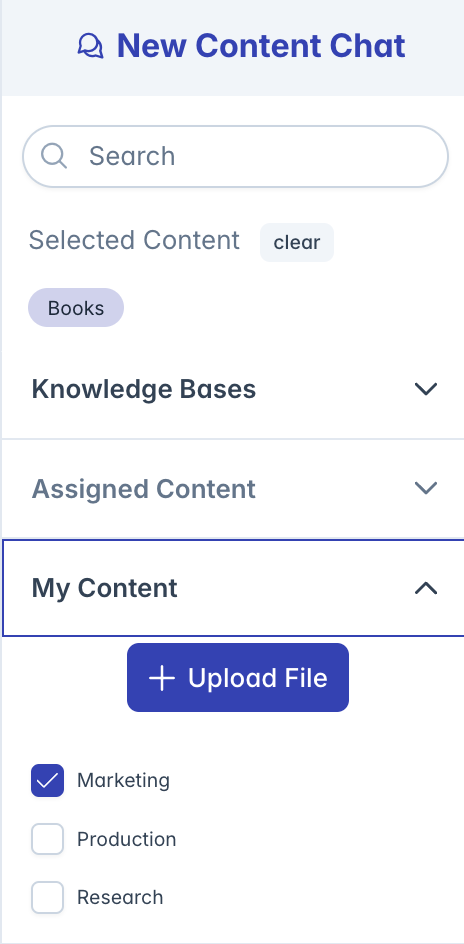
- Expand the "My Content" accordion panel
- Select a file you uploaded (Check the box)
- It will have a Blue Check Mark
Understanding Your Selected Content
When you select content, you'll see blue checkboxes at the top of the Content panel showing everything you've chosen:
- Knowledge bases
- Individual files
- Your uploaded content
Quick tip: Click the checkmark on any box to remove it, or click "Clear" to remove everything.
Settings: Customizing Your AI
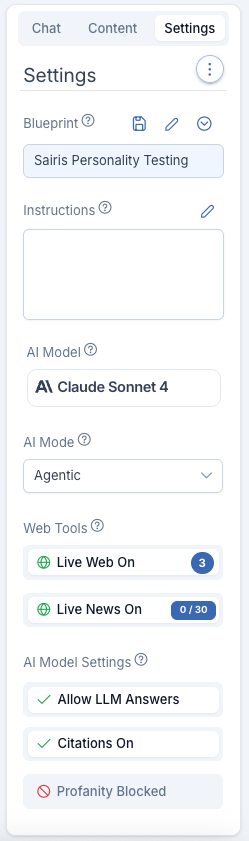
What You Can Change in Settings:
AI Model - Switch between different AI versions (like Claude Sonnet 4). Each model has different capabilities and strengths.
Blueprint - Choose pre-made templates that change how the AI acts. For example, pick a "Creative Writing" blueprint for storytelling or "Data Analysis" for working with numbers.
Instructions - Add your own custom instructions to tell the AI exactly how you want it to behave (only available if you have permission).
AI Mode - Change how the AI thinks and responds:
- Agentic mode uses more reasoning and problem-solving
- Q&A mode focuses more on using your selected content, doesn't reason as much but gives you faster responses
Citations On/Off - When turned on, the AI will show you exactly where it got its information from. Helpful for research and fact-checking.
Live Web On/Off - Allows the AI to search the internet for current information. Turn this on when you need up-to-date news or recent data.
Content Filtering - Controls what types of content the AI can discuss. Helps keep conversations appropriate for your workplace.
Quick Troubleshooting
Can't see the Control Panel? → Click the opener/closer icon in your chat
Settings are grayed out? → You might not have permission
Changes not working? → Some settings need a new chat to take effect
Need more help? Contact your IT team or system administrator