Appearance
AI Assistant Chat History Guide
Introduction
The Chat History feature in the AI Assistant allows you to manage your conversations, organize discussions with tags, and quickly find previous interactions. This guide explains how to use the chat history panel to manage your AI conversations effectively.
Accessing Chat History
The Chat History panel is located on the right side of the AI Assistant interface. If it's not visible:

- Click the Chat History icon in the top-right corner of the assistant interface
- The panel will slide open, displaying your recent conversations
Note: The chat history panel can be collapsed when not needed to provide more space for your conversation.
Chat History Interface Overview
The Chat History panel consists of these key components:
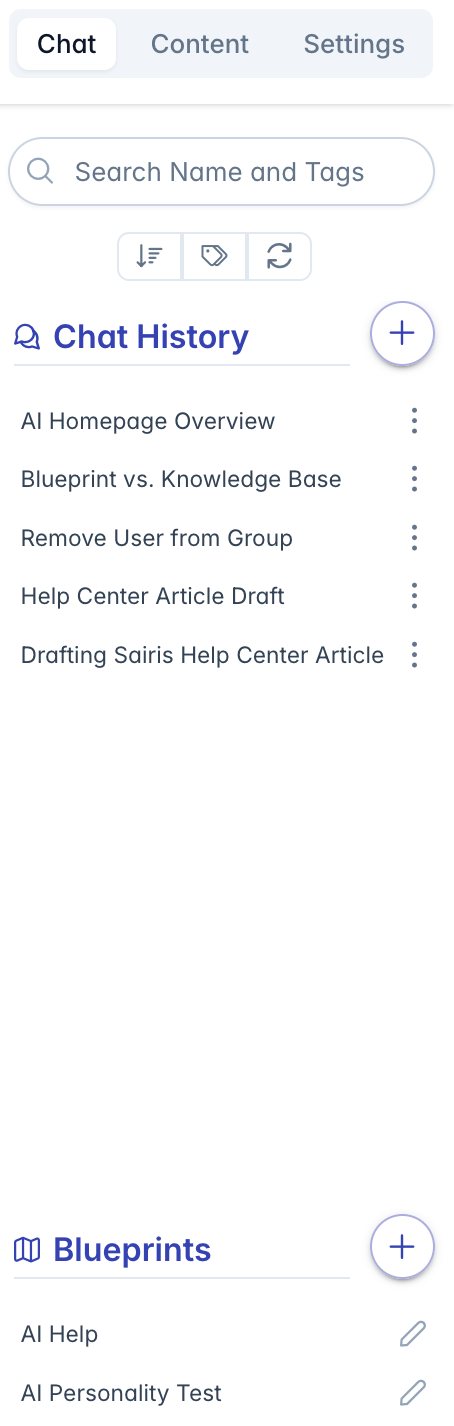
- Search Bar: Filter conversations by name or tags
- Control Buttons: Tools for sorting, filtering, and managing chats
- Chat List: Shows all your saved conversations
- Blueprint List: (Optional) Quick access to your saved AI blueprints
Managing Your Chat History
Creating a New Chat
To start a new conversation:

- Click the + (plus) button in the upper-right corner of the Chat History panel
- A new chat session will be created with a default name (date and time)
- You can immediately begin conversing with the assistant
When you start typing in a new chat, the AI will automatically generate a title based on your first question.
Searching Through Chat History
To find a specific conversation:
- Type keywords in the search bar at the top of the Chat History panel
- The list will filter to show only chats with matching names or tags
- Clear the search box to see all conversations again
Sorting Chat History
You can sort your chat history in different ways:
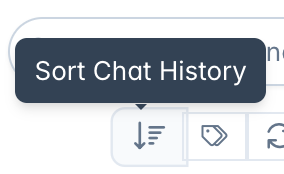
- Click the Sort button (arrow icon) at the top of the panel
- Select a sorting option from the menu:
- Default Sort: Most recently updated first (default)
- Updated (New → Old): Most recently updated first
- Updated (Old → New): Oldest updated first
- Alpha (A → Z): Alphabetical by name
- Alpha (Z → A): Reverse alphabetical
- Created (New → Old): Most recently created first
- Created (Old → New): Oldest created first
Filtering Chat History
You can filter conversations based on specific criteria:
- Blueprint Filter: Click the Map icon to show only conversations that use your currently active blueprint
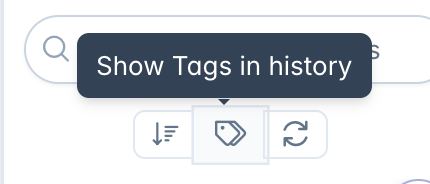
- Tag Display: Click the Tags icon to show or hide tags in the chat list
- Search: Enter text to filter by chat name or associated tags
When filters are active, a badge indicator appears next to the "Chat History" header.
Working with Individual Chats
Opening a Previous Conversation
To continue a previous conversation:
- Find the chat in the history list
- Click on the chat name
- The conversation will load in the main chat window
- You can continue the conversation by typing a new question
Managing a Chat Session
Each chat has an options menu that can be accessed by:
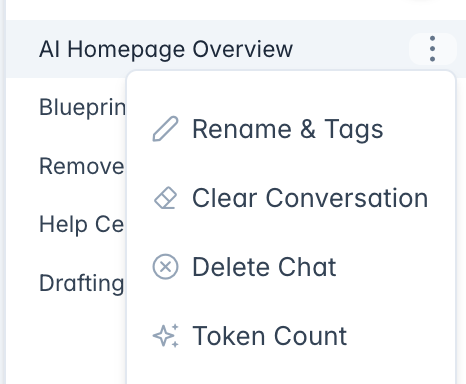
- Click the three dots (⋮) next to the chat name
- A menu appears with the following options:
- Rename & Tags: Change the chat name and manage tags
- Clear Conversation: Erase all messages but keep the chat
- Delete Chat: Completely remove the chat
- Token Count: View resource usage statistics
Renaming Chats and Adding Tags
To organize your chats:
- Select Rename & Tags from the chat options menu
- Enter a new name in the "Chat Name" field
- Add tags by typing in the "Tags" field and pressing Enter
- Click "Save" to apply your changes
Tags help you categorize and find related conversations more easily.
Viewing Chat Statistics
To see resource usage information:
- Select Token Count from the chat options menu
- A dialog shows details about:
- Number of messages
- Input token count
- Output token count
- Total token usage
This helps monitor resource consumption for complex conversations.
Bulk Managing Chat History
Bulk Deleting Chats
To remove multiple chats at once:
- Click the Trash icon in the control bar
- Checkboxes will appear next to each chat
- Select the chats you want to delete
- Click "Delete Selected Chats" at the top
- Confirm the deletion in the prompt
Refreshing Chat History
To update your chat history list with the latest data:
- Click the Refresh icon (circular arrow) in the control bar
- The list will refresh to show any recent changes
Working with Blueprints
If your role has access to Blueprints, the lower half of the Chat History panel shows your available Blueprints:
Selecting a Blueprint
To use a specific Blueprint for your conversation:
- Find the Blueprint in the list
- Click on its name
- The Blueprint will be activated and its home screen will appear
- You can start a new conversation using this Blueprint
Creating or Editing a Blueprint
To manage Blueprints:
- Click the + button in the Blueprint section header to create a new Blueprint
- Click the Pencil icon next to an existing Blueprint to edit it
- The Blueprint settings dialog will open for configuration
Active Blueprints are highlighted in the list. You can filter your chat history to show only conversations that use the currently active Blueprint.
Troubleshooting
Issue: Chat history not loading
- Click the refresh button to reload the history
- Check your network connection
- Try logging out and back in
Issue: Can't find a specific chat
- Try using different search terms
- Check if filters are active (indicated by the filter badge)
- Clear filters by clicking the filter badge
Issue: Unable to delete a chat
- Ensure you have permission to delete chats
- Try refreshing the chat history list
- Try bulk delete if individual delete isn't working
For additional assistance with chat history management, please contact your system administrator.