Appearance
AI Blueprint Settings Configuration Guide
Introduction
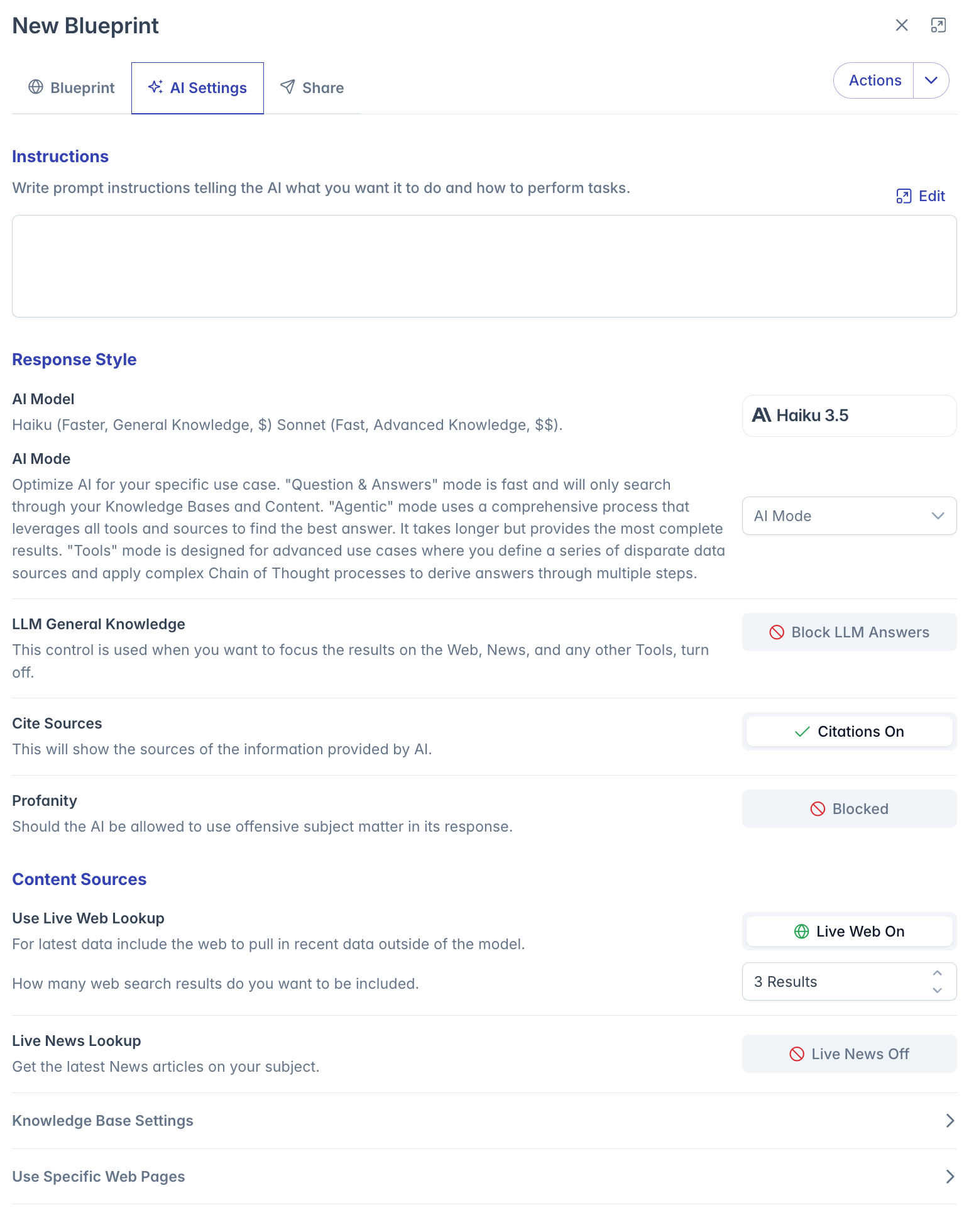
AI Blueprint Settings allow you to fine-tune how your AI assistant responds, what information it can access, and what capabilities it has. These settings control the AI's behavior, knowledge sources, and interaction style to create the perfect assistant for specific tasks, topics, or workflows.
Accessing Blueprint AI Settings
Blueprint AI Settings can be accessed:
- When creating a new Blueprint by clicking the "+ Blueprint" button
- When editing an existing Blueprint by clicking the pencil icon
- Through the "AI Settings" section of an existing Blueprint
Note: Some settings may be locked if you don't have edit permissions for the Blueprint or if it's marked as secure.
Secure Blueprint Protection
Blueprints can be marked as secure, which means:
- Only owners can view and modify the actual settings
- Non-owners will see a "Secure Blueprint" message
- Users can still use the Blueprint but cannot see its configuration
If you see the secure Blueprint message, you can still use the Blueprint but will need owner access to view or modify its settings.
Blueprint Settings Categories
Blueprint settings are organized into three main categories:
- Instructions: Define what the AI should do and how it should behave
- Response Style: Control how the AI generates and formats its responses
- Content Sources: Determine what information the AI can access
Configuring AI Instructions
Instructions are the most powerful way to guide AI behavior:
- Click the "Edit" button next to Instructions
- In the dialog that appears, enter detailed instructions explaining:
- What role the AI should adopt
- How it should analyze information
- What format its responses should follow
- Any limitations or restrictions it should observe
Best Practices for Instructions:
- Be specific and detailed
- Clearly define the AI's purpose and audience
- Specify any required structures or formats
- Include examples of ideal responses when possible
- Instructions can be several paragraphs long
Response Style Settings
AI Model Selection
Choose which AI model powers your Blueprint:
- Click on the model name to open the selection dialog
- Options typically include:
- Haiku 3.5: Faster response times, good for general knowledge, lower cost
- Sonnet 3.5: More advanced reasoning, better for complex tasks, higher cost
- Other models may be available depending on your organization
AI Mode
Select how the AI processes information:
- Question & Answers: Simple direct responses to queries using only your selected content
- Agentic: Advanced mode that uses research, reasoning, and analysis with access to multiple tools
LLM General Knowledge
Control whether the AI can use its pre-trained knowledge:
- Allow LLM Answers: Enable the AI to use its training data when responding
- Block LLM Answers: Restrict the AI to only use the content sources you specify
This setting is particularly important when you need to ensure responses come only from your approved content.
Citation Settings
Control whether the AI provides sources for its information:
- Citations On: The AI will include references for facts and quotes
- Citations Off: The AI will provide information without citations
Citations are particularly useful when accuracy verification is important.
Profanity Controls
Determine how the AI handles sensitive language:
- Allowed: The AI can include potentially offensive language when appropriate
- Blocked: The AI will filter out profanity and sensitive content
Content Sources Configuration
Live Web Lookup
Enable the AI to search the internet in real-time:
- Toggle "Live Web" on to allow internet searches
- Specify the number of search results (1-25) to include
- More results provide more comprehensive information but may increase response time
Live News Lookup
Enable the AI to search recent news articles:
- Toggle "Live News" on to allow news searches
- Configure:
- Number of news results to include (1-50)
- How recent the news should be (1-1825 days)
Knowledge Base Settings
Fine-tune how the AI searches through your organization's knowledge:
KB Search Results: Set how many matching document chunks to retrieve (1-500)
- Higher values provide more comprehensive but potentially redundant information
- Lower values focus on the most relevant matches
KB Min Score Results: Set the minimum relevance threshold (1-100%)
- Higher values (e.g., 80%) ensure only highly relevant content is included
- Lower values (e.g., 40%) capture more distantly related information
Managing Knowledge Sources
Control what content the AI can access:
Click "Edit Content" to open the content selection dialog
Select from two types of sources:
- Knowledge Bases: Collections of related documents
- Assigned Content: Individual files and documents
Search for specific content using the search boxes
Selected items are highlighted and show in the count badges
Selections are automatically applied when you close the dialog
Web Pages Configuration
Specify up to 15 specific web pages for the AI to reference:
- Expand the "Use Specific Web Pages" section
- Click the "+" button to add a new web page
- Enter the complete URL starting with "https://"
- Remove pages by clicking the trash icon
This feature is useful when you want the AI to analyze specific online resources.
Working with Blueprint Settings
Editing AI Instructions
To modify the instructions:
- Click "Edit" next to Instructions
- In the dialog, enter your detailed instructions
- Focus on clarity and specificity
- Close the dialog to apply changes
Handling Restricted Blueprints
If a Blueprint is marked as "Limited" or has restricted access:
- You'll see a lock icon and notification
- Restricted elements will be disabled
- You can still use the Blueprint but cannot modify restricted settings
Saving Changes
After configuring all settings:
- Return to the main Blueprint editor
- Click "Save" to apply your changes
- The updated settings will take effect immediately for all users of the Blueprint
Troubleshooting
Issue: Cannot edit certain settings
- Verify you have owner permissions for the Blueprint
- Check if the Blueprint is marked as secure or limited
- Some Blueprints linked to knowledge bases may have locked settings
Issue: Web or news search not working
- Ensure the toggles are enabled
- Verify search results count is greater than 0
- Check if your organization allows these features
Issue: Knowledge base content not appearing in AI responses
- Ensure content is properly selected
- Check if the minimum match score is set appropriately
- Verify the content contains information relevant to your queries
Issue: Changes not saving
- Make sure you have edit permissions
- Click the Save button after making changes
- Check for any validation errors in required fields
For additional assistance with Blueprint AI settings, please contact your system administrator.
Blueprint Configuration Tabs
Blueprint Tab
AI Settings Tab
The AI Settings tab contains AI behavior configuration:
- System instructions
- AI model selection
- Response style preferences
- Content sources configuration
- Knowledge base selection
- Web integration settings