Appearance
AI Blueprint Creation and Management Guide
Introduction
AI Blueprints allow you to create reusable configurations for the AI Assistant with predefined settings, instructions, content sources, and conversation starters. Blueprints can be shared with teams, embedded in knowledge bases, or kept private for personal use. They help maintain consistency in AI interactions and save time by eliminating the need to reconfigure settings for common tasks.
Accessing Blueprint Settings
You can access the Blueprint Settings in two ways:
When creating a new Blueprint:
- Click the + button in the Blueprint section of the Chat History panel
- Select "Create New Blueprint" from the AI Settings options menu
When editing an existing Blueprint:
- Click the pencil icon next to a Blueprint in the list
- Select "Edit Blueprint" from the Blueprint options menu
Blueprint Editor Interface
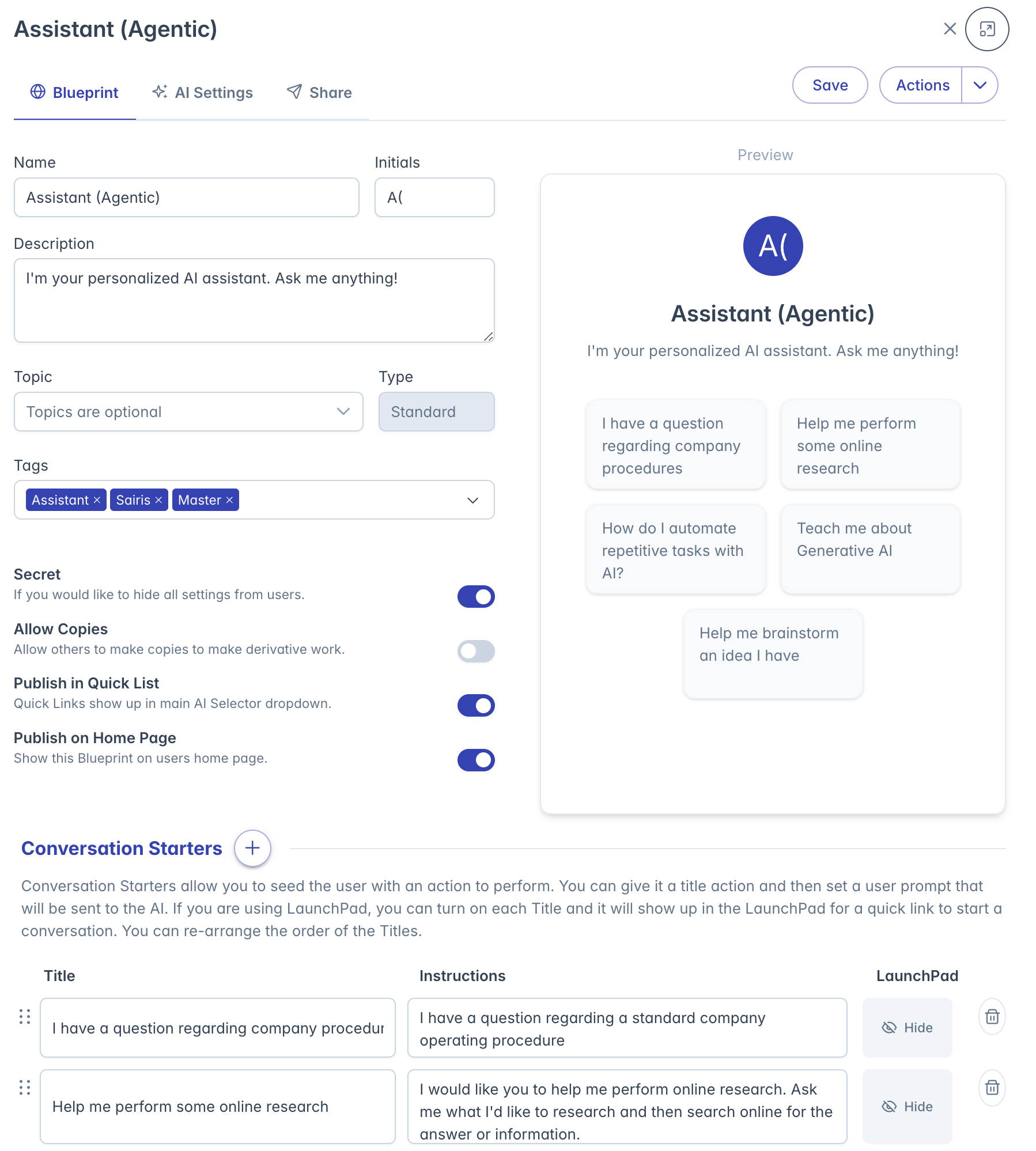
The Blueprint editor is organized into two main sections:
- Configuration Panel (left side): Contains all editable settings and options
- Preview Panel (right side): Shows a live preview of how the Blueprint will appear to users
Creating a Blueprint
Basic Blueprint Information
To set up a new Blueprint:
Name (Required): Enter a descriptive title for your Blueprint
- Must be unique across all Blueprints
- Will be visible to users who can access the Blueprint
Initials: Set 1-2 characters that appear in the Blueprint avatar
- Auto-generated from the name if left blank
- Can be manually customized
Description: Provide details about the Blueprint's purpose and use
- Appears on the Blueprint card and selection screen
- Should explain when and how to use this Blueprint
Topic: Categorize your Blueprint for easier discovery
- Select from predefined topics in your organization
- Helps with organizing and filtering Blueprints
Type: Identifies the origin of the Blueprint
- Standard: User-created Blueprints
- Knowledgebase: Blueprints linked to a knowledge base
- System: Pre-configured Blueprints provided by the platform
Tags: Add keywords to make your Blueprint discoverable
- Enter multiple tags separated by commas
- Can select from existing tags or create new ones
- Helps users find relevant Blueprints when searching
Blueprint Visibility and Sharing Settings
Control how others can interact with your Blueprint:
Secret: Hide the Blueprint's settings from users
- When enabled, users can use the Blueprint but cannot see its configuration
- Useful for protecting proprietary prompts or sensitive settings
- Only owners can view or edit the actual settings
Allow Copies: Let others create derivative Blueprints
- When enabled, users can duplicate and modify your Blueprint
- When disabled, users can use but not copy the Blueprint
- Useful for maintaining control over standardized configurations
Show in Chat History Control Panel: Make the Blueprint easily accessible
- When enabled, the Blueprint appears in the Blueprints list on the home page
- When disabled, the Blueprint can still be used but is less visible
- Helps manage which Blueprints are prominently featured
Setting Up Conversation Starters
Conversation starters provide users with pre-configured prompts that initialize the AI with specific instructions:
Adding Conversation Starters:
- Click the + button next to "Conversation Starters"
- Each starter appears as a card in the Preview panel
- Users can click these to quickly start a conversation with predefined context
Configuring Each Starter:
- Title: Short, descriptive name for the action
- Instructions: The actual prompt that will be sent to the AI
- LaunchPad: Toggle whether this starter appears in the LaunchPad interface
Organizing Starters:
- Drag and drop starters to change their order
- The order determines how they appear in the LaunchPad and selection screens
- Use the ellipsis handle (⋯) on the left to drag starters
Removing Starters:
- Click the trash icon to delete a conversation starter
- Deleted starters cannot be recovered
Blueprint Preview
The right side of the editor shows a live preview of how your Blueprint will appear to users:
- Avatar: Shows the Blueprint's initials or icon
- Title: Displays the Blueprint name
- Description: Shows the Blueprint description
- Conversation Starters: Displays cards for all defined starters
This preview updates in real-time as you make changes to help you visualize the end result.
Managing Blueprints
Saving Your Blueprint
After configuring all settings:
- Click the "Save" button at the bottom of the editor
- If any required fields are missing, they will be highlighted
- Once saved, the Blueprint becomes available for use
Editing Existing Blueprints
To modify a Blueprint after creation:
- Open the Blueprint in the editor
- Make your desired changes
- Click "Save" to update the Blueprint
- All users of the Blueprint will receive the updated settings
Note: Some Blueprints may be locked if they're linked to a knowledge base or if you don't have edit permissions.
Sharing Blueprints
To share a Blueprint with others:
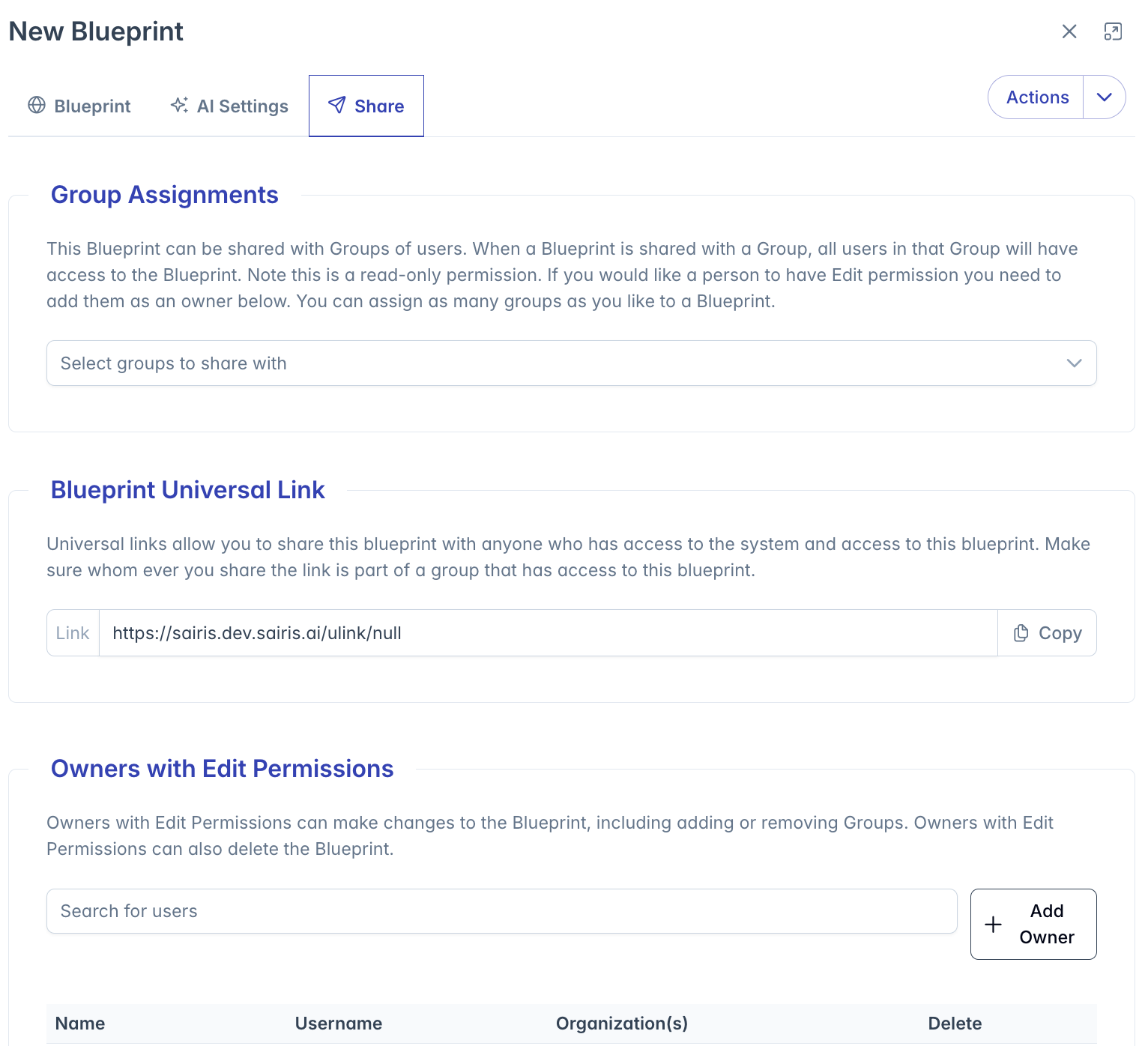
- Add other users or groups as Owners in the Ownership tab
- Configure group assignments for read-only access
- Enable "Show in Chat History Control Panel" to make it visible
Troubleshooting
Issue: Cannot save Blueprint due to name validation
- Ensure the Blueprint name is unique
- Check for error messages under the name field
Issue: Conversation starters not appearing in preview
- Verify you've provided both a title and instructions
- Expand the Conversation Starters section if collapsed
Issue: Cannot edit certain settings
- Check if the Blueprint is locked (often the case for knowledge base Blueprints)
- Verify you have owner permissions for the Blueprint
Issue: Blueprint not appearing in the list
- Check if "Show in Chat History Control Panel" is enabled
- Verify you have permission to access the Blueprint
- Try searching for the Blueprint by name or tags
For additional assistance with Blueprint creation and management, please contact your system administrator.