Appearance
AI Content: Manager User Guide
Introduction
The AI Content: Manager provides a comprehensive interface for viewing, creating, and managing all content within your AI Assistant platform. This centralized hub allows you to work with various types of content including documents, cards, links, and assets. The AI Content: Manager makes it easy to find, filter, and organize content across your knowledge bases.

Accessing AI Content: Manager
The AI Content: Manager is accessible to users with specific roles:
- Admin
- Content
- Manager
To access this component, navigate to the Content section in the main navigation menu. The default view shows all content across the system.
AI Content: Manager Interface Overview
The AI Content: Manager consists of these key components:
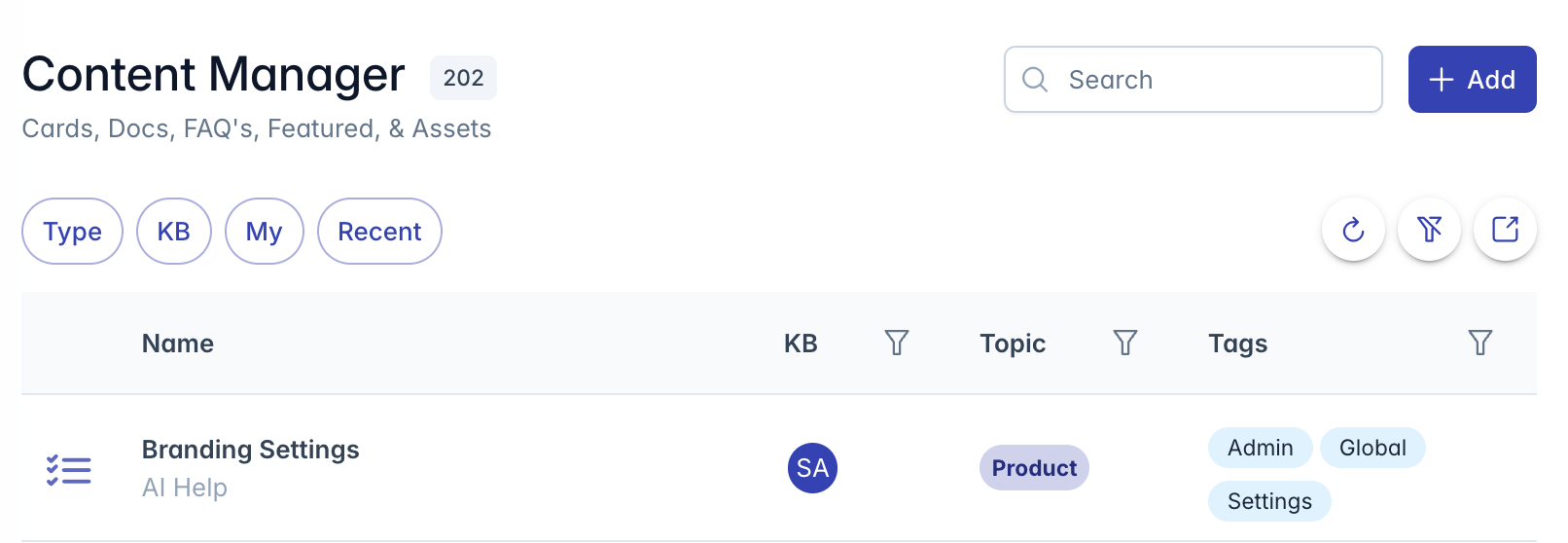
- Header Section: Contains the title "AI Content: Manager" with content count badge, description, and Add button
- Search and Filter Controls: Tools for finding specific content including global search, content type filters, knowledge base filters, and quick filters
- Data Table: Displays content items in a sortable, filterable table
- Action Buttons: Quick access to refresh data, clear filters, and export to Excel
Viewing Content
Content List Components
The content list displays comprehensive information about each content item:
- Content Type Icon: Visual indicator showing the type of content (document, card, link, etc.)
- Name/Description: The primary identifier and explanatory text for each content item
- Knowledge Base Associations: Visual representation of knowledge bases containing this content
- Topic Tags: Categorization labels for the content
- Content Tags: Additional classification tags
- Update Information: When the content was last modified
Content Type Icons
Different icons represent various content types:
- Documents: File-specific icons for PDF, Word, Excel, PowerPoint, etc.
- Cards: Credit card icon
- Links: Link icon
- FAQ Items: List icon
- Assets: Image icon
- Featured Content: Grid icon
- Web Crawler Content: Sitemap icon
Searching and Filtering Content
Global Search
The search box at the top of the interface searches across multiple content fields:
- Content name
- Description
- Tags
- Topics
- Content ID
- User names (created/updated by)
Enter text in the search box to instantly filter the list to matching content items.
Content Type Filtering
To filter content by type:
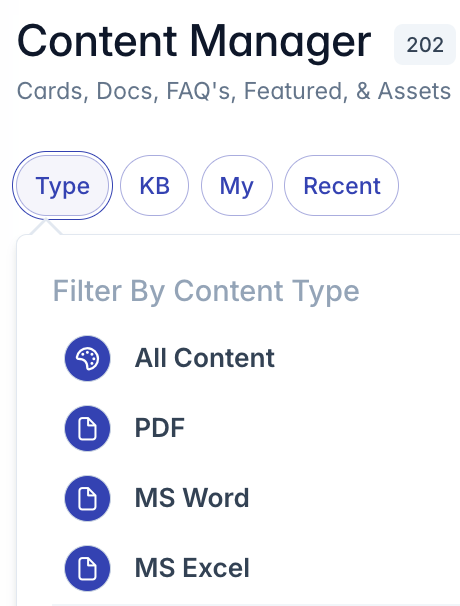
Click the "Type" button to open the content type selection menu
Options include:
- All Content: Shows all content types
- PDF: Only PDF documents
- MS Word: Word documents (.doc, .docx)
- MS Excel: Excel spreadsheets (.xls, .xlsx)
- MS PowerPoint: PowerPoint presentations (.ppt, .pptx)
- Rich Text: RTF documents
- Text File: Plain text files (.txt)
- CSV: Comma Separated Value files
- JSON: JSON data files
- XML: XML data files
- HTML: Web page files
- Video MP4: Video files
- Audio MP3: Audio files
- Markdown: MD files
- Web Link: External links
The selected filter displays on the button (e.g., "PDF" or "Link")
The list updates to show only content of the selected type
To remove the filter, select the remove filter image on the top right

AI Content Processing Queue
When you upload documents, they are processed by the system and go through a fanout process. To monitor processing status:
- Click the clock icon button to toggle the Content Processing Queue view
- How long ago the file started processing
- During processing, a progress indicator is shown and may show any of the following:
- Processing
- Convert to PDF (only if it's a non-pdf file)
- Compress
- Extracting tables: Processing structured table data in your document
- Vectorizing data: Inserting the data into the DB
- Complete
- The system automatically refreshes every 30 seconds when documents are processing
If documents are taking longer than expected to process:
- Larger documents may take more time
- Complex file formats like PDFs with images require additional processing time
- Check your network connection
Knowledge Base Filtering
To filter content by knowledge base:

- Click the "KB" button to open the knowledge base selection menu
- Options include:
- All KBs: Shows content from all knowledge bases
- Individual knowledge bases listed by name
- The selected KB name displays on the button
- The list updates to show only content in the selected knowledge base
- To remove the filter, select the remove filter image on the top right
Topic and Tag Filtering
To filter by topics or tags:
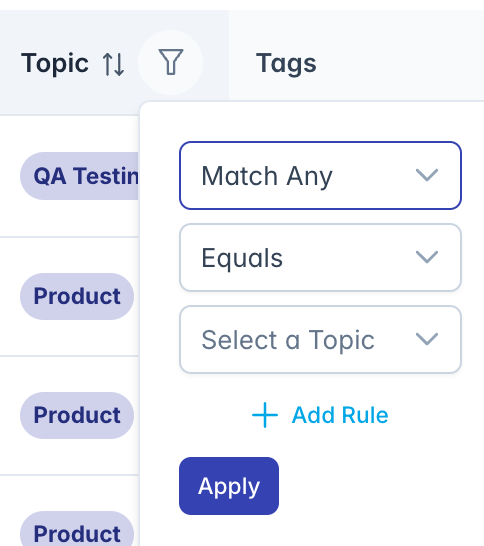
- Click the filter icon in the column header for Topics or Tags
- Select from the dropdown list of available topics or tags
- The list updates to show only content with the selected topic or tag
Content Processing Queue
When you upload documents, they are processed by the system and go through a fanout process. To monitor processing status:
- Click the clock icon button to toggle the Content Processing Queue view
- Processing documents will show a progress bar indicating completion percentage
- The system automatically refreshes every 30 seconds when documents are processing
If documents are taking longer than expected to process:
- Larger documents may take more time
- Complex file formats like PDFs with images require additional processing time
- Check your network connection
Quick Filters
Pre-configured filters for common scenarios:

- My: Shows only content updated by the current user
- Recent: Sorts content by update date with newest items first
Clearing Filters
When filters are active, a "Filter On" indicator appears and the filter button turns blue.
To clear all active filters:
- Click the filter slash button (filter icon with a slash)
- All filters will be reset to their default state
- The complete content list will be displayed
Managing Content
Adding New Content
To add new content:
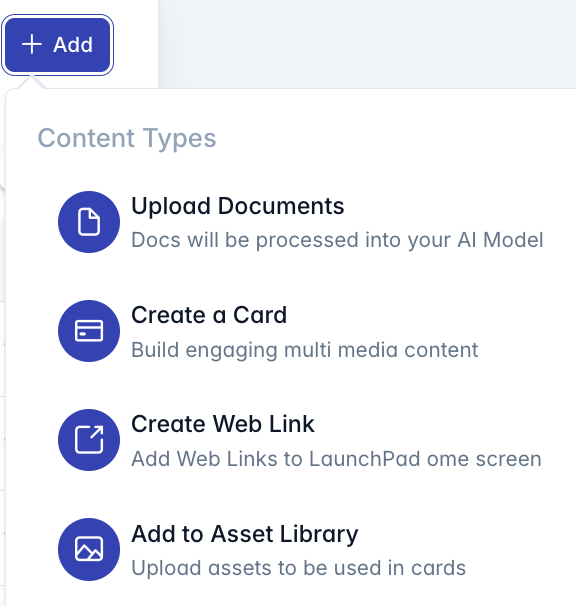
Click the "Add" button in the top-right corner
The content type menu appears with options:
- Upload Documents: Add document files (PDF, Word, Excel, etc.)
- Create a Card: Build rich multimedia content cards
- Create Web Link: Add external web page references
- Add to Asset Library: Upload images and other assets for use in cards
Click the desired option to navigate to the specific creation interface
Viewing and Editing Content
To view or edit an existing content item:
- Click anywhere on the content row in the table
- The system navigates to the appropriate editor based on content type:
- Documents open in the document viewer
- Cards open in the card designer
- Links open in the link editor
Please see File Manager, and View Existing Files for detailed information
Content Operations
Exporting Content List
To export the content list to Excel:
- Click the "Export to Excel" button (external link icon in top-right)
- Confirm the export in the dialog that appears
- The browser will download a CSV file
- The export includes all currently visible content (respects active filters)
Refreshing Content Data
To ensure you're viewing the most current data:
- Click the "Refresh Data" button (refresh icon in top-right)
- The system will reload all content data from the server
- This is useful after making changes or when multiple users are working simultaneously
Understanding Content Types
Documents
Documents can be various file types:
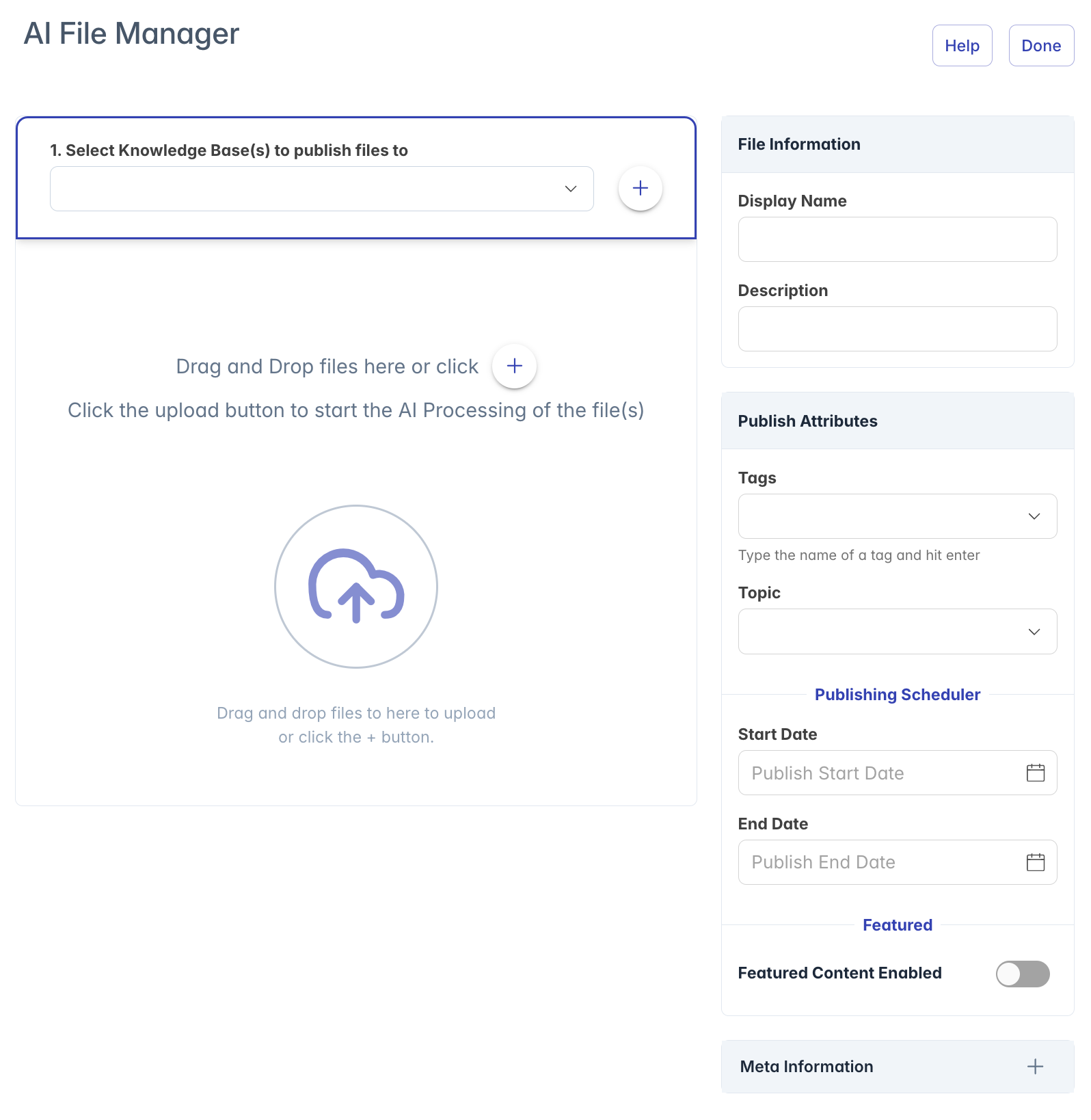
- PDFs: Standard document format with fixed layout
- Office Documents: Word, Excel, PowerPoint files
- Text Files: Plain text, RTF, CSV, JSON, XML
- Media Files: MP4 videos, MP3 audio
- Code/Markup: HTML, Markdown
Please see File Manager User Guide for information on uploading and managing files
Documents are processed by the AI and their content becomes searchable in knowledge bases.
Cards
Cards are rich content items created in the platform:
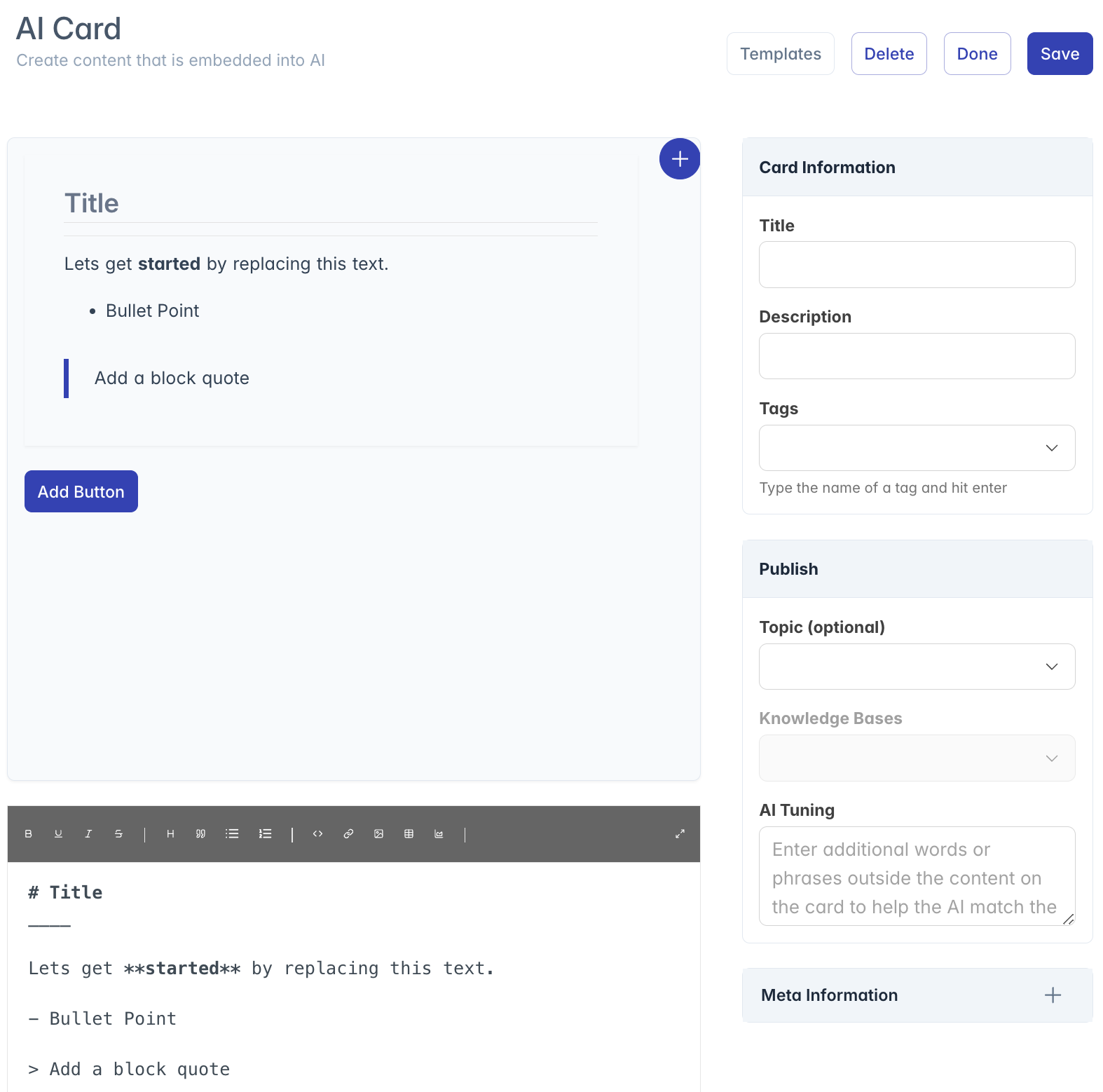
- Designed for engaging user interactions
- Can contain text, images, buttons, and other interactive elements
- Often used for frequently accessed information
- Appear in the AI interface as structured responses
Please see AI Card Designer User Guide for information on managing cards
Web Links
Web links point to external resources:
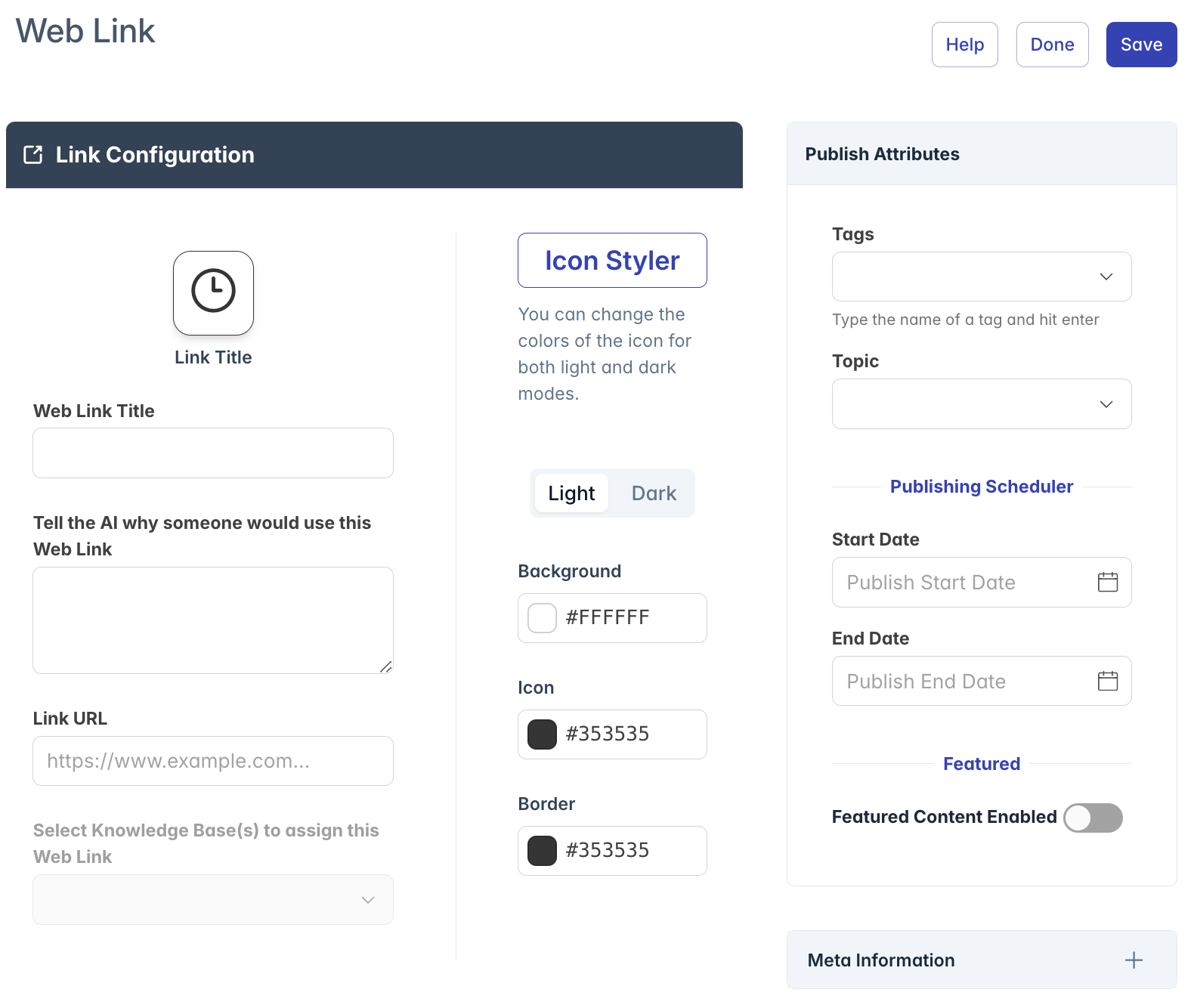
- Reference websites outside the platform
- Appear in search results and LaunchPad
- Include title, description, and URL
- Can be categorized with topics and tags
Please see Web Link Manager User Guide for information on managing web links
Assets
Assets are supporting files:
- Images, icons, and graphics
- Used within cards and other content
- Stored in the asset library
- Not directly processed by AI but support other content
Please see File Manager User Guide for information on uploading and managing assets
Other Content Types
- FAQ Items: Question and answer pairs
- Featured Content: Highlighted items for prominent display
- Web Crawler Content: Automatically gathered from websites
Best Practices
For effective content management:
Naming Conventions:
- Use clear, descriptive names
- Include content type in name when appropriate
- Keep names concise but informative
Knowledge Base Organization:
- Assign content to appropriate knowledge bases
- Consider creating specialized KBs for different departments or subjects
- Review KB assignments periodically
Topics and Tags:
- Use topics for primary categorization
- Use tags for more granular classification
- Be consistent with tag naming
- Don't over-tag content (5-7 tags maximum is ideal)
Regular Maintenance:
- Review older content for relevance
- Update content when information changes
- Remove duplicates or outdated material
- Check for broken links
Search Optimization:
- Include relevant keywords in content names and descriptions
- Use clear, specific topic categories
- Add descriptive tags that users might search for
Troubleshooting
Issue: Content list is empty
- Check if filters are active (blue filter button indicates active filters)
- Click the "Clear Filters" button to remove all filters
- Refresh the data using the refresh button
- Verify you have permissions to view content
Issue: Cannot find specific content
- Try searching by partial name or description
- Clear all filters and browse the complete list
- Check if you're looking in the correct knowledge base
- Verify the content exists and you have permissions to view it
Issue: Content appears in wrong format
- Check the file extension and content type
- Some file types may be represented by generic icons
- Verify the file was uploaded correctly
Issue: Knowledge base avatars not displaying correctly
- The KB store may need refreshing
- Try refreshing the page
- Check if the knowledge bases exist in the system
Issue: Filter shows no results
- Your filter combination may be too restrictive
- Try removing one filter at a time to see what's causing the issue
- Verify that content matching your criteria exists
Issue: Export not working
- Check browser download settings
- Ensure you have proper permissions
- Try with a smaller dataset by applying filters first
For additional assistance with content management, please contact your system administrator or refer to the platform documentation.