Appearance
Web Link Manager User Guide
Introduction
The Web Link Manager allows you to create and manage hyperlinks to external websites and applications, complete with customized icons and styling. These links can be used throughout the AI Assistant platform and in LaunchPad interfaces, providing users with quick access to important resources. This guide explains how to create, customize, and manage web links effectively.
Creating an Web Link is just a way to create a hyperlink to a url with an icon and design. These Web Links can be put into LaunchPad so users have quick access to your company's web apps.
Accessing Web Link Manager
The Web Link Manager is accessible to users with specific roles:
- Admin
- Content
- Manager
To access this component:
- Navigate to the Content section in the main menu
- Select "Add" and choose "Create Web Link"
- Or, select an existing web link from the Content Manager to edit it
Web Link Manager Interface Overview
The Web Link Manager consists of these key sections:
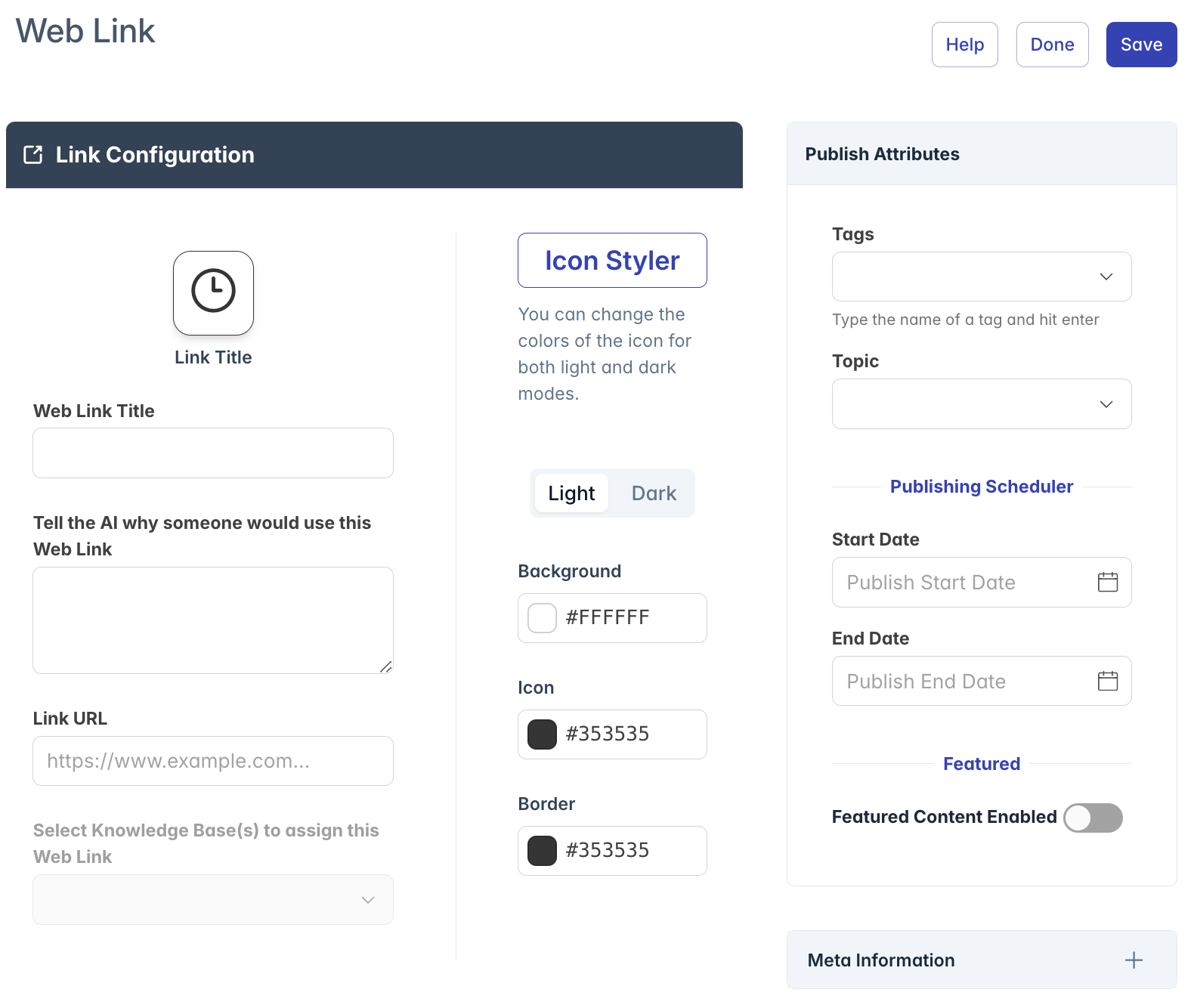
- Header Bar: Contains the title, help button, and action buttons (Save, Delete, Done)
- Link Configuration Panel: Where you configure the link title, description, and URL
- Icon Styler: Tools to customize icon appearance for light and dark themes
- Publish Attributes Panel: Controls for tags, topics, scheduling, and featured content settings
Creating Web Links
Basic Link Information
To configure the fundamental link details:
Web Link Title: Enter a descriptive name for the link
- This appears as the title beneath the icon
- Should be concise but descriptive
Link Description: Provide context about the link's purpose
- Explain why someone would use this web link
- This helps the AI understand and suggest the link appropriately
Link URL: Enter the complete web address
- Must include https:// or http:// prefix
- Will be validated to ensure it's a properly formatted URL
Icon Configuration
Each link has a visual icon that represents it in the interface:
- The default icon appears in the preview box at the top of the form
- Click on the icon or preview box to open the Icon Picker dialog
- The icon appears within a customizable container that can be styled separately
Theme-Specific Styling
Links can have different appearances in light and dark modes:
- Use the Light/Dark toggle button to switch between theme configurations
- Configure colors independently for each theme
- Changes in one theme don't affect the other theme's settings
Icon Customization
Selecting an Icon
To choose an icon for your link:
- Click on the icon preview box at the top of the form
- The Icon Picker dialog will open
- Browse through available icons or use the search function
- Click on your desired icon to select it
- The dialog will close and the selected icon will appear in the preview
Customizing Icon Colors
Three color components can be customized:
Background: The color behind the icon
- Default: White (#FFFFFF) in light mode, Black (#000001) in dark mode
- Affects the square container where the icon appears
Icon: The color of the icon itself
- Default: Dark gray (#353535) in light mode, White (#FFFFFF) in dark mode
- Changes the actual icon color
Border: The outline color around the icon container
- Default: Dark gray (#353535) in light mode, Medium gray (#686868) in dark mode
- Defines the border of the square container
Light and Dark Mode Settings
To configure theme-specific appearances:
- Click the Light/Dark toggle button to switch between modes
- Each mode has its own independent color settings
- Use the color pickers to select colors for each component
- The preview instantly updates to show how your selections look
Knowledge Base Integration
Web links can be associated with knowledge bases:
- Select one or more Knowledge Bases from the dropdown
- This makes the link available when using those knowledge bases
- The AI can suggest the link when answering questions related to selected knowledge bases
- Not required, but recommended for better AI integration
Publishing Configuration
Tags and Topics
Categorize your link for better organization and discovery:
Tags: Add multiple relevant tags
- Type a tag and press Enter to add it
- Select from existing tags or create new ones
- Helps with filtering and organization
- No limit to number of tags
Topic: Select a single primary topic
- Choose from pre-defined topic list
- One topic per link for clear categorization
- Used for reporting and analytics
Publishing Schedule
Control when your link is visible to users:
Start Date: When the link becomes available
- Click to open a date/time picker
- Optional - leave blank for immediate availability
- Includes both date and time selection
End Date: When the link is no longer available
- Click to open a date/time picker
- Optional - leave blank for permanent availability
- Useful for temporary resources or time-limited promotions
Featured Content Configuration
Featured Content Settings
Make your link stand out in featured sections:
- Toggle "Featured Content Enabled" to make the link eligible for featured display
- When enabled, additional configuration options appear:
- Featured Title: Attention-grabbing headline (may differ from link title)
- Featured Description: Brief summary to explain the link's value
- Featured Image URL: Web address of an image to display
- Must be a valid URL (https://...)
- Best dimensions: 300px × 200px
- Appears at the top of the featured card
Featured Content Preview
A live preview card shows how your featured content will appear:
- Updates in real-time as you modify settings
- Shows exact layout and appearance of the featured card
- Helps ensure your content looks appealing when featured
Managing Existing Links
Editing Links
To modify an existing link:
- Navigate to the link in the Content Manager
- Click on the link to open it in the Web Link Manager
- Make desired changes to any aspect of the link
- Click "Save" to apply your changes
Deleting Links
To remove a link from the system:
- Click the "Delete" button in the top-right corner
- A confirmation dialog will appear
- Click "Delete" in the dialog to confirm
- The link will be permanently removed
Metadata and Information
The Meta Information panel provides additional details about the link:
- Click the expandable "Meta Information" panel at the bottom right
- View technical information including:
- File Name: System name for the link
- Content Type: Always "Link" for web links
- File Extension: Always "web" for web links
- Content ID: Unique identifier
- AI Process Status: Current AI processing state
- Creation Information: Date and user who created the link
- Update Information: Date and user of last modification
Best Practices
For effective web link management:
Clear Naming:
- Use descriptive, concise titles
- Ensure titles make sense out of context
- Avoid abbreviations unless widely recognized
Icon Selection:
- Choose icons that visually represent the link purpose
- Ensure good contrast between icon and background
- Test appearance in both light and dark modes
Link Description:
- Focus on why users would need this link
- Include relevant keywords for AI matching
- Keep descriptions under 200 characters for readability
Knowledge Base Association:
- Associate links with all relevant knowledge bases
- Consider when the AI should suggest this link
- Update associations when new knowledge bases are created
Featured Content:
- Use high-quality, relevant images
- Write compelling but honest featured descriptions
- Only feature truly important links to avoid clutter
Troubleshooting
Issue: Icon colors not appearing correctly
- Toggle between light and dark modes to ensure both are configured
- Clear your browser cache to ensure updated styles are loading
- Verify color values are correctly formatted (hex codes)
Issue: Link URL validation fails
- Ensure URL includes http:// or https:// prefix
- Check for spaces or special characters in the URL
- Try opening the URL in a browser to verify it works
Issue: Cannot access Icon Picker
- Click directly on the icon preview box
- Try refreshing the page and attempting again
- Check your browser console for errors
Issue: Featured image not displaying
- Verify the image URL is accessible and correct
- Ensure the URL is a direct link to an image (ends with .jpg, .png, etc.)
- Check if the image host allows hotlinking
Issue: Cannot save link
- Verify all required fields are completed
- Check URL format is valid
- Ensure you have proper permissions to create/edit links
For additional assistance with web link management, please contact your system administrator or refer to the platform documentation.