Appearance
User Profile Privileges Guide
Introduction
The User Profile Privileges component allows administrators to manage access controls and feature permissions for individual users. These settings determine which parts of the application a user can access and what capabilities they have within the system.
Accessing User Privileges
The User Privileges component is accessible to users with specific roles:
- Admin
- Content
- Manager
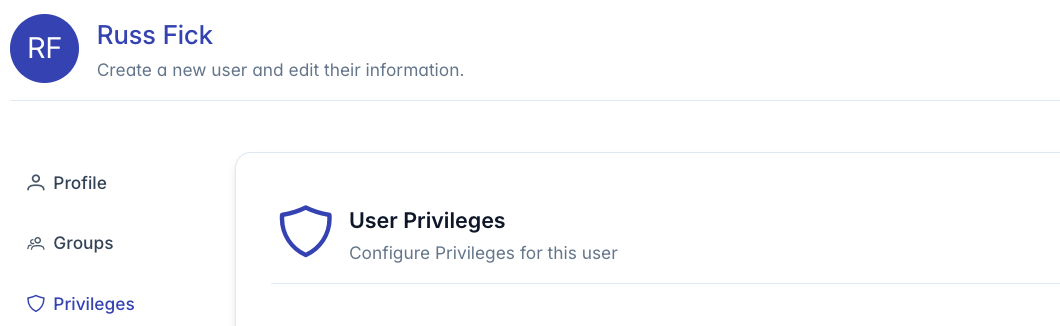
To access this component:
- Navigate to a user profile page (
/user/profile/[user_id]) - Click on the "Privileges" tab in the left navigation menu
User Privileges Interface Overview
The User Privileges interface is organized into three main sections:
- Admin Access Levels (visible only when user's role is set to "Admin")
- User Application Modules
- Assistant Features
Each section contains multiple toggle switches and button groups that control specific permissions.
Admin Access Privileges
This section appears only when a user's access level is set to "Admin" and allows fine-grained control over administrative functions.
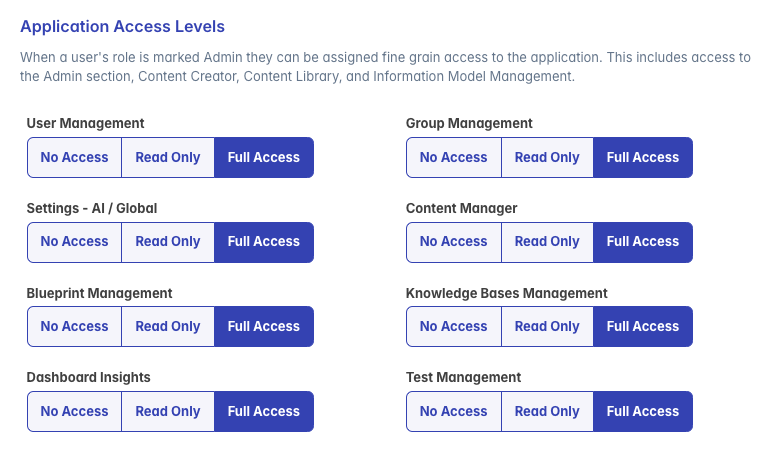
For each administrative area, you can set one of three permission levels:
- No Access: User cannot view or modify this area
- Read Only: User can view but not modify content in this area
- Full Access: User can view and modify all content in this area
The administrative areas include:
User Management
- Controls access to user creation, editing, and deletion
- When set to "Read Only", users can view other user accounts but not modify them
- When set to "Full Access", users can create, edit, and delete user accounts
Group Management
- Controls access to organizational group configuration
- Read Only allows viewing groups but not modifying membership
- Full Access allows creating, editing, and deleting groups
Settings - AI / Global
- Controls access to system-wide settings
- Read Only allows viewing settings but not changing them
- Full Access allows modifying any system setting
Content Manager
- Controls access to content administration tools
- Read Only allows viewing content without modification rights
- Full Access allows creating, editing, and deleting content
Blueprint Management
- Controls access to AI conversation templates
- Read Only allows viewing blueprints but not modifying them
- Full Access allows creating and modifying blueprints
Knowledge Bases Management
- Controls access to knowledge base configuration
- Read Only allows viewing knowledge bases but not modifying them
- Full Access allows creating and modifying knowledge bases
Dashboard Insights
- Controls access to analytics and reporting
- Read Only allows viewing dashboards
- Full Access allows configuring and exporting from dashboards
Test Management
- Controls access to AI test case creation and evaluation
- Read Only allows viewing test cases and results
- Full Access allows creating and running tests
User Application Modules
This section controls which application modules are available to the user in the main navigation menu.
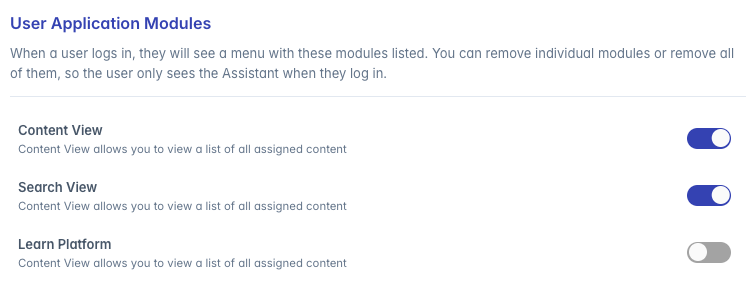
Each toggle enables or disables a specific module:
Content View
- When enabled: User can access the content library view
- When disabled: Content library option will not appear in the menu
Search View
- When enabled: User can access the advanced search interface
- When disabled: Search view will not be available
Learn Platform
- When enabled: User can access learning materials and modules
- When disabled: Learning platform will not be available
Disabling all modules will result in the user only seeing the Assistant when they log in.
Assistant Features
This section controls specific features within the AI Assistant interface.
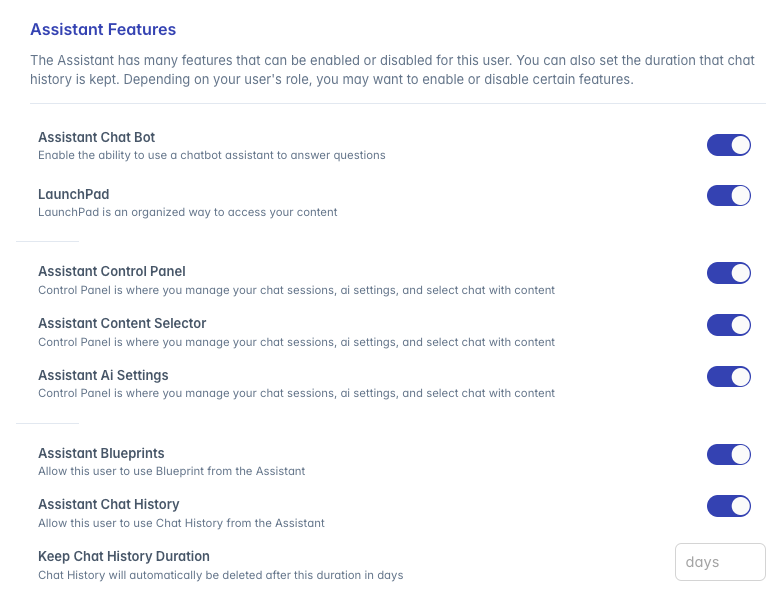
Each toggle enables or disables a specific feature:
Assistant Chat Bot
- When enabled: User can interact with the chatbot assistant
- When disabled: Chat functionality is not available
- Default: Enabled
LaunchPad
- When enabled: User can access the LaunchPad home screen
- When disabled: User will not see the LaunchPad interface
- Default: Enabled
Assistant Control Panel
- When enabled: User can access the control panel to manage chat sessions
- When disabled: Control panel will not be available
- Default: Enabled
Assistant Content Selector
- When enabled: User can select specific content to include in chat sessions
- When disabled: Content selection will not be available
- Default: Enabled
Assistant AI Settings
- When enabled: User can modify AI behavior settings
- When disabled: AI settings cannot be modified by the user
- Default: Enabled
Assistant Blueprints
- When enabled: User can access and use conversation blueprints
- When disabled: Blueprint functionality is not available
- Default: Enabled
Assistant Chat History
- When enabled: User can view and access their previous chat sessions
- When disabled: Chat history will not be stored or accessible
- Default: Enabled
Keep Chat History Duration
- Numeric value in days
- Controls how long chat history is retained before automatic deletion
- Enter 0 for no automatic deletion (permanent retention)
- Default: 30 days
Privilege Settings and Their Impact
Effects of Disabling Key Features
Disabled Control Panel:
- User cannot manage chat sessions
- User cannot select content to include in chats
- User cannot adjust AI settings
Disabled LaunchPad:
- User will not see the customized content homepage
- User must navigate directly to features
Disabled Chat History:
- Previous conversations will not be accessible
- Each session starts fresh with no context from previous interactions
Admin Access Level Combinations
For users with Admin access, the privilege combinations determine what they can do in the administration sections:
- Content Management Example:
- No Access: Admin cannot see the Content section
- Read Only: Admin can view content but not create/edit/delete
- Full Access: Admin can perform all content operations
Best Practices
Principle of Least Privilege:
- Grant only the permissions necessary for the user's role
- Start with minimal privileges and add as needed
Role-Based Configuration:
- Create consistent privilege sets based on job functions
- Maintain similar settings for users with similar roles
Chat History Retention:
- Set appropriate retention periods based on:
- Organizational data policies
- Compliance requirements
- User productivity needs
- Set appropriate retention periods based on:
Regular Access Reviews:
- Periodically review privilege settings
- Adjust access when user roles change
Admin Privileges:
- Reserve full admin access for a limited number of users
- Use read-only access when possible for security
For additional assistance with user privileges configuration, please contact your system administrator.