Appearance
Smart Group Management Guide
Introduction
The Smart Group Management interface provides administrators with a powerful tool for creating and managing security and role groups within your organization. Smart Groups allow you to dynamically organize users based on specific criteria, simplifying access control and permissions management across your platform.

Accessing Smart Group Management
The Smart Group Management interface is accessible to users with the following roles:
- Admin
- Content
- Manager
To access the Smart Group Manager, navigate to the Users section from the main administration menu and select "Smart Groups."
Smart Group Interface Overview
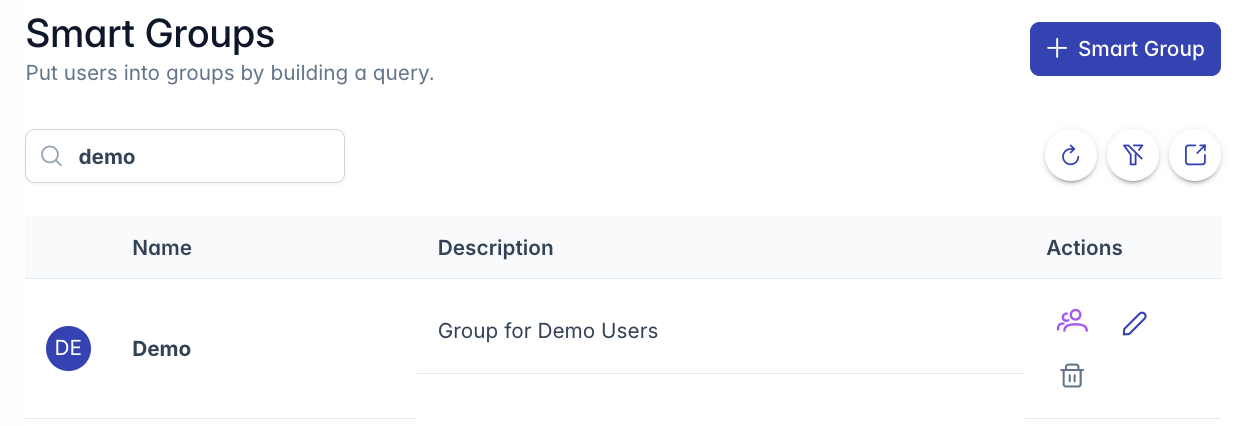
The Smart Group Manager interface consists of these key components:
- Header Section: Contains the title "Smart Groups" with an Add button
- Search and Filter Controls: Tools to find and filter groups
- Data Table: Displays all groups with sortable columns
- Action Buttons: Refresh, filter, export, and help options
- Group Editor: Opens when adding or editing a group
Understanding Smart Groups
Smart Groups serve two main purposes in the system:
1. Security Groups
Security groups determine what content and features users can access:
- Control access to knowledge bases
- Determine visibility of AI content
- Manage permissions for features and sections
- Define who can see and use specific resources
2. Role Groups
Role groups determine what actions users can perform:
- Admin: Full system administration rights
- Content: Content management capabilities
- Manager: Team and resource management permissions
- User: Basic system access and usage
- Other custom roles specific to your organization
Note: Role groups are indicated by a lock icon and have special protection since they affect system-level permissions.
Smart Group List View
The main table displays all groups you have permission to view. Each row contains:
- Group Initials: Visual identifier for the group (clickable to edit)
- Name: The group name, with a lock icon for role groups (clickable to edit)
- Description: Explains the group's purpose or criteria
- Type: Shows whether it's a Security or Role group
- Users: Displays the count of users in the group
- Actions: Buttons for viewing members, editing, and deleting the group
Searching for Groups
To find specific groups:
- Use the search box in the upper-left corner
- Type keywords to search across group names and descriptions
- Results update automatically as you type
- A filter indicator appears when search filters are active
Filtering Groups
The Smart Group Manager offers several filtering options:
Quick Filters
Use the buttons at the top of the list to filter by group type:
- Role: Shows only role-based groups
- Security: Shows only security permission groups
The selected filter button appears filled, while inactive filters appear outlined.
Column Filtering
Each column has its own filtering capabilities:
- Click the filter icon in any column header
- Enter filter criteria in the popup
- The table will update to show only matching records
Creating a New Smart Group
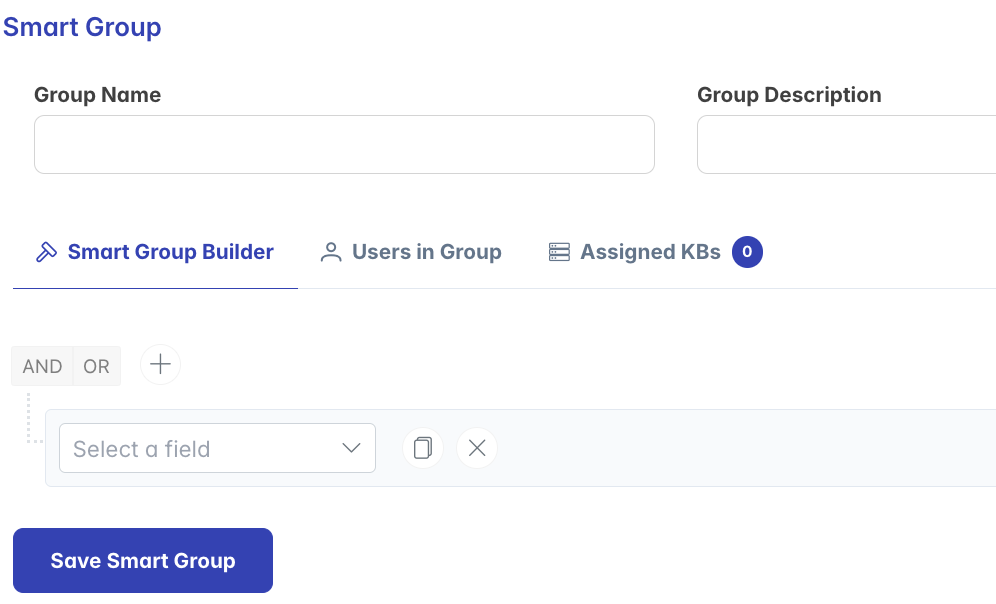
To create a new group:
- Click the "Smart Group" button in the upper-right corner
- The Group Editor dialog will open
- Fill in the required information:
- Name (required)
- Description (recommended)
- Group Type (Security or Role)
- Query criteria that define membership
- Click "Save" to create the group
Managing Existing Groups
Editing a Group
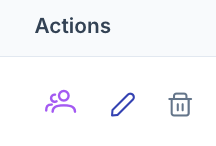
To modify an existing group:
- Click on the group's name, initials, or the pencil icon
- The Group Editor dialog will open with current settings
- Make your desired changes
- Click "Save" to update the group
Viewing Group Members
To see all users in a group:
- Click the users icon in the Actions column
- A dialog will open showing all members
- You can search, filter, and view details about each member
- Member lists automatically update based on the group's query criteria
Deleting a Group
To delete a group:
- Click the trash icon in the Actions column
- A confirmation dialog will appear
- Click "Delete" to confirm or "Cancel" to abort
- The group will be permanently removed
Warning: Deleting a group will remove all associated permissions. Users in the deleted group may lose access to certain features or content.
Group Types and Special Considerations
Role Groups
Role groups have special protection because they affect system functionality:
- Indicated by a lock icon next to the name
- May have restricted editing or deletion
- Often predefined by the system
- Changes may affect multiple system features
Security Groups
Security groups offer more flexibility:
- Can be freely created and customized
- Used for resource access control
- Can be nested or combined
- Support complex membership queries
Smart Group Query Builder
The power of Smart Groups comes from the query builder, which allows you to define membership criteria based on:
- User Attributes: Properties like organization, department, or location
- User Metadata: Custom fields and tags associated with users
- System Activity: Usage patterns, login frequency, or feature access
- Logical Operators: AND/OR conditions to create complex rules
- Group Membership: Inclusion or exclusion from other groups
The query builder offers a visual interface to construct these rules without requiring programming knowledge.
Managing the Group List
Refreshing the List
To ensure you're viewing the most current information:
- Click the refresh icon in the top-right corner
- The list will reload with the latest data from the server
Clearing Filters
To remove all active filters:
- Click the filter-slash icon in the top-right corner
- All filters will be reset to show all groups
Exporting Group Data
To export the group list for reporting or analysis:
- Click the export icon in the top-right corner
- Confirm the export in the popup dialog
- A CSV file will be downloaded to your computer
- The exported file includes all visible columns for all groups matching your current filters
Accessing Help Resources
For additional guidance on using the Smart Group Manager:
- Click the question mark icon in the top-right corner
- The Help Center dialog will open
- Relevant documentation for group management will be displayed
Empty State Handling
If no groups are found (either because none exist or due to filters):
- A helpful empty state message appears
- The message suggests possible actions:
- Check your filters
- Clear filters
- Add a new Smart Group
- A visual illustration helps identify the empty state
Troubleshooting
Issue: No groups appearing in the list
- Check if filters are active (indicated by the filter badge)
- Click the filter-slash icon to clear all filters
- Verify you have permission to view groups
- Click the refresh button to update the list
Issue: Cannot create or edit a group
- Verify you have appropriate permissions
- Check for any error messages that appear during save operations
- Ensure all required fields are completed
- Role groups may have restricted editing
Issue: Group membership not updating
- Group membership evaluates automatically based on your query
- Check your query criteria for logical errors
- Verify that user profiles contain the expected data
- Allow time for membership changes to propagate
Issue: Export not working
- Check your browser's download settings
- Ensure you have permission to export data
- Try refreshing the page and attempting the export again
Issue: Cannot delete a group
- Verify you have administrative permissions
- Check if the group is a system-required role group
- Ensure the group isn't required by other system components
- Try refreshing the page and attempting deletion again
For additional assistance with Smart Group management, click the Help button in the top-right corner for context-specific guidance.