Appearance
Security Settings Guide
Introduction
The Security Settings interface provides administrators with powerful tools for configuring authentication, authorization, and access control for your organization's platform. This security command center allows you to configure Multi-Factor Authentication (MFA), identity providers, password policies, and other critical security features to protect your organization's data and users.
Accessing Security Settings
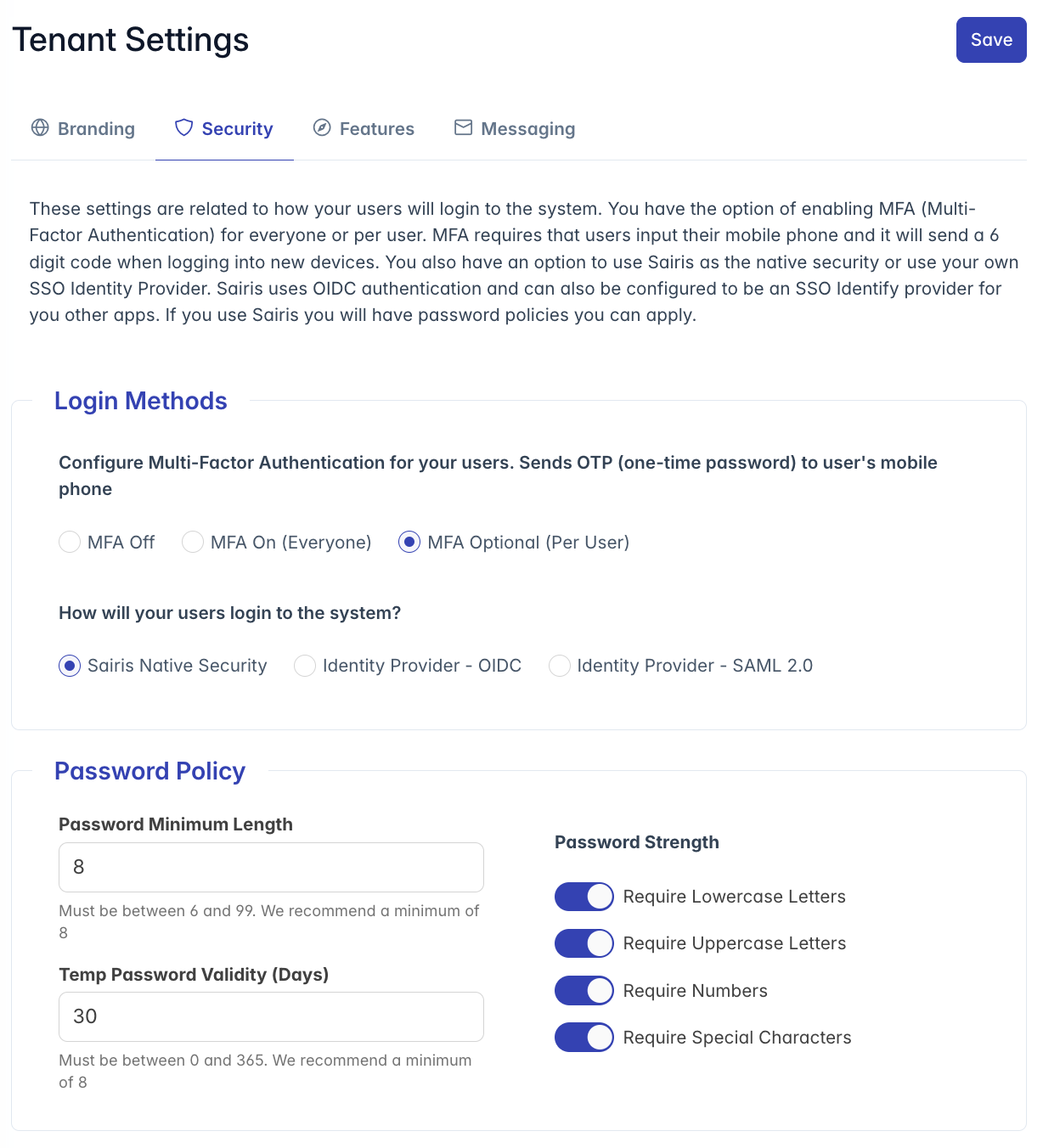
The Security Settings interface is accessible to users with the following roles:
- Admin
- Content
- Manager
To access these settings, navigate to the Administration section from the main menu and select "Settings," then choose the "Security" tab.
Security Settings Overview
The security configuration interface is organized into three main sections:
- Login Methods: Configure MFA and identity providers
- Password Policy: Manage password requirements (when using native security)
- Identity Provider Configuration: Set up OIDC or SAML federation (when applicable)
Each section provides detailed controls for securing your tenant and integrating with your existing identity infrastructure.
Login Methods Configuration
The Login Methods section allows you to define how users authenticate to the system:
Multi-Factor Authentication (MFA)
Configure MFA protection for your users:
MFA Off: Disable multi-factor authentication entirely
- Simplest configuration but least secure
- Suitable only for non-sensitive applications
- Not recommended for production environments
MFA On (Everyone): Require MFA for all users
- Highest security level
- Forces all users to register a phone number
- Sends one-time passwords (OTP) via SMS
- Required for sensitive data environments
MFA Optional (Per User): Allow individual users to enable MFA
- Balanced approach for mixed-sensitivity environments
- Users can enable MFA for their own accounts
- Administrators can require MFA for specific users
- Good transitional strategy when moving toward full MFA
Identity Provider Selection
Choose how users will authenticate to the system:
Sairis Native Security: Use the built-in authentication system
- Includes user management and password policies
- Simplest to configure with no external dependencies
- Supports MFA, password policies, and account recovery
- Can also serve as an identity provider for other applications
Identity Provider - OIDC: Connect to an external OpenID Connect provider
- Integrate with services like Azure AD, Okta, Auth0, etc.
- Single Sign-On (SSO) capable
- Delegates authentication to your organizational IdP
- Requires configuration of endpoints and attribute mapping
Identity Provider - SAML 2.0: Connect to a SAML-based identity provider
- Industry standard for enterprise identity federation
- Compatible with major identity providers
- Complete SSO integration
- Requires SAML metadata exchange and attribute mapping
Password Policy Configuration
When using Sairis native security, you can configure detailed password policies:
Password Requirements
Set the fundamental password requirements:
Password Minimum Length: Define the shortest allowed password
- Range: 6-99 characters
- Recommended: 8 or more
- Industry standard: 12 or more for sensitive systems
- Balance security with usability
Temporary Password Validity: Set expiration for temporary passwords
- Range: 0-365 days
- Recommended: 7-30 days
- Shorter periods provide better security
- "0" forces immediate password change
Password Strength Controls
Enable specific complexity requirements:
Require Lowercase Letters: Toggle to require at least one lowercase letter
- Recommended: Enabled
- Increases character set diversity
Require Uppercase Letters: Toggle to require at least one uppercase letter
- Recommended: Enabled
- Further increases character set diversity
Require Numbers: Toggle to require at least one number
- Recommended: Enabled
- Expands character set beyond alphabetic
Require Special Characters: Toggle to require at least one special character
- Recommended: Enabled
- Greatly increases password entropy
- Examples: !@#$%^&*()_+-=[]{}|;:,.<>?
OIDC Identity Provider Configuration
When "Identity Provider - OIDC" is selected, detailed configuration options appear:
Basic OIDC Settings
Configure the connection to your OpenID Connect provider:
Provider Name: A friendly name for the identity provider
- Used in logs and administrative interfaces
- Should clearly identify the provider (e.g., "Corporate Azure AD")
Client ID: The application identifier from your IdP
- Obtained when registering this application with your provider
- Used to identify your application during authentication
Client Secret: The secret key for secure communication
- Treat as sensitive security credential
- Used to authenticate your application to the identity provider
Authorized Scopes: Data your application requests from the provider
- Default: "openid" (minimum required scope)
- Common additions: email, profile, phone
- Only request what your application needs
Attribute Request Method: HTTP method for requesting user attributes
- Options: GET or POST
- Depends on your provider's configuration
- Most providers use GET for attribute requests
OIDC Endpoint Configuration
Configure how to connect to your identity provider:
Auto Fill via Issuer URL: Automatically discover endpoints
- Simplest configuration option
- Requires only the provider's issuer URL
- System will discover other endpoints automatically
- Works with providers that implement the OIDC discovery specification
Manually Configure Endpoints: For providers without discovery support
- Requires manual entry of all endpoints
- Use when auto-discovery is not supported or reliable
- Requires detailed knowledge of your provider's endpoints
Required Endpoints:
- Issuer URL: Base URL identifying your provider
- Authorization Endpoint: Where users are redirected to log in
- Token Endpoint: Where authorization codes are exchanged for tokens
- UserInfo Endpoint: Where user attributes are retrieved
- JWKS URI: Provides keys for token verification
OIDC Attribute Mapping
Map identity provider attributes to system user properties:
Given Name: Maps to user's first name
- Common values: "given_name", "firstName"
Family Name: Maps to user's last name
- Common values: "family_name", "lastName"
Username: Maps to login identifier
- Common values: "preferred_username", "email", "sub"
Preferred Username: Maps to display name
- Common values: "preferred_username", "name"
Email: Maps to user's email address
- Common values: "email"
Phone Number: Maps to user's mobile phone
- Common values: "phone_number", "mobile"
OIDC Identifiers
Configure domain-based routing to your identity provider:
- IdP Identifiers: Email domains associated with this provider
- Example: "example.com" (one per line)
- When users enter emails with these domains, they're automatically routed to this provider
- Enables "smart" IdP selection in multi-tenant environments
SAML Identity Provider Configuration
When "Identity Provider - SAML 2.0" is selected, detailed configuration options appear:
Basic SAML Settings
Configure the connection to your SAML provider:
Provider Name: A friendly name for the identity provider
- Used in logs and administrative interfaces
- Should clearly identify the provider (e.g., "Corporate ADFS")
Sign-out Flow: Enable simultaneous logout
- When enabled: Users are signed out of both Sairis and the IdP
- When disabled: Users remain logged in to the IdP
IdP-initiated SAML sign-in:
- Recommended: Require SP-initiated assertions (more secure)
- Alternative: Accept both SP and IdP-initiated assertions
Metadata Document: SAML metadata from your provider
- XML document containing provider configuration
- Includes certificate, endpoints, and entity ID
- Typically provided by your identity provider administrator
SAML Security Options
Configure additional security features:
Sign SAML requests: Digitally sign requests to the provider
- Enhances security by verifying request authenticity
- Requires proper key configuration
Require encrypted SAML assertions: Force encryption of identity data
- Highest security for transmitted identity information
- May require additional provider configuration
SAML Attribute Mapping
Map SAML attributes to system user properties:
Given Name: Maps to user's first name
- Common values: "givenName", "FirstName"
Family Name: Maps to user's last name
- Common values: "surname", "LastName"
Username: Maps to login identifier
- Common values: "nameID", "userPrincipalName"
Preferred Username: Maps to display name
- Common values: "displayName", "Name"
Email: Maps to user's email address
- Common values: "mail", "email", "emailAddress"
Phone Number: Maps to user's mobile phone
- Common values: "telephoneNumber", "mobile"
SAML Identifiers
Configure domain-based routing to your identity provider:
- IdP Identifiers: Email domains associated with this provider
- Example: "example.com" (one per line)
- When users enter emails with these domains, they're automatically routed to this provider
- Enables "smart" IdP selection in multi-tenant environments
Best Practices for Security Settings
MFA Implementation
For optimal security protection:
- Start with "MFA Optional" during initial rollout
- Move to "MFA On (Everyone)" after user education
- Ensure users have updated phone numbers before enforcing
- Provide clear instructions for MFA enrollment
Password Policy Balance
Balance security with usability:
- Longer minimum lengths are generally better than complex requirements
- Consider using passphrases instead of complex passwords
- Avoid frequent password changes which can lead to weaker passwords
- Enable all complexity requirements for sensitive systems
Identity Provider Selection
Choose the right authentication approach:
- Use native security for standalone implementations or smaller organizations
- Use OIDC/SAML when integrating with existing identity infrastructure
- Consider security, user experience, and administrative overhead
- Ensure proper attribute mapping to avoid data inconsistency
Troubleshooting
Issue: MFA not working for some users
- Verify phone numbers are properly formatted (+1XXXXXXXXXX)
- Check carrier support for SMS delivery
- Consider testing with a different phone number
- Verify MFA settings are properly saved
Issue: Password policy not enforced
- Ensure you're using Sairis native security (not applicable to OIDC/SAML)
- Check if changes were properly saved
- Policy applies only to new passwords, not existing ones
- Temporary passwords follow different validation rules
Issue: OIDC/SAML configuration problems
- Verify all endpoints are correctly entered
- Check client ID and secret for accuracy
- Test with provider's own testing tools
- Review attribute mapping to ensure proper format
- Check network connectivity to provider endpoints
Issue: Users directed to wrong identity provider
- Review IdP Identifiers for conflicts
- Check the order of provider precedence
- Verify domain spelling in identifiers
- Clear browser cookies and try again
For additional assistance with tenant security settings, please contact your system administrator or security team.