Appearance
Tenant Messaging Configuration Guide
Introduction
The Tenant Messaging Configuration interface provides administrators with powerful tools to customize all communication templates sent to your users. This communication center allows you to personalize invitation emails, verification messages, and Multi-Factor Authentication (MFA) notifications to maintain consistent branding and provide clear instructions to your users.
Accessing Messaging Configuration
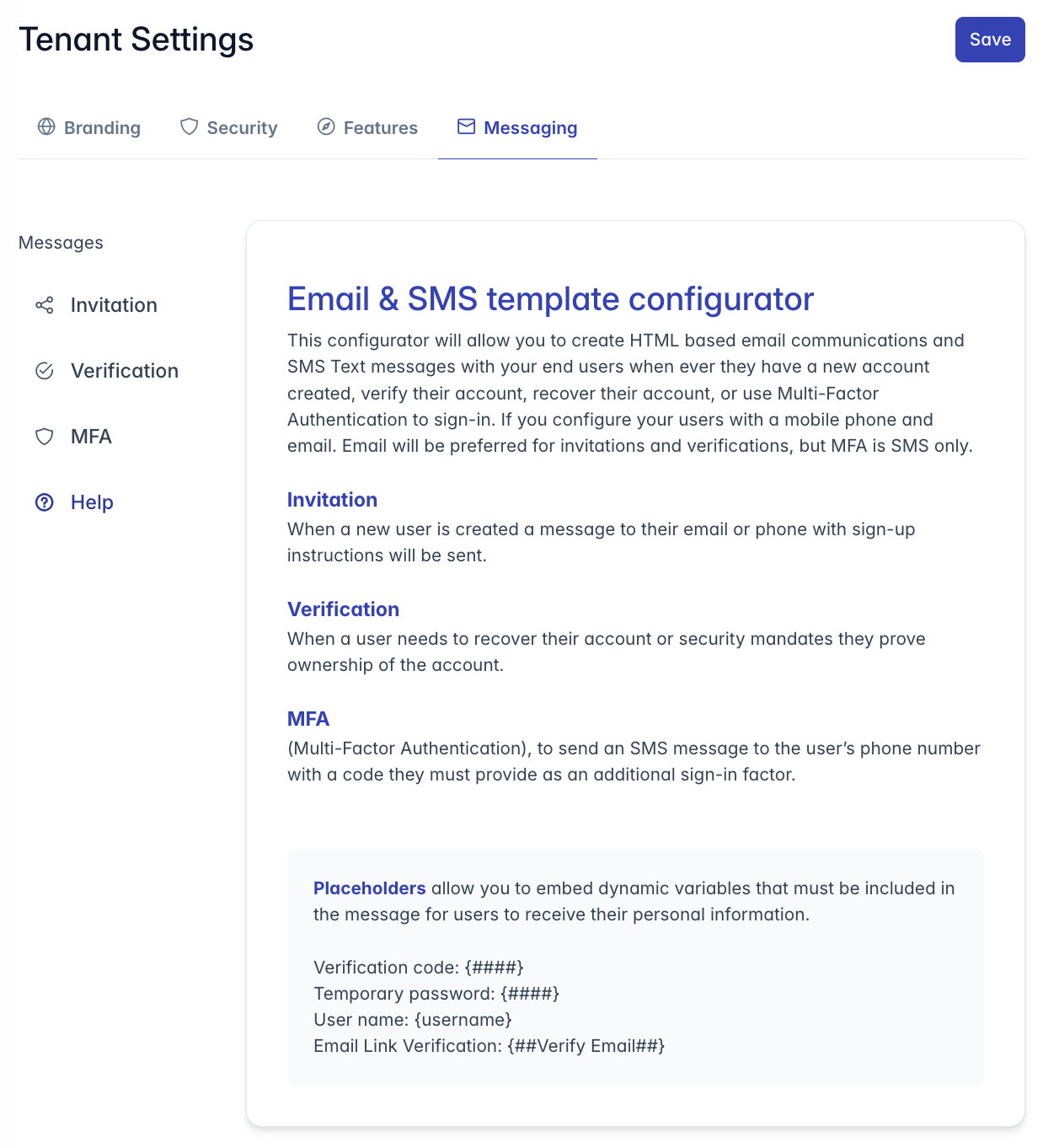
The Tenant Messaging Configuration interface is accessible to users with the following roles:
- Admin
- Content
- Manager
To access these settings, navigate to the Administration section from the main menu, select "Tenant Settings," and then choose the "Messaging" tab.
Messaging Configuration Overview
The messaging configuration interface is organized into four main sections, accessible from a navigation menu on the left:
- Invitation Messages: Templates for new user account creation
- Verification Messages: Templates for account verification and recovery
- MFA Messages: Templates for Multi-Factor Authentication codes
- Overview: General information about message configuration
Each section provides detailed controls for customizing both email and SMS communications for different user scenarios.
Understanding Message Types
Your platform uses several types of communications with users:
Invitation Messages
Sent when:
- A new user account is created
- A user is invited to join the platform
- An administrator provisions a new account
Content typically includes:
- Welcome message
- Initial login instructions
- Temporary password or setup link
- Next steps for account activation
Verification Messages
Sent when:
- A user needs to verify their email or phone
- Account recovery is requested
- Password reset is initiated
- Security policy requires verification
Content typically includes:
- Verification instructions
- Security code or verification link
- Expiration information
- Action steps to complete verification
MFA Messages
Sent when:
- A user logs in from a new device
- Multi-Factor Authentication is required
- Additional security verification is needed
- User enables MFA on their account
Content typically includes:
- One-time passcode (OTP)
- Brief instructions
- Expiration time
- Security context
Template Customization Interface
Each message type has a similar customization interface with both email and SMS options:
Email Template Customization
The email template editor provides:
Subject Line Editor: Customize the email subject
- Keep subjects clear and concise
- Include your organization name for recognition
- Can include dynamic placeholders
HTML Email Editor: Rich text editor for email body
- Full formatting capabilities (bold, italic, links, etc.)
- HTML editing mode for advanced customization
- Preview mode to see how emails will appear
- Mobile view to check responsive design
Email Preview: Live rendering of your template
- Shows exactly how emails will appear to recipients
- Updates as you edit the template
- Displays placeholder content for dynamic elements
SMS Template Customization
The SMS template editor provides:
Plain Text Editor: Simple editor for SMS messages
- Character counter to show message length
- Warning when approaching SMS length limits
- Visual indicator for message splitting
SMS Preview: Mobile phone rendering of your message
- Shows how text will appear on recipient devices
- Updates as you edit the template
- Displays placeholder content for dynamic elements
Using Dynamic Placeholders
Placeholders are essential variables that get replaced with personalized information when messages are sent:
Required Placeholders
These placeholders must be included in certain templates:
Verification Code:
{####}- Required in verification and MFA templates
- Delivers the security code to the user
- System will generate a numeric code during sending
Temporary Password:
{####}- Required in invitation templates when using temporary passwords
- System will generate a secure password during sending
- Format varies based on password policy settings
Email Verification Link:
{##Verify Email##}- Required in email verification templates
- Creates a clickable verification link
- Cannot be customized internally
Optional Placeholders
These placeholders can be used to personalize messages:
Username:
{username}- Inserts the recipient's username
- Helpful for login instructions
- Use where identity confirmation is needed
Organization Name:
{organization}- Inserts your organization name
- Helps with message branding
- Provides context for the communication
Template Design Best Practices
Email Templates
For effective email communications:
Branding Consistency:
- Use your organization's logo and colors
- Match the visual style of your platform
- Include consistent footer information
- Use your standard email layout if possible
Content Structure:
- Start with a clear greeting and purpose
- Keep instructions simple and step-by-step
- Highlight important information like codes or links
- Include contact information for assistance
- Add security reminders when appropriate
Responsive Design:
- Ensure templates work on mobile devices
- Use responsive layout techniques
- Keep critical content visible without scrolling
- Test on multiple screen sizes
SMS Templates
For effective SMS communications:
Brevity and Clarity:
- Keep messages under 160 characters when possible
- Focus only on essential information
- Begin with organization name for context
- Use clear, concise language
Security Considerations:
- Include enough context to verify legitimacy
- Avoid links in SMS when possible
- Clearly indicate code expiration time
- Never ask for sensitive information via SMS
Template Testing and Validation
Before finalizing templates:
- Preview Function: Use the built-in preview to check appearance
- Test Sends: Test to actual devices when possible
- Colleague Review: Have others review your templates
- Accessibility Check: Ensure templates are accessible to all users
Template Management
Templates are saved automatically, but you should:
- Version Tracking: Keep notes on major changes
- Backup Important Templates: Copy text to a separate location
- Regular Review: Update templates periodically
- Testing After Updates: Verify templates after system updates
Troubleshooting
Issue: Placeholders not appearing in sent messages
- Verify placeholder syntax is exactly as shown:
{####} - Check if placeholder is appropriate for the message type
- Ensure required placeholders haven't been removed
- Try resetting to the default template
Issue: Email formatting problems
- Check HTML structure for errors
- Verify all HTML tags are properly closed
- Test with different email clients if possible
- Consider simplifying complex formatting
Issue: Messages not being delivered
- Verify recipient contact information is correct
- Check system logs for sending errors
- Ensure message content doesn't trigger spam filters
- Confirm SMS carrier supports the message format
Issue: Templates reset unexpectedly
- Some system updates may reset templates to defaults
- Always maintain backups of customized templates
- Check for notifications about planned maintenance
- Contact support if templates change without action
For additional assistance with messaging configuration, please contact your system administrator or support team.