Appearance
AI File Manager User Guide
Introduction
The AI File Manager is a powerful tool that allows you to upload, manage, and associate documents with AI knowledge bases. This guide will walk you through the process of uploading files, configuring their attributes, and preparing them for AI processing.
Getting Started
Accessing the File Manager
- Navigate to the AI File Manager in the content management section
- You'll see the main interface with upload area and configuration panels
- If editing an existing file, the interface will display the current file's information
Understanding the Interface
The AI File Manager has three main sections:
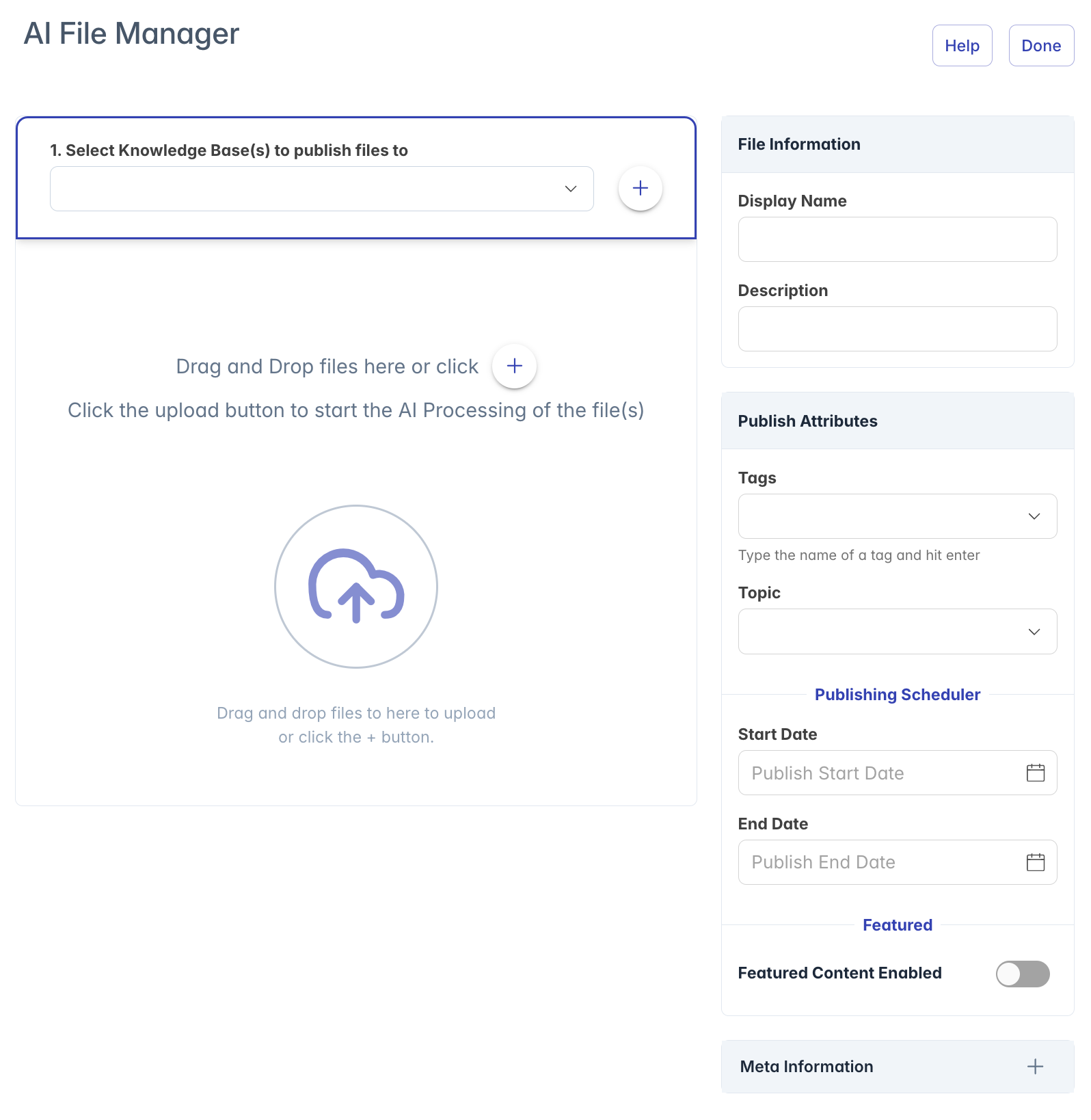
- File Upload Area (left/center): Where you upload and manage files
- File Information Panel (right top): Configure basic file details
- Publish Attributes Panel (right middle): Set categorization and scheduling options
Uploading Files
Single File Upload
- If no Knowledge Base is selected, first select at least one Knowledge Base using the dropdown at the top
- Click the "+" button or drag and drop a file into the upload area
- The file will appear in the upload queue with its name and size
- The system automatically populates the Display Name based on the file name
Multiple File Upload
- Select at least one Knowledge Base using the dropdown at the top
- Drag and drop multiple files or click the "+" button to select multiple files
- Each file will appear in the upload queue
- Note: When uploading multiple files, the common Display Name and Description fields are disabled
File Name and Description Editing
For files in the upload queue:
- Click the pencil icon next to the file name
- In the dialog that appears, enter the new file name and description
- Click "Save" to apply these changes
Starting the Upload
- After configuring all necessary attributes, click the "Upload" button
- The upload progress will be indicated with a status label
- Successful uploads will be marked with a green "Succeeded" badge
- Failed uploads will show an error message
File Management
Viewing Existing Files
When accessing an existing file:
- The file details are displayed in the center of the interface
- You'll see the file name, size, type, and last update information
- Click "View File" to open the file viewer
Uploading New Versions
To replace an existing file with a new version:
- Click "Upload New Version"
- Select the new file from your device
- The new file will replace the existing one while maintaining all settings
Deleting Files
- Click the "Delete" button in the top right corner
- Confirm the deletion in the popup dialog
- The file and its associated content will be removed from the system
Knowledge Base Association
Knowledge Base association is required for AI processing:
- Select one or more Knowledge Bases from the dropdown at the top
- Files must be associated with at least one Knowledge Base to be processed by AI
- If you attempt to upload without selecting a Knowledge Base, an error message will appear
- You can change Knowledge Base associations after upload
File Information
Configure basic file details in the File Information panel:
Display Name: The name that appears in listings and search results
- Automatically populated based on the file name but can be customized
- Required field
Description: Additional information about the file content
- Optional but recommended for better search results
- Appears in file listings
Publish Attributes
The Publish Attributes panel allows detailed configuration:
Tags and Topics
Tags: Add multiple tags to categorize the file
- Type a tag name and press Enter to add it
- Select from existing tags or create new ones
- Tags help with content organization and discovery
Topic: Select a single topic that best describes the file
- Choose from the predefined topic list
- Topics are used for high-level categorization and reporting
Publishing Schedule
Control when content is available:
Start Date: When the content will become available
- Click to open a date/time picker
- Leave blank for immediate availability
End Date: When the content will no longer be available
- Click to open a date/time picker
- Leave blank for permanent availability
Featured Content
Make content appear in featured sections:
- Toggle "Featured Content Enabled" to on
- Configure featured presentation:
- Title: Short, attention-grabbing headline
- Description: Brief summary of the content
- Featured Image URL: Web address of an image to display
- A preview card shows how the featured content will appear
Advanced Features
Meta Information
View detailed file metadata by expanding the Meta Information panel:
- File Name: Original name of the uploaded file
- Content Type: Document, image, video, etc.
- File Size: Both upload and compressed sizes
- File Extension: File format
- Content ID: Unique identifier
- AI Process Status: Current AI processing state
- File Added: Creation date and user
- File Updated: Last modification date and user
Viewing Files
File Preview
- Click "View File" to open the file viewer
- The viewer interface adapts based on the file type:
- PDF, Office documents: Interactive document viewer
- Videos: Video player with controls
- Text files: Formatted text viewer
- HTML: Code view with option to view live page
Video Transcription
For video files, a transcription feature is available:
- Open the video in the viewer
- Click on the "Video Transcription" accordion below the player
- Transcription will be displayed when available
Text File Viewing
For text-based files (TXT, CSV, JSON, etc.):
- Content is displayed with appropriate formatting
- For HTML files, you can toggle between code view and "View Live Page"
Troubleshooting
Upload Issues
If files fail to upload:
- Check the error message for specific issues
- Verify file size is under the 110MB limit
- Ensure Knowledge Base is selected
- Check that you have proper permissions
AI Processing
After successful upload:
- Files need to be processed by AI before appearing in knowledge bases
- Processing time depends on file size and type
- Large documents may take several minutes to process
- You can check processing status in the Meta Information panel
Help Resources
For additional assistance:
- Click the "Help" button for context-specific guidance
- Review the information about Tags, Knowledge Bases, and Topics
- Contact your administrator for system-specific questions