Appearance
User Profile Component Guide
Introduction
The User Profile component allows administrators to manage user account information, credentials, access levels, and security settings. This component is part of the overall user management system and provides a comprehensive interface for creating and modifying user profiles.
Accessing the User Profile Component
The User Profile component is accessible to users with specific roles:
- Admin
- Content
- Manager
To access this component, navigate to the user profile page either by:
- Creating a new user:
/user/profile/new - Editing an existing user:
/user/profile/[user_id]
User Profile Interface Overview
The User Profile interface consists of these key components:
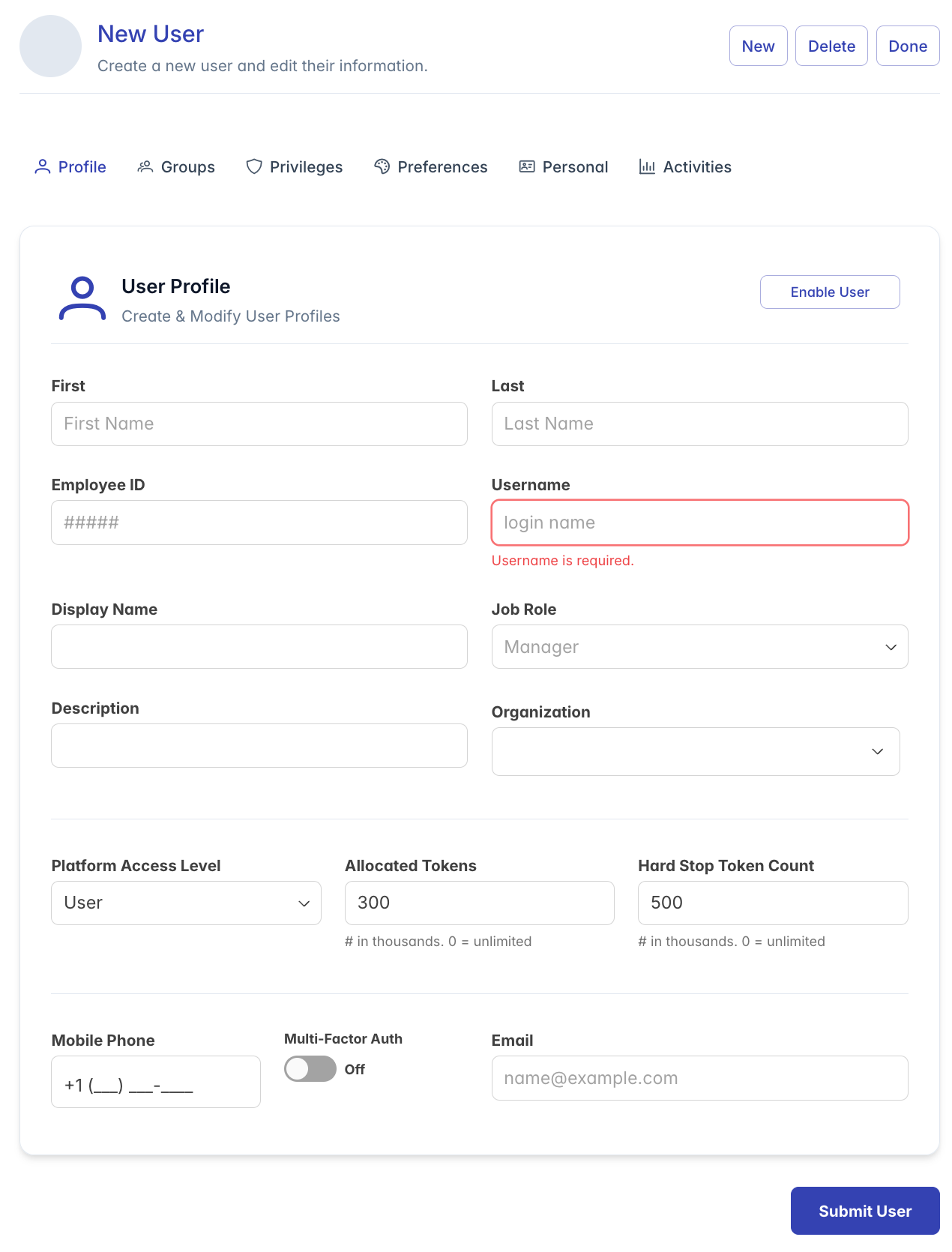
- Header Section: Contains the component title "User Profile", description, and action buttons
- Account Management Buttons:
- Enable/Disable User toggle
- Password management button
- User Information Form: Fields for entering and editing user information
- Form Sections: Logically organized sections for different types of user data
Managing User Information
Basic Information
The top section of the form contains fields for essential user identity information:
- First Name (Required): User's first name
- Last Name (Required): User's last name
- Employee ID (Optional): Organization-specific identifier
- Username (Required): System login name
- Must contain only lowercase letters and numbers
- No spaces or special characters allowed
- Length between 2-128 characters
- Cannot be changed after user creation
- Display Name/Username (Required): How the user appears in the system (auto-generated from first and last names)
Employment Information
This section allows you to specify organizational details:
- Job Role: Select from predefined roles (Manager, Developer, Executive, etc.)
- Description: Additional notes about the user or their position
- Organization: Tag-based field for assigning organizational units
- Multiple organizations can be added
- New organizations can be created on-the-fly
- Existing organizations appear as autocomplete suggestions
Platform Access Settings
These settings control the user's access level and permissions:
- Platform Access Level (Required): Determines base permissions
- User: Standard access
- Manager: Departmental management capabilities
- Content: Content creation and management access
- Admin: Full system administration privileges
Token Allocation
Control AI token usage for the user:
- Allocated Tokens: Number of tokens (in thousands) allocated to the user
- Default: 300 (thousand)
- Set to 0 for unlimited tokens
- Hard Stop Token Count: Maximum token limit (in thousands)
- Default: 500 (thousand)
- Set to 0 for no hard limit
- When reached, the user cannot generate more tokens until reset
Contact Information
Essential contact details for system communications:
- Mobile Phone: User's mobile number (format: +1 (###) ###-####)
- Multi-Factor Auth: Toggle to enable/disable SMS-based multi-factor authentication
- Email (Required): User's email address for system login and notifications
Account Management Actions
Enabling and Disabling Users
To control whether a user can access the system:
- Click the "Enable User" or "Disable User" button in the top-right corner
- A confirmation message will appear once the action completes
- Disabled users cannot log in to the system but their account data is preserved
Password Management
The password management dialog provides options for handling user credentials:
Once selecting an existing user, click the "Password" button to open the password management dialog
Three options are available:
Force Password Reset:
- Invalidates the user's current password
- Sends a verification code to the user's email or SMS
- User must create a new password to regain access
- Click "Force Password Reset" to initiate this process
Re-Invite User:
- For accounts locked due to inactivity (7-30 days after creation)
- Sends a new invitation email with username and temporary password
- Click "Send Re-Invite" to initiate this process
Self-Service Password Reset:
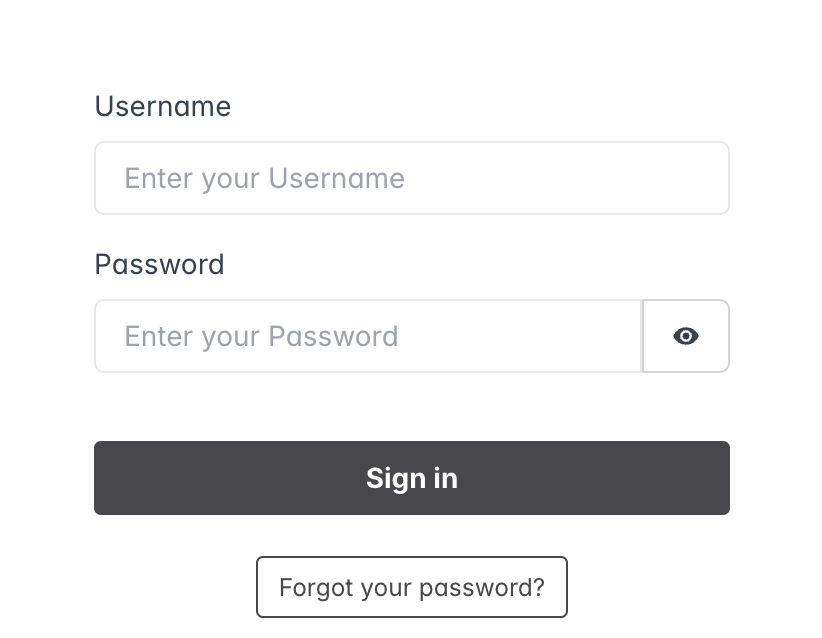
- Information about the standard "Forgot your Password" process
- No action required from administrators
Re-inviting Users
For users who haven't completed their account setup:
- Click the "Password" button to open the dialog
- Select "Send Re-Invite"
- An invitation with login credentials will be sent to the user's email
Form Validation
The User Profile form includes validation to ensure data integrity:
- Required Fields: First Name, Last Name, Username, Access Level, Email
- Username Format: Only lowercase letters and numbers, 2-128 characters
- Email Format: Must be a valid email address format
Validation messages appear in real-time as you type, helping to quickly identify and correct issues.
Troubleshooting
Issue: Unable to enable/disable user
- Check your permissions (requires Admin role)
- Ensure network connectivity to the user management service
- Look for error messages in the toast notifications
Issue: Password reset email not received
- Verify the email address is correct
- Check spam/junk folders
- Ensure the email service is functioning properly
Issue: Re-invite not working
- Ensure the user has a valid email address
- Check if the account is eligible for re-invitation
- Review error messages for specific issues
Issue: Changes not saving
- Verify all required fields are completed
- Check for validation errors (red text under fields)
- Ensure you have appropriate permissions
Issue: "Services Error" message
- Note the error code provided in the message
- Check network connectivity
- Contact system administrator if the issue persists
For additional assistance with user profile management, please contact your system administrator.