Appearance
Platform Dashboard Guide
Introduction
The Platform Dashboard provides administrators and managers with a comprehensive overview of your AI platform's usage, content metrics, and system health. This visual analytics interface helps you monitor key performance indicators, track resource utilization, and gain insights into how your organization is using the AI assistant system.
Accessing the Platform Dashboard
The Platform Dashboard is accessible to users with the following roles:
- Admin
- Content
- Manager
To access the dashboard, navigate to the Insights section from the main navigation menu and select "Platform Dashboard."
Dashboard Interface Overview
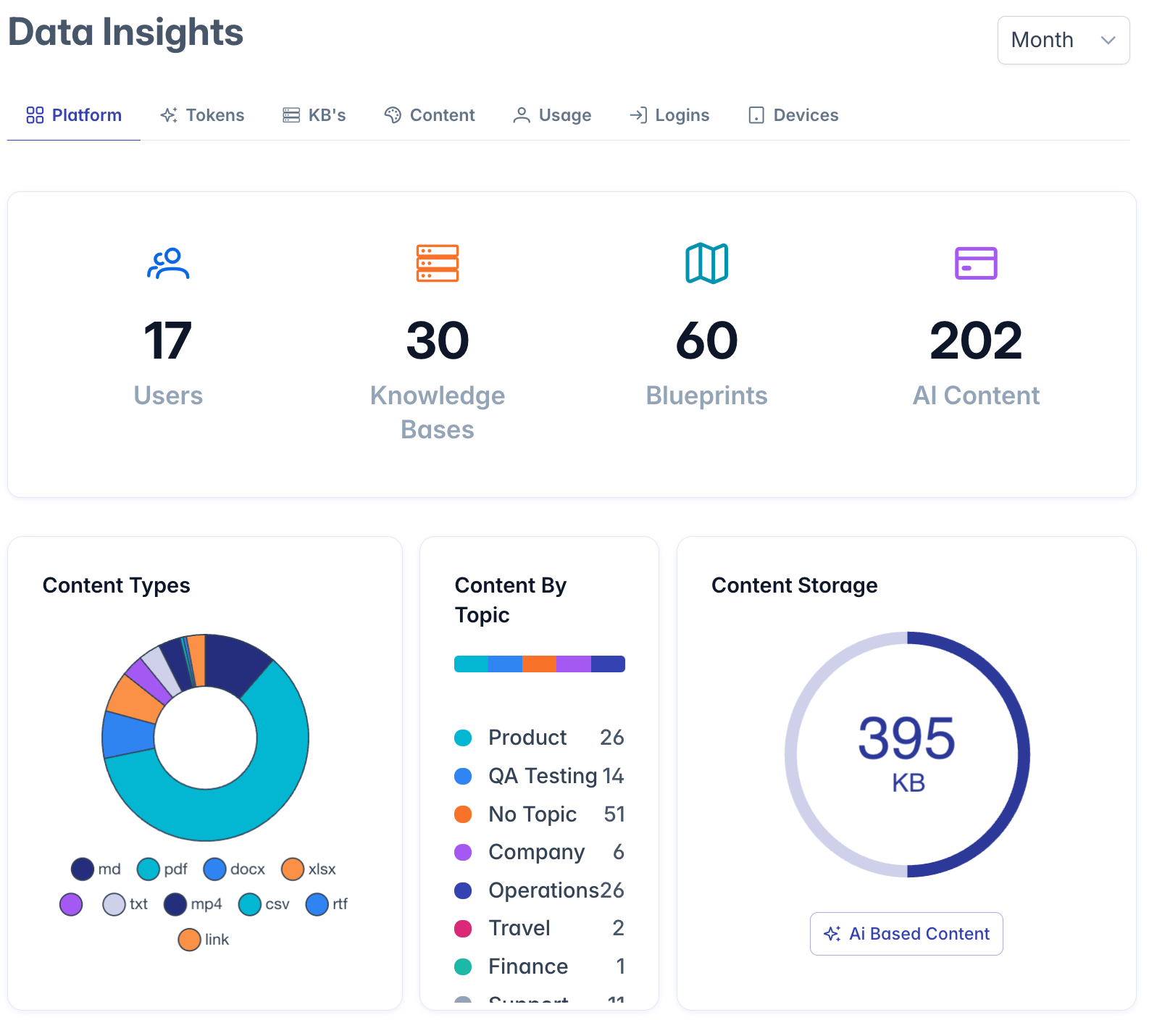
The Platform Dashboard is organized into two main sections:
- Key Metrics Summary: Prominent counters showing system-wide statistics
- Content Analytics: Visual reports displaying content distribution and storage information
Key Metrics Summary
The top section of the dashboard displays four primary metrics in card format:
1. Users Counter
- Icon: Blue users icon
- Metric: Total number of active users in the system
- Purpose: Monitors user adoption and account growth
2. Knowledge Bases Counter
- Icon: Orange server icon
- Metric: Total number of knowledge bases created
- Purpose: Tracks knowledge management activity
3. Blueprints Counter
- Icon: Cyan map icon
- Metric: Total number of AI blueprints created
- Purpose: Measures AI configuration activity
4. AI Content Counter
- Icon: Purple document icon
- Metric: Total number of content items available for AI
- Purpose: Tracks content repository growth
Each counter updates dynamically as new data is added to the system, providing real-time insights into platform usage.
Content Analytics Charts
The lower section of the dashboard contains three analytical charts that offer deeper insights into your content repository:
Content Types Chart
- Chart Type: Doughnut chart
- Location: Left panel
- Data Displayed: Distribution of content by file type (PDF, DOCX, HTML, etc.)
- Purpose: Shows which file formats are most common in your content repository
- Interaction: Hover over segments to see detailed counts for each file type
Content By Topic Chart
- Chart Type: Color-coded list with metrics
- Location: Center panel
- Data Displayed: Content items grouped by their assigned topics
- Purpose: Identifies popular content categories and topic distribution
- Visualization: Color bars indicate different topics with corresponding item counts
- Scrolling: Vertical scrolling allows viewing all topics when they exceed the panel height
Content Storage Chart
- Chart Type: Doughnut chart with central metric
- Location: Right panel
- Data Displayed: Total storage used by all content
- Purpose: Monitors storage utilization and capacity planning
- Central Display: Shows the total storage amount with appropriate unit (KB, MB, GB)
- Context: The "AI Based Content" button provides additional context on content types
Understanding Dashboard Data
Data Refreshing
The dashboard data loads automatically when you access the page. During loading:
- Loading indicators (spinners) appear in place of metrics
- Charts show loading animations until data is available
- Once loaded, the dashboard displays the current state of your platform
Data Aggregation
The dashboard aggregates data from several sources:
- User database for account information
- Content repository for document analytics
- Knowledge base system for KB metrics
- Blueprint storage for AI configuration counts
Time Context
By default, the dashboard shows the current state of your platform. Some metrics may support:
- Filtering by time period (Last 7/30/90 days)
- Comparing to previous periods
- Showing trends over time
Dashboard Insights
The Platform Dashboard helps you answer key questions about your AI platform:
Content Management Insights
- Which file types are most common? The Content Types chart shows distribution by format
- What topics have the most content? The Content By Topic chart ranks topics by content count
- How much storage is being used? The Content Storage chart shows total utilization
System Usage Insights
- How many users are on the platform? The Users counter shows total accounts
- How active is content creation? The AI Content counter indicates repository growth
- How sophisticated is AI usage? The Blueprints counter reflects configuration activity
Sharing Dashboard Information
To share dashboard information with others:
- Use your browser's screenshot functionality to capture the dashboard
- Export specific metrics by noting them in reports
- Schedule regular dashboard reviews with stakeholders to discuss trends
Troubleshooting
Issue: Dashboard shows loading indicators but doesn't load data
- Check your network connection
- Verify you have appropriate permissions
- Try refreshing the page
- Check for system status alerts
Issue: Charts appear empty or with "No data" messages
- This typically indicates no content exists in that category
- Create new content of the relevant type to populate the charts
- Verify content has proper metadata (topics, file types, etc.)
Issue: Metrics seem incorrect or outdated
- Click refresh on your browser to reload the latest data
- Check if any system processes are running that might affect counts
- Verify there are no known issues with data synchronization
For additional assistance with the Platform Dashboard, please contact your system administrator.