Appearance
Tag Management Guide
Introduction
The Tag Management system allows administrators to create and manage tags that organize content throughout the platform. Tags provide a flexible categorization system that helps users find and filter content across the AI assistant ecosystem. This guide explains how to effectively use the Tag Management interface to create and maintain tags.
Accessing Tag Management
The Tag Management component is accessible to users with specific roles:
- Admin
- Content
- Manager
This interface is typically found in the system settings under AI Settings or Content Management sections.
Understanding Tags
Tags are lightweight labels that provide additional categorization beyond primary content types:
Purpose:
- Group related content together
- Create cross-cutting categories
- Improve content discoverability
- Enable more precise filtering
Characteristics:
- Simple text labels
- No hierarchy (flat structure)
- Can be applied to multiple content items
- Can be created centrally or at content creation time
Flexibility:
- System tags (managed centrally)
- Ad-hoc tags (created during content creation)
- Multiple tags can be applied to a single item
- Content can exist without any tags
Tag Management Interface
The Tag Management interface consists of these key components:
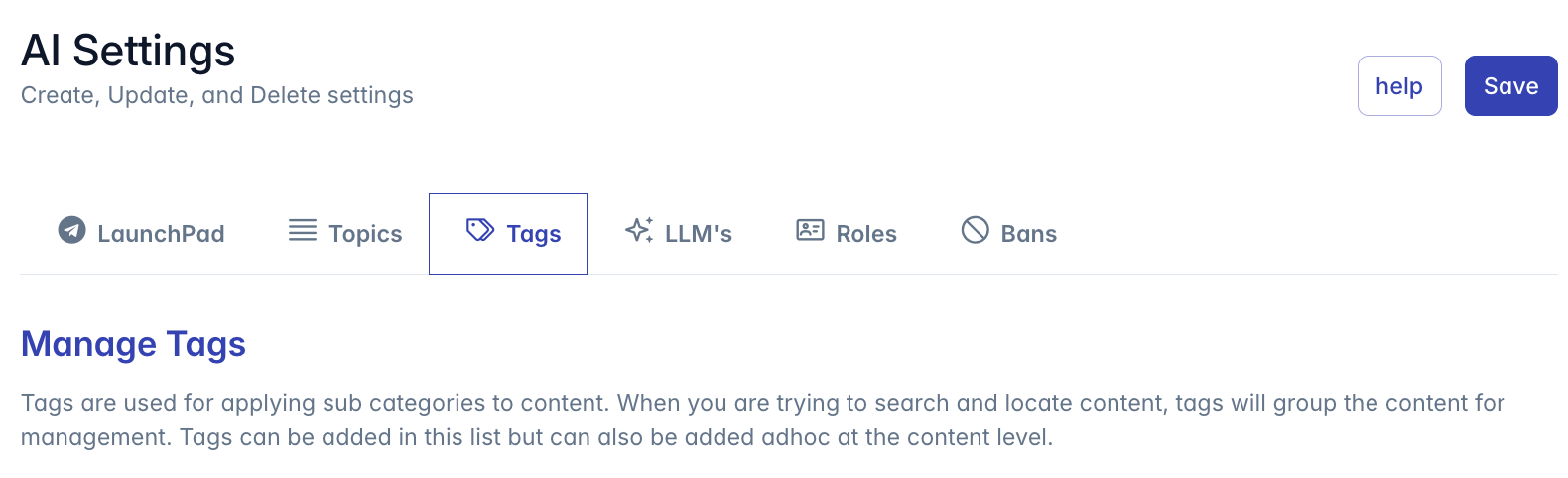
- Header: Title "Manage Tags" with explanatory text
- Tag List: List of existing system tags
- Add Tag Button: Button to create new tags
- Tag Input Fields: Text fields for entering tag names
Managing Tags
Adding Tags
To create a new system tag:
- Click the "Add Tag" button at the bottom of the tag list
- A new input field will appear
- Enter the desired tag name in the field
- Keep it concise and descriptive
- Use clear terminology relevant to your organization
- Avoid special characters and overly long names
- The tag will be validated as you type
- When you save the settings page, all valid tags will be saved
Tags added through this interface become available across the system for:
- Content categorization
- Blueprint organization
- Knowledge base classification
Editing Tags
To modify an existing tag:
- Locate the tag in the list
- Click in its text field
- Edit the tag name as desired
- Changes are applied when the settings page is saved
Note: Editing a tag changes it across all content where it's applied. This is a global change that affects all items using that tag.
Removing Tags
To delete a tag:
- Locate the tag in the list
- Click the trash icon (×) button on the right side of the tag
- The tag is removed from the list
- When settings are saved, the tag will be removed from the system
Important: Removing a tag does not delete content associated with that tag, but those items will no longer have the tag applied. This action cannot be undone.
Tag Usage
Once created, tags can be used throughout the system in various contexts:
Content Tagging
In content creation and editing interfaces:
- Select from available system tags
- Create new ad-hoc tags if needed
- Apply multiple tags to a single content item
- Filter content lists by selected tags
Blueprint Tagging
When configuring AI Blueprints:
- Apply tags to categorize the Blueprint's purpose
- Use tags to make Blueprints more discoverable
- Filter Blueprint lists using tags
Knowledge Base Tagging
When managing Knowledge Bases:
- Apply tags to indicate KB subject matter
- Use tags to group related knowledge bases
- Filter KB lists using applied tags
Best Practices
For effective tag management:
Consistent Naming Conventions:
- Use clear, descriptive names
- Maintain consistent capitalization (either all lowercase or title case)
- Avoid abbreviations unless widely understood
- Consider using singular nouns (e.g., "Policy" not "Policies")
Tag Organization:
- Create a core set of standard tags centrally
- Periodically review ad-hoc tags for consolidation
- Combine similar tags to prevent fragmentation
- Remove unused or redundant tags
Tagging Strategy:
- Define tag categories (e.g., department, content type, project)
- Establish guidelines for when to create new tags
- Train users on consistent tag application
- Consider a tag governance process for larger organizations
Usage Guidelines:
- Apply 3-5 relevant tags per item (not too many)
- Focus on the most important characteristics
- Use topics for primary categorization, tags for secondary
- Combine tags with search for best results
Troubleshooting
Issue: Tags not appearing in content creation interfaces
- Refresh the interface to load the latest tags
- Verify that tags were properly saved in the Tag Management interface
- Check user permissions for tag visibility
Issue: Unable to add new tags
- Ensure you have the required permissions (Admin, Content, or Manager)
- Check that the tag name is valid and not duplicated
- Verify the tag field is not empty when trying to save
Issue: Tag filtering not working properly
- Confirm tags are properly applied to content items
- Try refreshing the interface
- Check if there are any system-wide filtering settings affecting results
Issue: Tags disappearing from content
- Verify the tag wasn't deleted in the Tag Management interface
- Check for any bulk operations that might have modified tags
- Review recent system changes or updates
Issue: Too many similar tags creating confusion
- Develop a plan to consolidate similar tags
- Edit tags to standardize naming
- Create organizational guidelines for tag creation
- Periodically audit and clean up the tag list
For additional assistance with tag management, please contact your system administrator or refer to the platform documentation.