Appearance
Knowledge Base Management Guide
Introduction
The Knowledge Base Manager provides administrators and content managers with a powerful interface for creating, managing, and organizing AI knowledge bases. Knowledge bases are collections of content that power your AI assistant, enabling it to provide accurate, relevant responses based on your organization's specific information and documentation.

Accessing the Knowledge Base Manager
The Knowledge Base Manager is accessible to users with the following roles:
- Admin
- Content
- Manager
To access the Knowledge Base Manager, navigate to the Knowledge Bases section from the assistant management menu.
Knowledge Base Manager Interface Overview
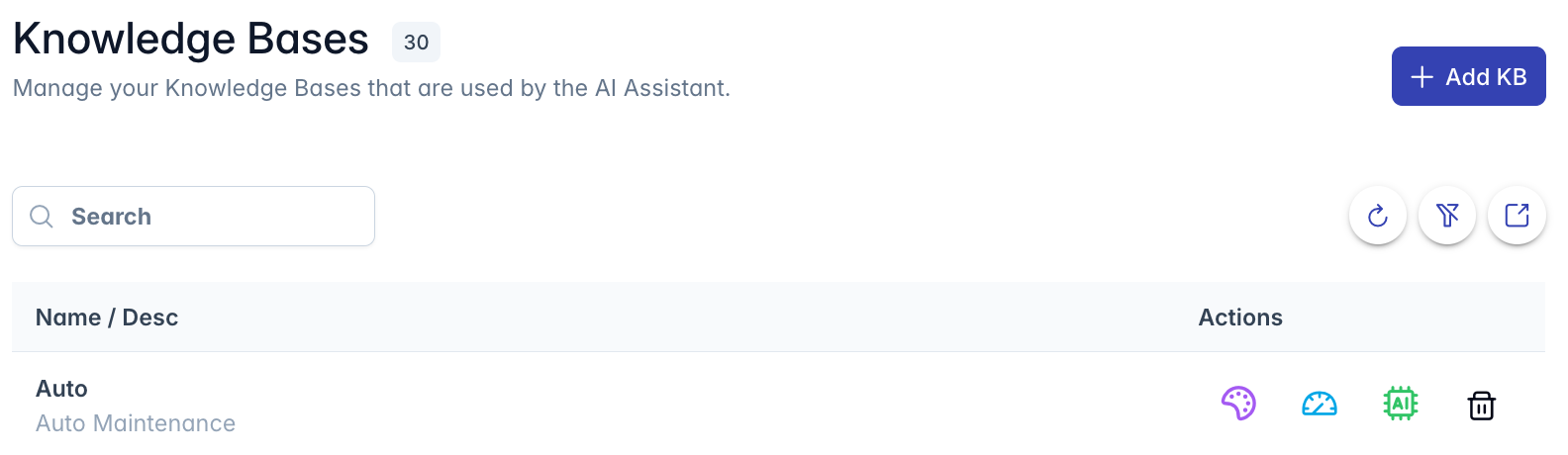
The Knowledge Base Manager interface consists of these key components:
- Header Section: Contains the title "Knowledge Bases" with a count badge and the "Add KB" button
- Search and Filter Controls: Tools to find and filter knowledge bases
- Data Table: Displays all knowledge bases with sortable columns
- Action Buttons: Refresh, filter, export, and help options
- Knowledge Base Editor: Opens when adding or editing a knowledge base
Knowledge Base List View
The main table displays all knowledge bases you have access to view. Each row contains:
- KB Initials: Visual identifier for the knowledge base (clickable to edit)
- Name and Description: The primary identifier and purpose description (clickable to edit)
- Groups: Visual representation of groups with access to the knowledge base
- Topic: Category classification for organizational purposes
- Actions: Buttons for managing the knowledge base and its content
Searching for Knowledge Bases
To find specific knowledge bases:
- Use the search box in the upper-left corner
- Type keywords to search across knowledge base names, descriptions, and topics
- Results update automatically as you type
- A filter indicator appears when search filters are active
Filtering Knowledge Bases
The Knowledge Base Manager offers several filtering options:
Column Filtering
Each column has its own filtering capabilities:
- Click the filter icon in any column header
- Enter filter criteria in the popup
- The table will update to show only matching records
Filter Examples
- Groups Filter: Select a specific group to show only knowledge bases shared with that group
- Topic Filter: Select a topic to show only knowledge bases with that classification
- Global Search: Enter text to search across all searchable fields
Creating a New Knowledge Base
To create a new knowledge base:
- Click the "Add KB" button in the top-right corner
- The Knowledge Base Editor dialog will open
- Fill in the required information:
- Name (required)
- Description
- Initials (auto-generated from name if not specified)
- Topic (optional category)
- Group assignments for access control
- Configure any additional settings
- Click "Save" to create the knowledge base
- See Knowledge Base Settings for more details on Knowledge Base settings fields
Managing Knowledge Bases
Editing a Knowledge Base
To modify an existing knowledge base:
- Click on the knowledge base name, description, or initials in the table
- The Knowledge Base Editor dialog will open with current settings
- Make your desired changes
- Click "Save" to update the knowledge base
Deleting a Knowledge Base
To delete a knowledge base:
- Click the trash icon in the Actions column
- A confirmation dialog will appear:
- If the knowledge base contains content, you'll be prompted to delete the content first
- If the knowledge base is empty, you can confirm deletion
Important: You cannot delete a knowledge base that contains content. You must first delete or reassign all content items.
Knowledge Base Actions
The Actions column provides quick access to common tasks:
View AI Content
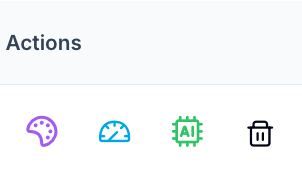
Click the palette icon to:
- View all content items in this knowledge base
- The system will navigate to the Content List filtered to show only items in this knowledge base
Run Test Cases
Click the gauge icon to:
- Access the test case interface for this knowledge base
- Create and run test scenarios to evaluate AI responses
- Verify knowledge base performance
AI Sync/Embed
Click the microchip icon to:
- View the processing status of content in this knowledge base
- Check if content has been properly embedded and indexed
- Troubleshoot content that failed to process
Group Access Management
The Groups column shows which groups have access to each knowledge base:
- Each group is represented by an avatar with the group's initials
- Up to 8 groups are shown directly as avatars
- If more than 8 groups have access, a "+N" indicator shows the additional count
- Hover over any avatar to see the full group name in a tooltip
Knowledge Base Status Indicators
The list provides visual indicators for each knowledge base:
- KB Initials: Appears as a colorful square avatar in the leftmost column
- Topic Tag: Shows the assigned topic category
- Group Avatars: Show which groups have access
- Content Count: Tracked internally and used during deletion
Managing the Knowledge Base List
Refreshing the List
To ensure you're viewing the most current information:
- Click the refresh icon in the top-right corner
- The list will reload with the latest data from the server
Clearing Filters
To remove all active filters:
- Click the filter-slash icon in the top-right corner
- All filters will be reset to show all knowledge bases
Exporting Knowledge Base Data
To export the knowledge base list for reporting or analysis:
- Click the export icon in the top-right corner
- Confirm the export in the popup dialog
- A CSV file will be downloaded to your computer
- The exported file includes all visible columns for all knowledge bases matching your current filters
Empty State Handling
If no knowledge bases are found (either because none exist or due to filters):
- A helpful empty state message appears
- The message suggests possible actions:
- Check your filters
- Clear filters
- Add a new knowledge base
- A visual illustration helps identify the empty state
Accessing Help Resources
For additional guidance on using the Knowledge Base Manager:
- Click the question mark icon in the top-right corner
- The Help Center dialog will open
- Relevant documentation for knowledge base management will be displayed
Troubleshooting
Issue: No knowledge bases appearing in the list
- Check if filters are active (indicated by the filter badge)
- Click the filter-slash icon to clear all filters
- Verify you have permission to view knowledge bases
- Click the refresh button to update the list
Issue: Cannot create or edit a knowledge base
- Verify you have appropriate permissions (Admin, Content, or Manager role)
- Check for any error messages that appear during save operations
- Ensure all required fields are completed
Issue: Cannot delete a knowledge base
- Check if the knowledge base contains content (indicated in the confirmation dialog)
- Navigate to the content list and delete all content in the knowledge base first
- Return to the Knowledge Base Manager and try deleting again
Issue: Export not working
- Check your browser's download settings
- Ensure you have permission to export data
- Try refreshing the page and attempting the export again
For additional assistance with the Knowledge Base Manager, click the Help button in the top-right corner for context-specific guidance.