Appearance
User Activity Report Guide
Introduction
The User Activity Report provides administrators with comprehensive insights into user engagement, AI usage patterns, and resource consumption across your organization. This powerful analytics tool helps track logins, AI requests, and token usage by users, allowing you to monitor adoption, identify power users, and optimize resource allocation.
Accessing the User Activity Report
The User Activity Report is available in the Reports section of the application. You can access it by:
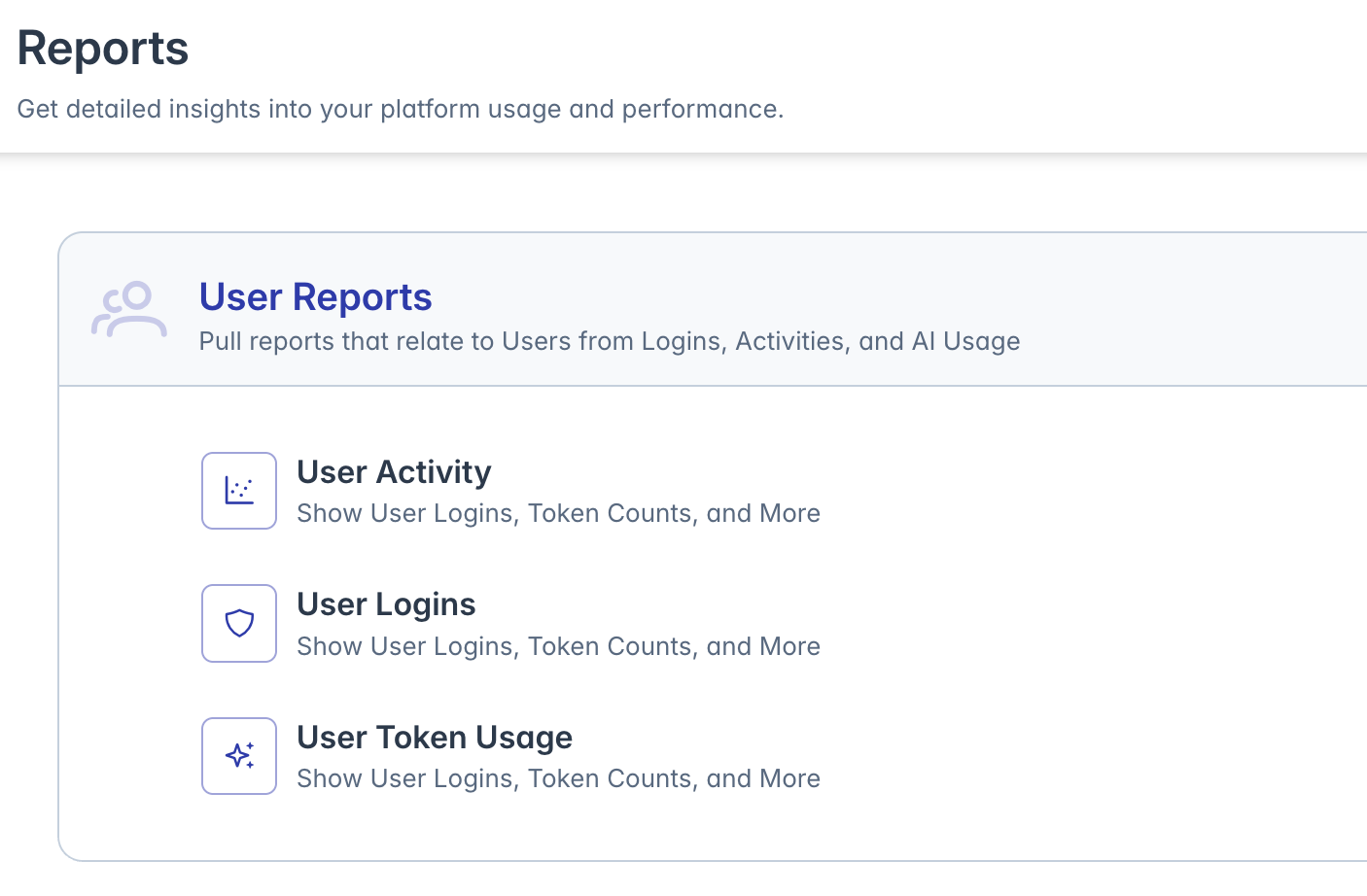
- Navigating to the Reports Menu
- Selecting "User Activity Report" from the list of available reports
Note: You need appropriate administrative permissions to access reporting features.
Report Interface Overview
The User Activity Report interface consists of these key components:

- Header Section: Contains the report title, user count badge, and navigation options
- Time Period Selector: Controls the time frame for the displayed data
- Filtering Controls: Allows narrowing results by user attributes
- Data Table: Displays detailed user activity metrics
- Summary Footer: Shows totals for key metrics across all displayed records
Setting the Report Time Period
The User Activity Report data is organized by month. To select a specific time period:
- Use the Time Period Selector in the top-right corner
- Choose a month from the dropdown calendar
- The report will update to show data for the selected period
- The selected date appears in a highlighted box above the data table
Filtering Report Data
You can filter the report data to focus on specific users or groups:
Quick Filters
Use the filter controls above the data table to:
- Filter by organization(s)
- Filter by role(s)
- Filter by groups
- Search for specific users by name
Table Filters
Each column in the data table has its own filtering options:
- Click the filter icon in any column header
- Enter filter criteria in the popup
- The table will update to show only matching records
- An indicator appears when filters are active
Understanding Report Metrics
The User Activity Report tracks several key metrics:
User Information
- Date: The month and year of the activity data
- Name: User's full name (first and last name)
- Username: User's login ID
- Role: User's assigned role in the system
- Orgs: User's organizational affiliations
Activity Metrics
- Logins: Number of times the user logged into the system
- Requests: Number of AI requests/conversations initiated
- Tokens In: Number of input tokens consumed (prompt tokens)
- Tokens Out: Number of output tokens generated (response tokens)
- Tokens: Total token usage (input + output)
Working with Report Data
Customizing Columns
You can customize which columns appear in the report:
- Click the table icon in the top-right corner
- A popup will display available columns
- Check/uncheck columns to show or hide them
- The table will update immediately to reflect your choices
- Column selections are saved for your next visit
Sorting Data
To sort the report by any metric:
- Click on a column header to sort in ascending order
- Click again to sort in descending order
- A sort indicator appears in the column header
- Multiple columns can be sorted by holding Shift while clicking
Exporting Report Data
To export the report data for further analysis:
- Click the Excel icon in the top-right corner
- The report will be downloaded as a CSV file
- The exported file includes all visible data, respecting current filters
- The file is named "UserActivityReport.csv"
Analyzing Totals
The report provides summary totals at the bottom of each numeric column:
- These totals reflect the sum of all visible records
- If filters are applied, totals update to show only filtered data
- Large numbers are formatted for readability (K for thousands, M for millions)
Refreshing Data
To ensure you're viewing the most current information:
- Click the refresh icon in the top-right corner
- The report will reload with the latest data from the server
- Your current filters and column selections will be preserved
Navigating Between Reports
To access other reports from the User Activity Report:
- Click the report title or dropdown arrow
- A menu of available reports will appear
- Select another report to navigate to it
- Use the back arrow to return to the Reports Menu
Troubleshooting
Issue: Report shows "No user activity report data found"
- Try selecting a different time period
- Clear any active filters
- Check if users have activity during the selected period
Issue: Metrics appear unusually low or zero
- Verify the selected time period is correct
- Check if users were active during that period
- Ensure users have appropriate permissions for tracked activities
Issue: Missing users in the report
- Verify the users existed during the selected time period
- Check if filters are excluding the users
- Confirm the users performed activities during the period
For additional assistance with the User Activity Report, please contact your system administrator.