Appearance
Smart Group Configuration Guide
Introduction
The Smart Group Configuration dialog provides administrators with a powerful interface for creating and managing dynamic user groups. This advanced tool allows you to define groups based on user attributes, organizational structure, roles, and other criteria, creating flexible user collections that automatically update as user data changes.
Accessing the Smart Group Configuration
You can access the Smart Group Configuration when:
- Creating a new Smart Group by clicking the "Smart Group" button
- Editing an existing Smart Group by clicking its name or initials
- Managing Smart Group settings from the Smart Group list
Note: You need Admin, Content, or Manager role permissions to configure Smart Groups.
Smart Group Configuration Interface
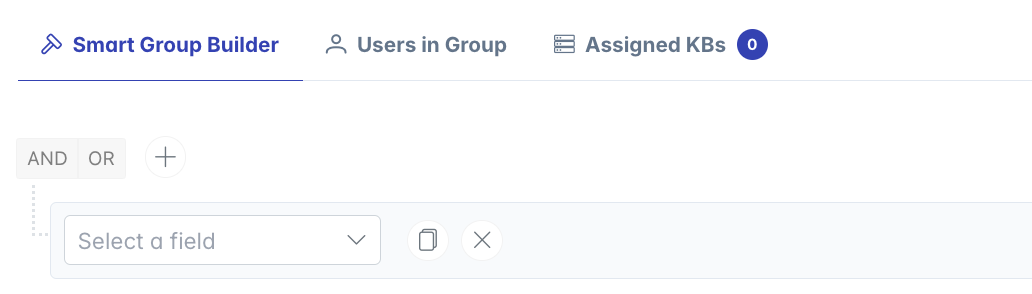
The configuration dialog is organized into six tabs:
- Smart Group Builder: Create query rules that define group membership
- Users in Group: View current group members based on the query rules
- Assigned KBs: See which knowledge bases are accessible to this group
- Users Added: Review users newly added by a rule change (after updates)
- Users Removed: See users removed by a rule change (after updates)
- Share: Manage group ownership and sharing settings
Basic Group Information
At the top of the dialog, configure the fundamental properties of your Smart Group:
Group Name: Provide a descriptive title (required)
- Should clearly identify the group's purpose or criteria
- Used throughout the system as the group identifier
Group Description: Explain the group's purpose and membership criteria
- Helps other administrators understand the group's function
- Provides context for why the group exists
Initials: Set 1-2 characters that appear in the group's avatar
- Auto-generated from the name when you tab out of the name field
- Used as a visual identifier in lists and UI elements
Smart Group Builder
The heart of Smart Group configuration is the query builder interface, which allows you to visually create the rules that determine group membership:

Creating Basic Rules
Click the "+" button to add your first condition
Define the condition using three components:
- Field: Select a user attribute (e.g., First Name, Organization, Role)
- Operator: Choose a comparison type (e.g., Equal, Contains, Starts With)
- Value: Enter or select the value to compare against
Each time you add, modify, or remove a rule, the group membership automatically recalculates
Understanding Operators
Different field types support different operators:
Text Fields (name, username, organization):
- Contains: Text appears anywhere in the field
- Equal: Exact match of the entire field
- Not Equal: Field does not match exactly
- Starts With: Field begins with the specified text
- Exists: Field has any value
- Not Exist: Field is empty
Role Fields:
- Equal: User has the selected role
- Not Equal: User does not have the selected role
Group Fields:
- Contains: User is a member of the selected group
Creating Complex Queries
For advanced group definitions:
Use the "AND"/"OR" selector to combine multiple conditions:
- AND: All conditions must be true (more restrictive)
- OR: Any condition can be true (more inclusive)
Create rule groups by clicking the "Add Group" button:
- Groups allow for nested logic
- Each group can have its own AND/OR setting
Use the clone buttons to duplicate rules or entire groups:
- "Clone Rule" copies a single condition
- "Clone Group" duplicates a group with all its conditions
User Field Reference
You can filter users based on these common fields:
- Identity Fields: Employee ID, First Name, Last Name, Username
- Organizational Fields: Organization, Department, Title, Reports To
- System Fields: Role, Language, Create Date
- Group Membership: Inclusion in other groups
Viewing Group Membership
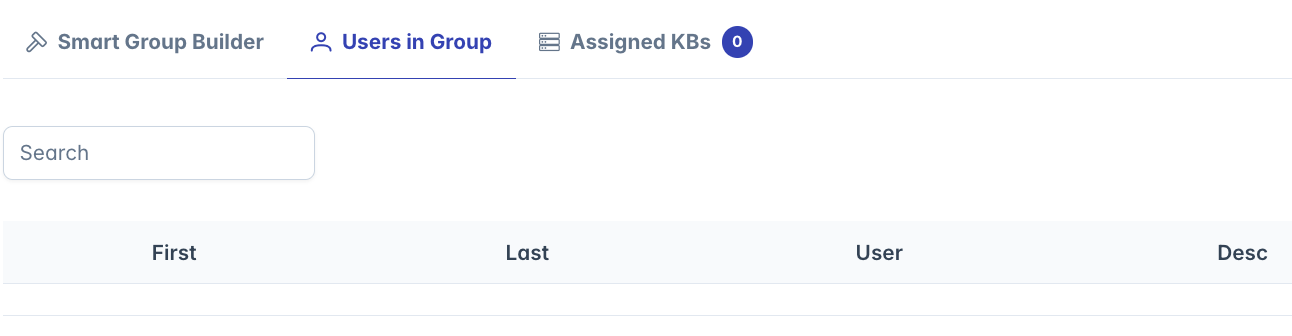
The "Users in Group" tab shows the current members based on your query rules:
Membership List Features
- Displays all users who match your query criteria
- Updates automatically when query rules change
- Shows user count with a badge on the tab
- Includes search and filtering capabilities
- Displays user details like name, organization, and contact information
Using Membership Information
This view helps you:
- Verify your query rules are working as expected
- Identify unexpected inclusions or exclusions
- Understand the group's current composition
- Estimate the impact of rule changes
Knowledge Base Assignments
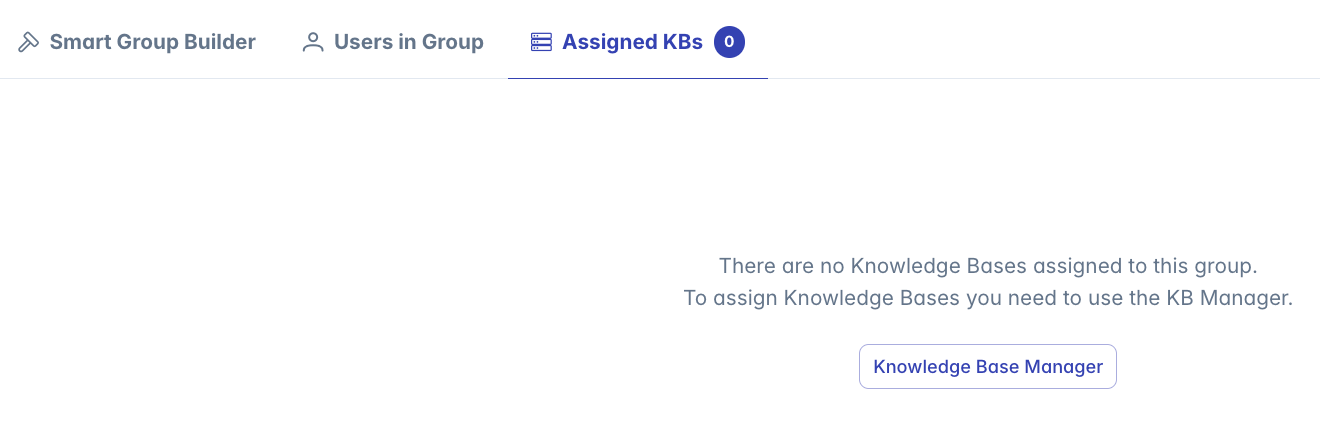
The "Assigned KBs" tab shows which knowledge bases are accessible to this group:
KB Relationship
- This tab is read-only and shows existing relationships
- Knowledge bases become associated when:
- A KB is explicitly shared with this group
- This group is added to a KB's access list
- The badge on the tab shows the total count of associated KBs
Using KB Assignment Information
This view helps you:
- Understand what content is available to group members
- Identify potential knowledge gaps
- Coordinate with knowledge base administrators
- Plan content accessibility strategies
Membership Change Tracking
After updating an existing group, two additional tabs may appear:
Users Added
- Shows users who are newly included after a rule change
- Helps you understand the impact of your changes
- Includes a success badge showing the number of additions
- Provides detailed information about each added user
Users Removed
- Shows users who were removed after a rule change
- Helps you identify any unexpected exclusions
- Includes a danger badge showing the number of removals
- Provides detailed information about each removed user
Ownership and Sharing
The "Share" tab allows you to control who can edit and manage the Smart Group:
Owner Management
Determine who can edit and administer the group:
- Search for users or groups in the owner search field
- Add individual users as owners
- Add entire groups as owners (all members will have edit rights)
- Remove owners as needed
Role Group Restrictions
Some groups have special protection because they're tied to system roles:
Role Group Indicators
- A lock icon appears next to the name
- An information message explains the restriction
- Form fields are disabled
- These groups cannot be modified directly
Role groups must be managed through the Role Manager interface.
Saving Group Configuration
After configuring all settings:
- Click the "Save Smart Group" button at the bottom of any tab
- The system validates your settings and applies the query rules
- If validation succeeds, the group is created or updated
- A success message appears showing membership changes:
- Total users in the group
- Number of users added
- Number of users removed
Best Practices for Smart Group Configuration
Effective Query Design
For optimal group management:
- Start with simple rules and test before adding complexity
- Use clear, predictable field values when possible
- Consider the maintenance implications of complex rules
- Document the purpose of each group and its intended membership
Query Performance
To maintain system efficiency:
- Be specific with conditions to limit unintended matches
- Use "Equal" rather than "Contains" when exact matches work
- Avoid unnecessarily complex nested group structures
- Test with representative user data before deployment
Group Organization
For better administrative clarity:
- Use consistent naming conventions
- Group similar functions together
- Create separate groups for different access needs
- Document group relationships and dependencies
Troubleshooting
Issue: No users appear in the membership list
- Check if your query conditions are too restrictive
- Verify field names and values match your user data
- Try using more general conditions like "Contains" instead of "Equal"
- Test each condition individually to identify the limiting factor
Issue: Too many users appear in the membership list
- Your conditions may be too broad
- Try using AND instead of OR for multiple conditions
- Add more specific conditions to narrow the membership
- Check for unexpected data patterns in user profiles
Issue: Cannot save the Smart Group
- Ensure you've provided a group name and initials
- Check for any validation errors in required fields
- Verify you have permissions to create or edit groups
- Make sure your query rules are properly constructed
Issue: Unexpected membership changes
- Review the query rules carefully for logical errors
- Check the Users Added/Removed tabs for specific changes
- Verify user profile data for unexpected values
- Consider using the Help button for guidance on query construction
For additional assistance with Smart Group configuration, click the Help button in the top-right corner of the dialog for contextual guidance.