Appearance
AI Model Configuration Guide
Introduction
The AI Model Configuration interface allows administrators to select which Large Language Models (LLMs) are available for use within the platform. This setting determines which AI models users can select when creating Blueprints and configuring AI assistants. By controlling model availability, administrators can balance capabilities, costs, and performance based on organizational needs.
Accessing AI Model Configuration
The AI Model Configuration is accessible to users with specific roles:
- Admin
- Content
- Manager
This interface is typically found in the system settings under AI Settings or Advanced Configuration sections.
AI Models Overview
Large Language Models (LLMs) are the foundation of AI capabilities in the platform. Different models offer varying capabilities, costs, and performance characteristics.
Before selecting or changing your Language Model you may wish to review the differences between the models. Understanding Large Language Models
Model Types:
- Foundation models (general-purpose)
- Specialized models (domain-specific)
- Different generations and versions
Model Providers:
- Anthropic (Claude models)
- Amazon (Titan models)
- Additional providers may be added over time
Model Selection Interface
Model Cards
Each available model is displayed as a card with comprehensive information:
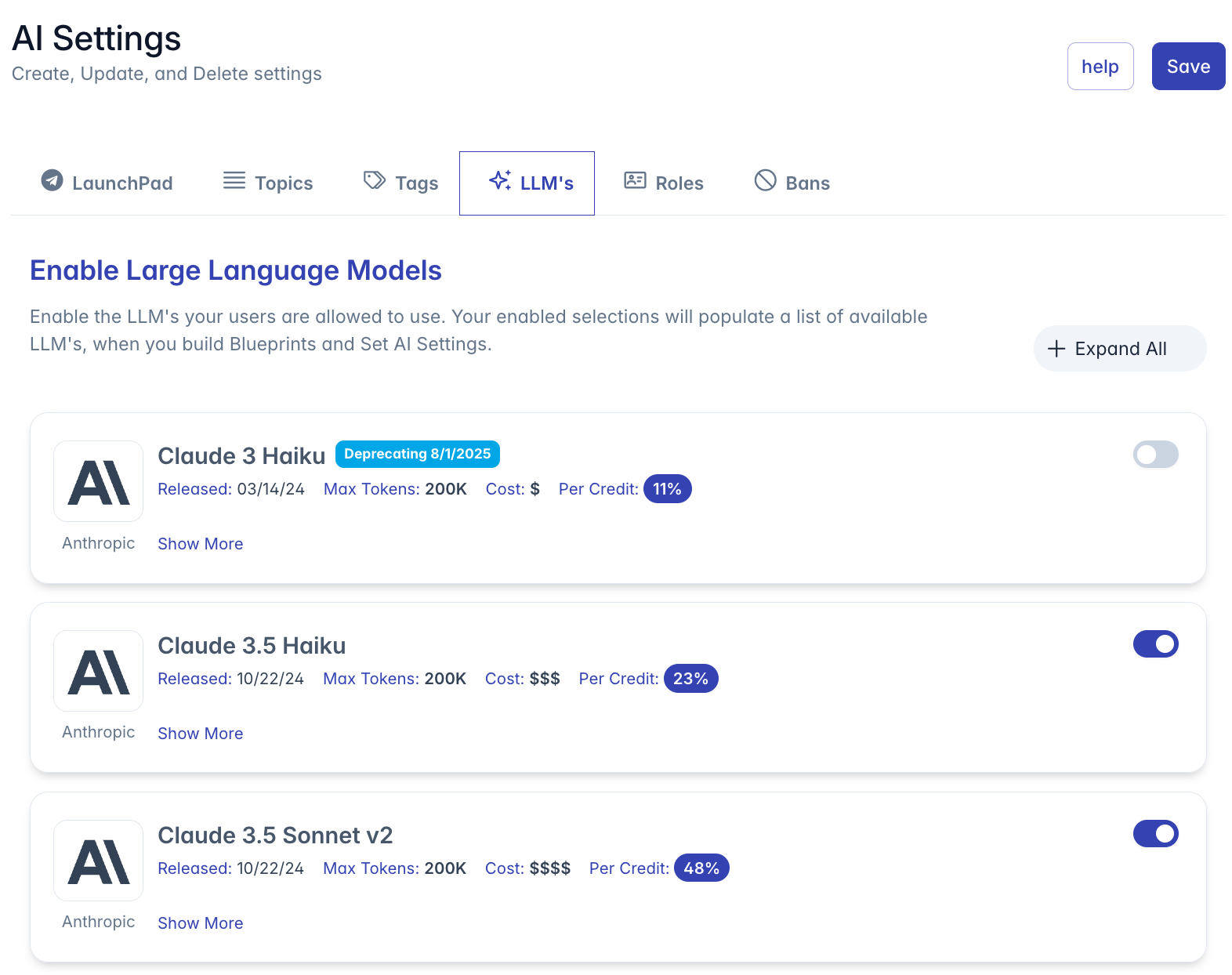
Visual Elements:
- Provider logo (Anthropic, Amazon, etc.)
- Provider name
- Model name
- Status badges and tags
Card Layout:
- Provider information in the left column
- Model details in the center
- Activation toggle in the right column
Model Details
Each model card displays key performance and specification information:
Basic Information:
- Model Name: Full name of the model (e.g., "Claude 3 Sonnet")
- Status Badge: Indicates special status like "Preview" or "Beta"
- Availability Tag: "Not Available" appears for models that cannot be enabled
Specifications:
- Released: Publication or release date
- Max Tokens: Maximum context length the model can process
- Cost: Relative cost indicator using dollar signs ($ to $$$)
- Per Credit: Credit consumption per use, shown as a percentage
Expanded Information:
- Description: Detailed explanation of model capabilities and use cases
- Categories: Tags indicating strengths or specializations of the model
Enabling Models
To control which models are available to your organization:
Toggle the switch on the right side of each model card:
- ON: Model will be available for selection in Blueprints and AI Settings
- OFF: Model will not be available for selection
Unavailable models:
- Appear with reduced opacity
- Have disabled toggle switches
- Show "Not Available" tags
Understanding Model Information
Provider Information
The model card identifies the AI provider:
- Logo: Visual identifier for the model provider
- Make: Text name of the provider (e.g., "Anthropic" or "Amazon")
- This helps distinguish between different AI ecosystems
Model Specifications
Technical details help understand model capabilities:
Max Tokens:
- Measures context capacity in tokens (roughly 4 characters per token)
- Larger numbers indicate ability to process longer content
- Range typically from 8K to 200K tokens
- Important for applications needing long context
Release Date:
- When the model version was released
- Newer models generally have improved capabilities
- Helps track model freshness and update cycles
Cost Information
Two cost indicators help with budget planning:
Dollar Signs:
- Relative cost indicator ($, $$, $$$, etc.)
- More signs indicate higher per-token costs
- Helps with quick cost comparisons
Credit Percentage:
- Platform-specific consumption metric
- Displayed as a percentage (e.g., "20%")
- Higher percentages consume more credits per use
- Important for budget allocation and monitoring
Status Indicators
Status badges provide important availability information:
Not Available:
- Model cannot be enabled currently
- May be due to contractual limits, region restrictions, or other factors
- These models are shown for informational purposes only
Preview/Beta:
- Model is in early access or testing phase
- May have limitations or performance variations
- Consider carefully before using in production environments
Categories
Category tags help identify model specialties:
Purpose-Based Categories:
- Content Creation
- Code
- Analysis
- Reasoning
Characteristic-Based Categories:
- Fast
- Efficient
- High Accuracy
- Multilingual
These categories help match models to specific use cases and requirements.
Managing Model Visibility
Expand/Collapse Features
To manage information density in the interface:
Show More Link:
- Click to expand individual model cards
- Reveals description and category tags
- Helps focus on models of interest
Expand All/Collapse All:
- Button in the top-right corner
- "Expand All": Shows detailed information for all models
- "Collapse All": Hides detailed information for all models
- Useful when comparing multiple models
Model Selection Strategy
Use Case Considerations
Different models excel at different tasks:
General Assistant Tasks:
- Choose balanced models like "Sonnet"
- Good for varied questions and tasks
- Middle-tier cost and performance
Content Creation:
- Choose models with strong writing capabilities
- May have higher costs but produce better content
- Look for "Content Creation" category tag
Technical and Code Applications:
- Choose models with code capabilities
- Look for "Code" category tag
- Consider models with higher accuracy ratings
Cost Management
Balance capabilities with budget constraints:
Budget-Focused Approach:
- Enable fewer, more targeted models
- Select models with lower cost indicators
- Focus on models with lower credit percentages
- Disable expensive models that aren't essential
Capability-Focused Approach:
- Enable multiple models with different strengths
- Allow Blueprint creators to select appropriate models
- Consider enabling at least one lower-cost option
Performance Requirements
Consider the types of content and response times needed:
Response Speed Priority:
- Enable models tagged as "Fast"
- Generally smaller models have faster response times
- Look for lower token capacities
Complex Task Priority:
- Enable models with higher capabilities
- Look for "Reasoning" and "Analysis" categories
- Consider models with larger token capacities
Best Practices
For optimal AI model configuration:
Balanced Selection:
- Enable at least one model from each price tier
- Include models with different strengths
- Consider enabling both fast and powerful options
Regular Review:
- Periodically review which models are most used
- Consider disabling models that are rarely selected
- Stay informed about new model releases
Pilot Testing:
- When new models become available, enable for testing
- Gather feedback from power users
- Monitor performance and costs before wider deployment
Cost Monitoring:
- Track credit usage across different models
- Consider restricting very expensive models if budget is a concern
- Balance capabilities needed with financial constraints
Use Case Alignment:
- Enable models appropriate for your organization's needs
- Consider your industry and typical AI usage patterns
- Disable models that don't align with your use cases
Troubleshooting
Issue: Model shows "Not Available" status
- This model may not be available in your region
- Your subscription tier may not include this model
- Check with your account representative for availability
Issue: Enabled models not appearing in Blueprints
- Refresh the Blueprints interface
- Check if the user has proper permissions
- Verify the Blueprint is compatible with the model
Issue: Cannot enable/disable models
- Verify you have administrator privileges
- Some models may be required by the system and cannot be disabled
- Try refreshing the page
Issue: Cost concerns after enabling models
- Enable fewer high-cost models
- Implement usage policies through Blueprints
- Consider creating cost-optimized Blueprints for common tasks
Issue: Model performance doesn't match expectations
- Different models have different strengths
- Try alternative models for specific tasks
- Check system instructions in Blueprints
- Consider adjusting creativity and response settings
For additional assistance with AI model configuration, please contact your system administrator or platform support team.