Appearance
User Profile Preferences Guide
Introduction
The User Profile Preferences component allows administrators to configure personalized settings for each user. These preferences control the user interface appearance, session behavior, default content, and other customization options to optimize the user experience.
Accessing User Preferences
The User Preferences component is accessible to users with specific roles:
- Admin
- Content
- Manager
To access this component:
- Navigate to a user profile page (
/user/profile/[user_id]) - Click on the "Preferences" tab in the left navigation menu
User Preferences Interface Overview
The User Preferences interface displays a form with multiple setting controls organized in a responsive grid layout. Each preference has a clear label and appropriate input control (toggle switches, dropdown menus, sliders, or radio buttons).
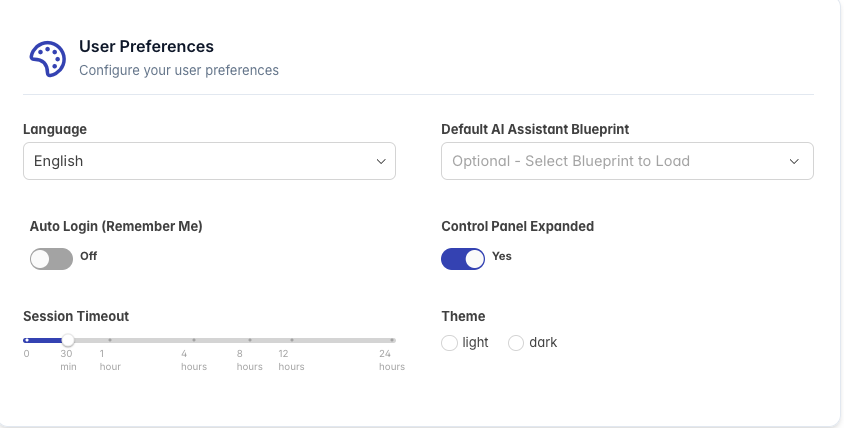
The header area includes:
- A palette icon indicating customization options
- A "User Preferences" title
- A brief description: "Configure your user preferences"
Available Preference Settings
Language Settings
Language Dropdown
- Options: English, Spanish, French
- Controls the display language throughout the application
- Affects all text elements, notifications, and system messages
- Default: English
Default Blueprint
Default AI Assistant Blueprint
- Type: Autocomplete field with dropdown list
- Options: All blueprints marked with
ai_blueprint_show_home === true - Purpose: Sets the AI conversation template that loads automatically when a user starts the assistant
- When selected, the specified blueprint will initialize whenever the user opens a new chat session
- When empty (default), users must manually select a blueprint
Security Settings
Auto Login (Remember Me)
- Type: Toggle switch (On/Off)
- When enabled: User credentials are remembered between browser sessions
- When disabled: User must enter credentials each time they log in
- Default: Enabled
Interface Display Settings
Control Panel Expanded
- Type: Toggle switch (Yes/No)
- When enabled: The assistant control panel appears expanded by default
- When disabled: The control panel appears collapsed until manually expanded
- Default: Enabled
- Affects the initial state of the control panel when opening the assistant
Session Management
Session Timeout
- Type: Slider with marked intervals
- Controls how long a user can remain inactive before being automatically logged out
- Options:
- 0: No timeout (session never expires)
- 30 minutes
- 1 hour
- 4 hours
- 8 hours
- 12 hours
- 24 hours
- Default: 30 minutes
- For security purposes, this setting determines when to end idle sessions
Theme Settings
Theme
- Type: Radio button group
- Options: Light, Dark
- Controls the color scheme of the application
- Light: Traditional bright background with dark text
- Dark: Dark background with light text
- Default: Light
How Preferences Affect User Experience
Theme and Visual Settings
- Directly impact the visual appearance of all screens
- Help accommodate user preferences for light/dark environments
- Can reduce eye strain in different lighting conditions
Default Blueprint
- Streamlines workflow by automatically loading frequently used AI conversation templates
- Eliminates the need to select the same blueprint repeatedly
- Particularly useful for users who primarily work with one type of AI interaction
Session Timeout
- Balances security with convenience
- Shorter timeouts increase security but may require more frequent logins
- Longer timeouts improve workflow but may pose security risks if workstations are left unattended
Language Selection
- Ensures content is presented in the user's preferred language
- Improves usability for non-native English speakers
- Affects all system text, not user-generated content
Best Practices
Setting Session Timeouts
- For shared workstations: Use shorter timeouts (30 minutes to 1 hour)
- For private workstations: Longer timeouts may be acceptable (4-8 hours)
- For high-security environments: Use shorter timeouts regardless of workstation type
Default Blueprint Selection
- Choose blueprints that match the user's primary job function
- For new users, consider leaving this blank until their workflow patterns are established
- Update periodically based on actual usage patterns
Theme Configuration
- Consider setting dark mode for users working in low-light environments
- Light mode is typically better for high-light environments and print readability
- Match to organizational branding when possible
Control Panel State
- For new users: Set to expanded to increase feature discovery
- For experienced users: Consider collapsed to maximize screen space
- For small screens/mobile users: Collapsed is generally preferred
For additional assistance with user preferences configuration, please contact your system administrator.