Appearance
User List Management Guide
Introduction
The User List component provides a comprehensive interface for managing user accounts within the system. It allows administrators to view, search, filter, and access individual user profiles for detailed management.

Accessing the User List
The User List component is accessible to users with specific roles:
- Admin
- Content
- Manager
To access this component, navigate to /users/UserList in the system. You'll typically find a link to this page in the administration menu or user management section.
User List Interface Overview
The User List interface consists of these key components:
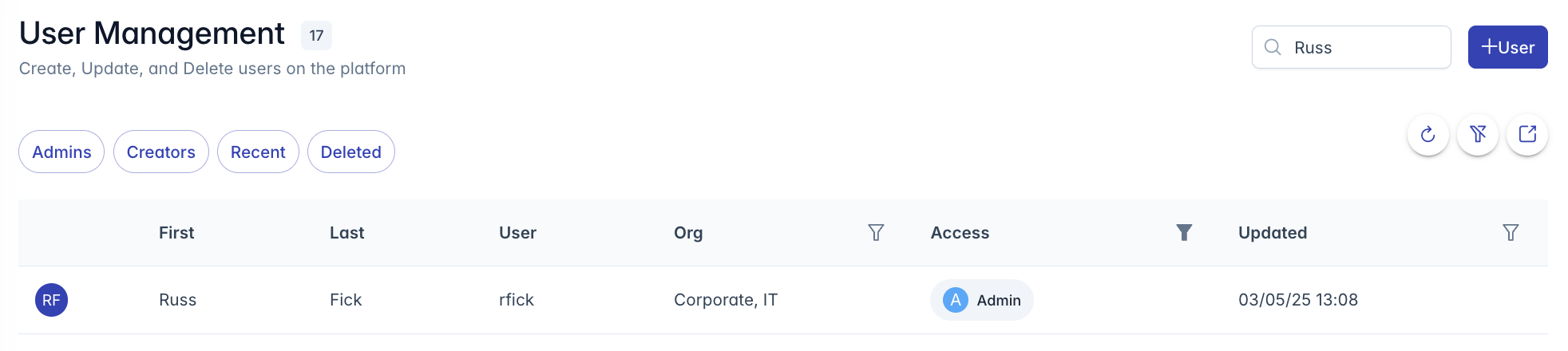
- Header Section: Contains the title "User Management" with user count badge, description, and action buttons
- Search and Filter Controls: Search box and filter buttons to find specific users
- Data Table: Displays user information in a scrollable, sortable table
- Action Buttons:
- Add new user
- Refresh data
- Clear filters
- Export to Excel
Exporting User Data
To export the user list to Excel:
- Click the "Export" button (external link icon)
- Confirm the export in the dialog that appears
- The browser will download a CSV file
- The export includes all currently visible users (respects active filters)
Navigating the User List
Sorting Users
To sort the user list:
- Click on any column header to sort by that field
- Click again to toggle between ascending and descending order
- Click a third time to remove sorting
Default sort is by "Updated" field in descending order (most recent first).
Filtering Users
There are multiple ways to filter the user list:
Global Search:
- Enter text in the search box in the top-right corner
- The system will search across display name, first name, last name, username, and organization fields
Column Filters:
- Some columns have a filter menu accessible by clicking the filter icon in the column header
- Organization field: Select from a dropdown of available organizations
- Access Level field: Select from User, Manager, Content, or Admin
- Updated field: Select a date with the calendar picker
Filter Indicator:
- When filters are active, the filter button turns blue
- Click the "Filter Slash" button to clear all active filters
Quick Filter Buttons
The interface provides quick filter buttons for common filtering needs:
- Admins: Shows only users with Admin access level
- Creators: Shows only users with Content access level
- Recent: Sorts users by most recently updated
- Deleted: Refreshes the list (may include deleted users if enabled)
User Management Actions
Creating a New User Profile
To create a new user:
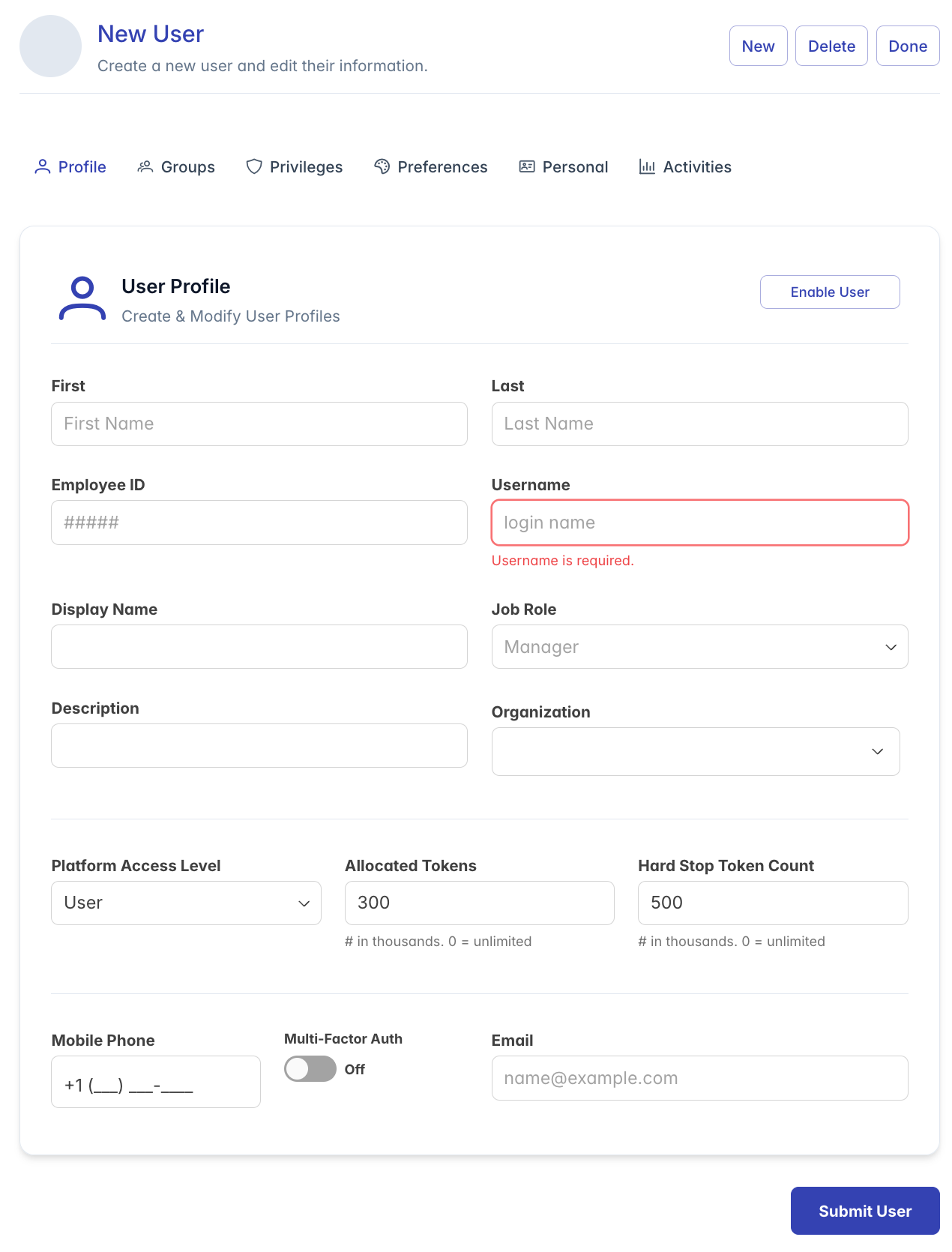
- Click the "+ User" button in the top-right corner
- You'll be redirected to the user profile page with empty fields
- Complete the required information (First, Last, Username, Email)
- Click "Submit" to create the user
Viewing and Editing User Profiles
To view or edit a user's profile:
- Click on any row in the table
- You'll be redirected to that user's profile page
- Make necessary changes
- Click "Submit" to save changes
Understanding User Information
The user list displays the following information for each user:
- Avatar: Displays user initials in a circular badge
- First Name: User's first name
- Last Name: User's last name
- Username: Unique system identifier (with disabled badge if applicable)
- Organization: Primary organizational unit(s)
- Access Level: User permission level with color-coded indicator
- Updated: Date when the user profile was last modified
User Status Indicators
Special indicators help identify user status:
- Disabled Badge: Red "Disabled" badge appears next to username for inactive accounts
Access Level Indicators
Access levels are displayed with color-coded chips:
- User: Gray
- Manager: Purple
- Content: Green
- Admin: Blue
Each chip shows the first letter of the access level and the full name.
Advanced Features
State Persistence
The User List component saves your view preferences:
- Column order
- Sort order
- Visible columns
- Scroll position
These preferences are stored in the session, so they persist when you navigate away and return.
Column Customization
You can customize the table view:
- Reorder Columns: Drag and drop column headers to change their order
- Resize Columns: Drag the edge between column headers
- Responsive Display: On smaller screens, less important columns automatically hide
Troubleshooting
Issue: User list is empty
- Check if filters are active (blue filter button indicates active filters)
- Click the "Clear Filters" button to remove all filters
- Refresh the data using the refresh button
- Check for network connectivity issues
Issue: Unable to sort or filter
- Ensure you have proper permissions (Admin, Content, or Manager roles)
- Try refreshing the browser page
- Check browser console for JavaScript errors
Issue: Export not working
- Check browser download settings
- Ensure you have proper permissions
- Try with a smaller dataset by applying filters first
Issue: Cannot find a specific user
- Use the global search to search by name, username, or organization
- Try searching with partial information
- Check if the user account may be disabled
- Verify the user exists in the system
Issue: Changes to user not appearing
- Click the refresh button to reload the latest data
- Check if another administrator made conflicting changes
- Verify the changes were saved successfully
For additional assistance with user list management, please contact your system administrator.