Appearance
User Profile Groups Management Guide
Introduction
The User Profile Groups component allows administrators to manage a user's membership in organizational groups. Groups are a powerful way to organize users and control access to content and features based on organizational structure, departments, roles, or projects.
Accessing Group Management
The Group Management component is accessible to users with specific roles:
- Admin
- Content
- Manager
To access this component:
- Navigate to a user profile page (
/user/profile/[user_id]) - Click on the "Groups" tab in the left navigation menu
Group Management Interface Overview
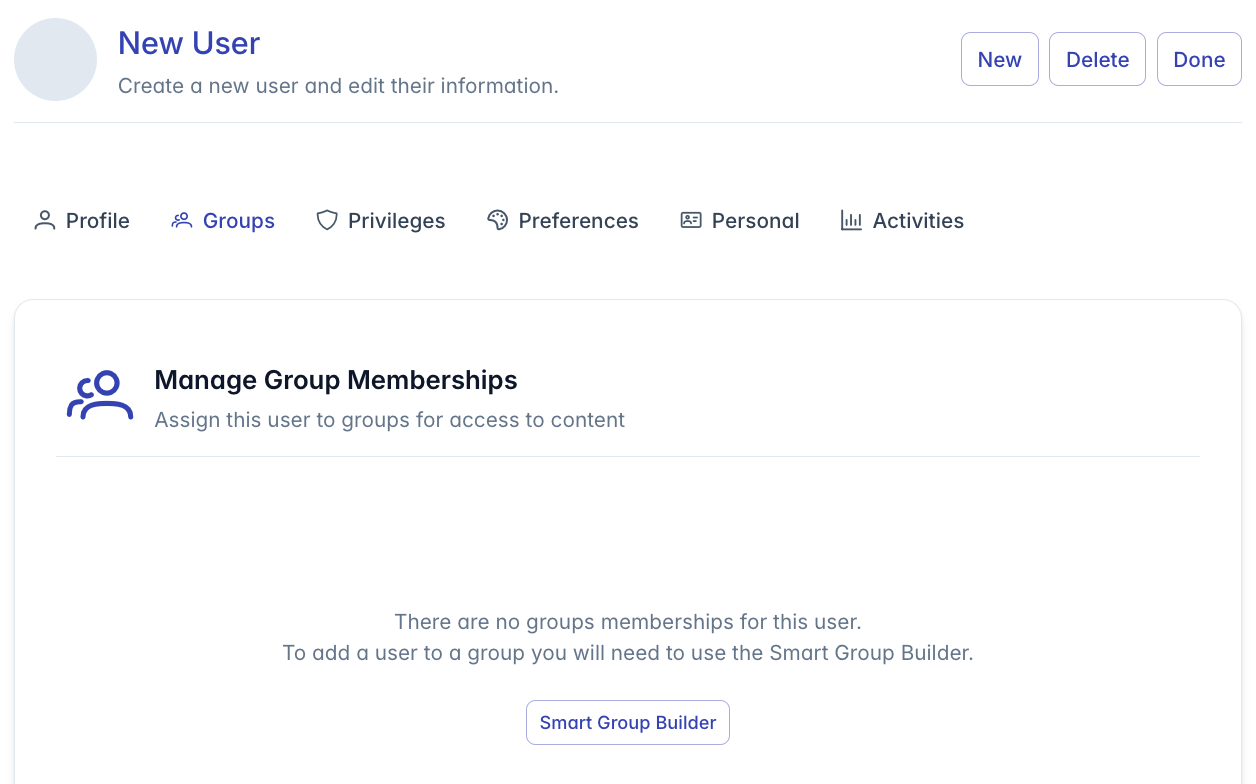
The Group Management interface displays a list of groups to which the user belongs. Each group entry shows:
smart-groups-manage.png
- Group Avatar: Displays the group's initials in a circular badge
- Group Name: The full name of the group
- Group Description: A brief explanation of the group's purpose
- Action Button: Edit/pencil icon to modify group settings
The header area includes:
- A users icon indicating group management
- A "Manage Group Memberships" title
- A brief description: "Assign this user to groups for access to content"
Understanding User Groups
Groups serve several important purposes within the system:
- Content Access Control: Groups determine which content users can view and interact with
- Feature Access: Some features may be restricted to members of specific groups
- Organizational Structure: Groups reflect reporting structures and departmental organization
- Communication: Groups can be used for targeted messaging and notifications
- Permission Management: Apply permissions to multiple users simultaneously
Viewing Group Memberships
When you access the Groups tab for an existing user, the system automatically loads all groups to which the user belongs. The groups are displayed in a list format with the following information:
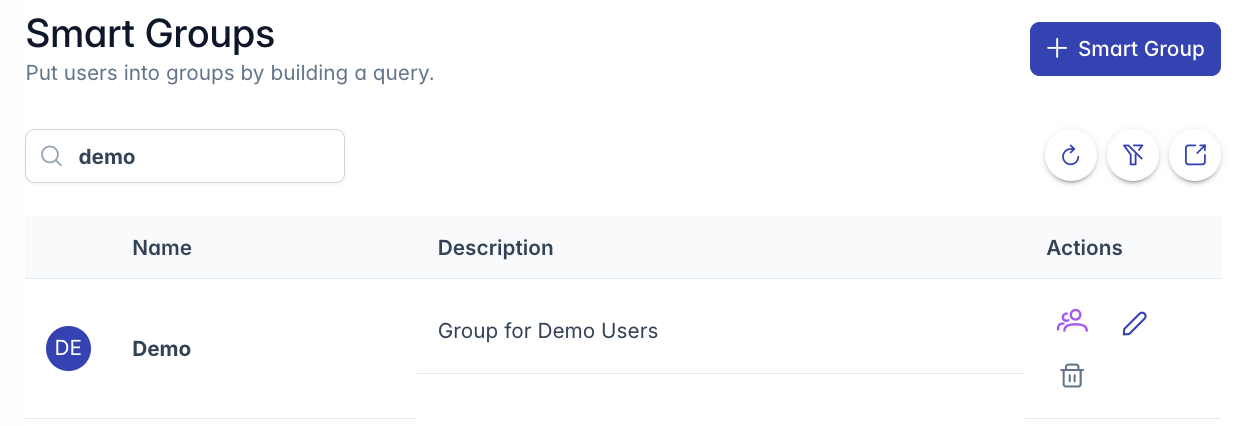
- Group Initials: Displayed within a circular avatar
- Group Name: The primary identifier for the group
- Group Description: Additional context about the group's purpose or members
If the user does not belong to any groups, a message will be displayed: "There are no group memberships for this user."
Managing Group Memberships
Adding a User to Groups
To add a user to one or more groups:
- From the Groups tab, locate the "Smart Group Builder" button (shown when no groups exist)
- Click the button to navigate to the Group List View (
/groups/GroupListView) - In the Group List View:
- Find the group you want to add the user to
- Click the edit button for that group
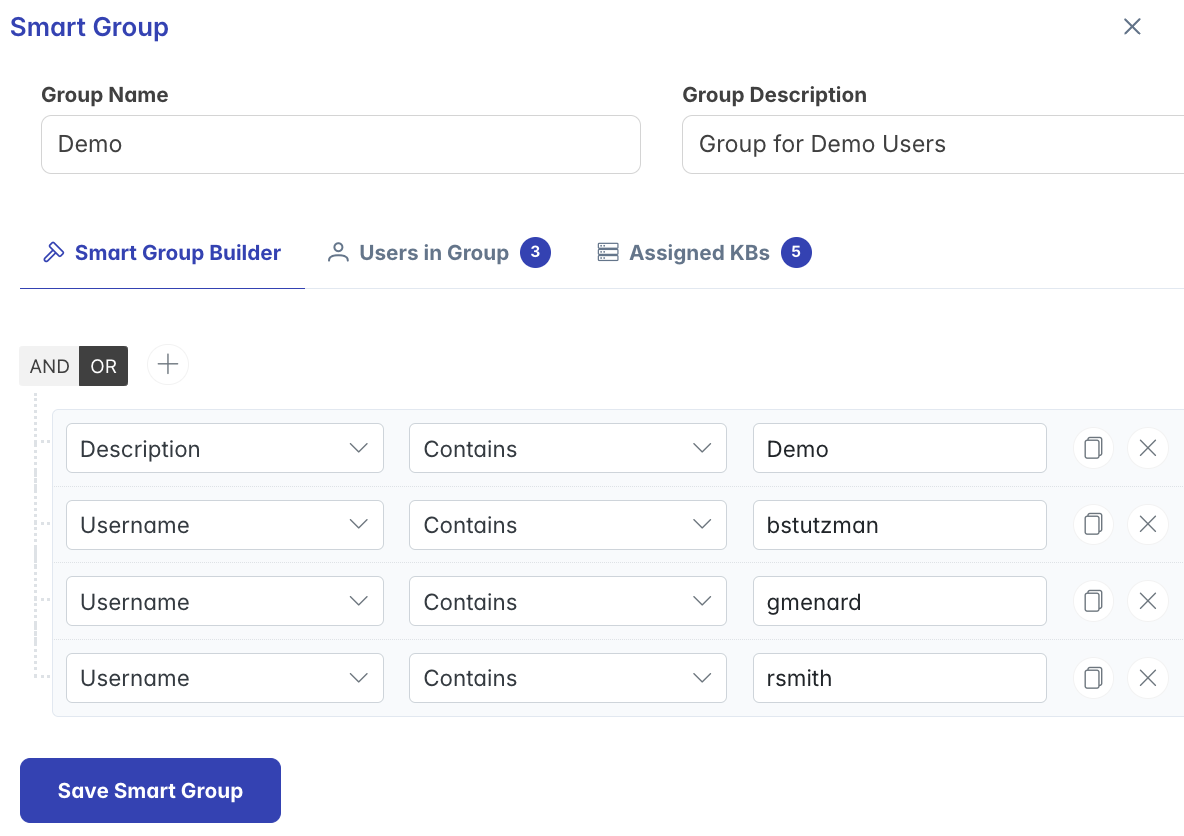
- Use the Smart Group Builder, adjust the rules to add the user to the group
- Save the group changes
Removing a User from Groups
Group membership is managed through the Smart Group Builder:
- From User, click groups tab and then the pencil next to the group you wish to remove
- From the Groups tab, find the group you want to remove the user from
- Click the pencil/edit icon next to the group name
- The Smart Group Builder dialog will open
- Use the Smart Group Builder interface, adjust the rules to remove the user
- Save the changes
Editing Group Details
While viewing a user's groups, you can directly access the group settings:
- Click the pencil/edit icon next to any group
- The Smart Group Builder dialog will open
- Modify group settings as needed:
- Group name
- Group description
- Membership rules
- Member list
- Save your changes
- The user's group list will automatically update to reflect any changes
Smart Group Builder
The Smart Group Builder is a powerful tool for managing group configurations:
- Access: Click the pencil icon next to any group or the "Smart Group Builder" button
- Interface: A dialog opens showing comprehensive group management options
- Functions:
- Define group membership rules
- Add/remove individual members
- Set group properties
- Configure group permissions
When using the Smart Group Builder from the user's Groups tab, it will focus on the selected group with the current user pre-selected for membership operations.
Group-Based Access Control
Understanding how groups affect user access is essential:
- Content Filtering: Users can only see content shared with groups they belong to
- Feature Access: Some system features may be restricted to specific groups
- Administrative Boundaries: Group administrators may only manage users within their groups
- Reporting Hierarchies: Groups often reflect organizational reporting structures
When assigning a user to groups, consider:
- What content should this user access?
- Which teams or departments does this user belong to?
- What level of permissions should this user have?
- Are there project-specific groups that would be relevant?
Troubleshooting
Issue: Groups not loading
- Check network connectivity
- Verify the user ID is valid
- Ensure your administrative account has permission to view groups
- Review error messages in the toast notifications
Issue: Cannot edit a group
- Verify you have administrative rights for the group
- Check if the group is a system group (cannot be modified)
- Ensure the Smart Group Builder service is available
Issue: User not appearing in a group after being added
- The group may have conditional membership rules that the user doesn't satisfy
- Group cache may need to be refreshed
- Check for conflicting group membership rules
Issue: "Services Error" message
- Note the error code provided in the message
- Check network connectivity
- Contact system administrator if the issue persists
Issue: Cannot find the Smart Group Builder button
- Navigate directly to
/groups/GroupListView - Verify you have the required permissions
- Check if your account has restrictions on group management
For more advanced group management scenarios, refer to the Group Administration Documentation.