Appearance
Branding & Customization Guide
Introduction
The Branding interface provides administrators with powerful tools to customize the appearance of your organization's platform. This visual customization center allows you to personalize colors, upload logos, and create a consistent brand experience across the application for all users in your organization.
Accessing Branding Settings
The Tenant Branding interface is accessible to users with the following roles:
- Admin
- Content
- Manager
To access these settings, navigate to the Administration section from the main menu and select "Settings" or "Branding."
Branding Interface Overview
The Branding interface is organized into three main sections:
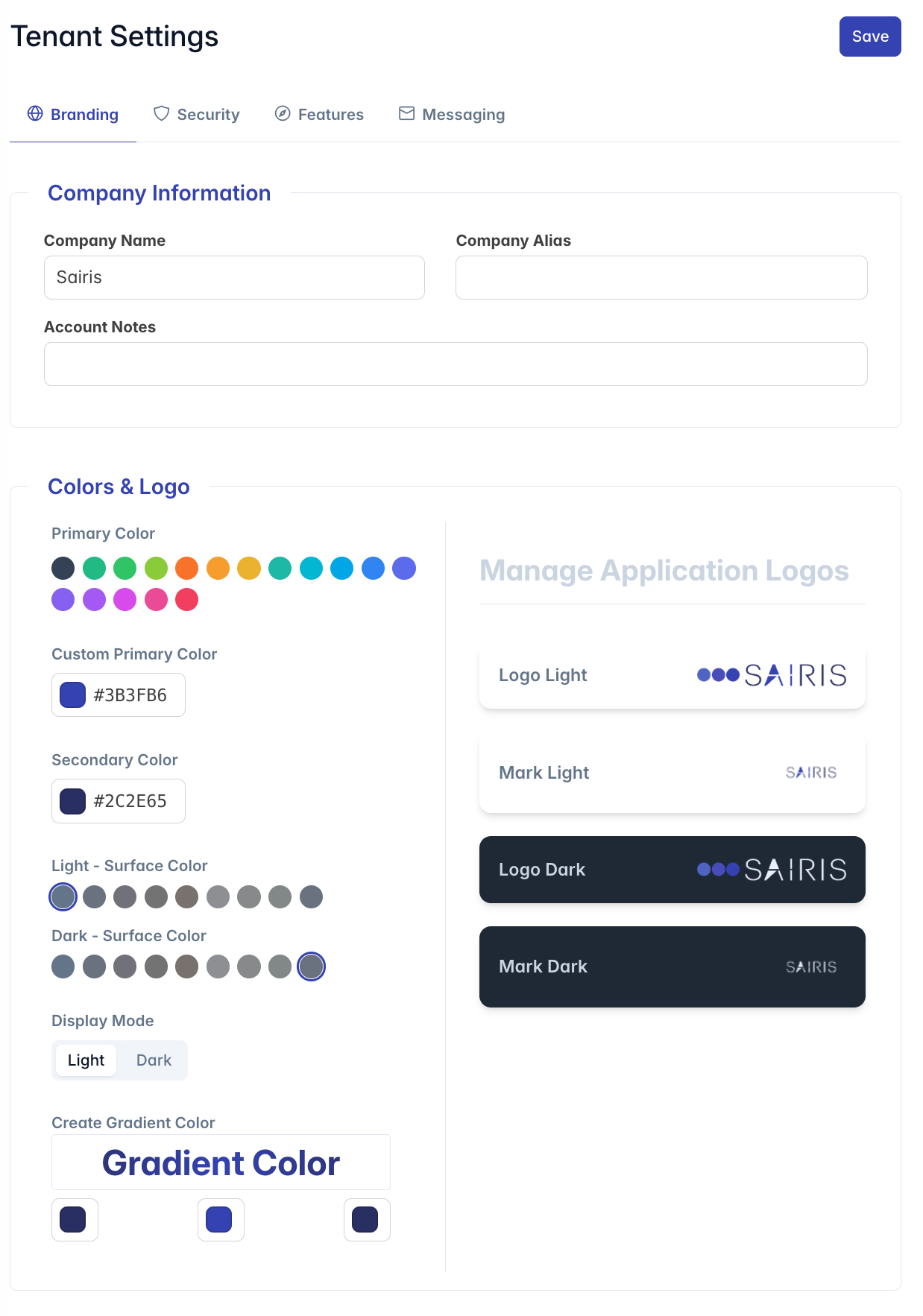
- Company Information: Basic organizational details
- Colors & Logo: Visual customization options
- Preview: Real-time visualization of your changes
Each section provides intuitive controls for customizing different aspects of your organization's visual identity within the platform.
Company Information Settings
The Company Information section allows you to define basic organizational details:
Company Name
- Required Field: Sets the primary name displayed throughout the application
- Purpose: Appears in the header, reports, and email notifications
- Best Practice: Use your organization's full legal name or preferred brand name
Company Alias
- Optional Field: Provides a shorter alternative name
- Purpose: Used in space-constrained areas of the interface
- Best Practice: Use an abbreviated version that users will recognize
Account Notes
- Optional Field: Stores additional information about the account
- Purpose: Internal reference for administrators
- Best Practice: Include contact information for the brand manager
Colors & Customization
The Colors & Logo section provides comprehensive tools to visually customize your tenant:
Primary Color Selection
Two approaches to selecting primary colors:
Canned Color Presets
- Click on any color swatch to instantly apply a preset color theme
- Presets include professionally designed color schemes
- Selected preset is highlighted with a primary color outline
- Automatically configures both light and dark mode variants
Custom Color Picker
For complete control over your brand colors:
Primary Light: Sets the main brand color for light mode
- Click the color picker to open a color selection dialog
- Choose any color using the visual selector or enter a hex code
- Changes apply instantly to the interface
Primary Dark: Sets the main brand color for dark mode
- Selected independently from light mode color
- Allows for optimal visibility in dark mode
- Best practice: Choose a lighter variation of your primary color
Secondary Light/Dark: Sets accent colors for both modes
- Used for secondary buttons, highlights, and decorative elements
- Complements the primary color
- Separate controls for light and dark modes
Surface Color Customization
Surface colors control the background and card elements:
Light Surface Color: Sets the background palette for light mode
- Click on any swatch to select a preset surface palette
- Changes apply to backgrounds, cards, and panels
- Selected surface is highlighted with an outline
Dark Surface Color: Sets the background palette for dark mode
- Separate from light mode for optimal contrast
- Best practice: Select a darker, complementary palette
- Selected surface is highlighted with an outline
Display Mode Toggle
Switch between light and dark mode previews:
- Toggle instantly previews your customizations in both modes
- Allows testing of color visibility and contrast
- Does not affect individual user preference settings
Gradient Customization
Create custom gradient effects for special visual elements:
Gradient Color Light: Custom gradient for light mode
- Three color pickers control start, middle, and end colors
- Live preview shows the gradient effect
- Used in promotional areas and special UI elements
Gradient Color Dark: Custom gradient for dark mode
- Separate controls from light mode
- Preview updates in real-time
- Best practice: Use colors with sufficient contrast in dark environments
Logo Management
The Logo Management section allows you to upload and manage custom logos:
Logo Types
The system requires four logo variations:
Logo Light: Primary logo for light backgrounds
- Recommended size: 640px × 240px
- Formats: PNG recommended (with transparency)
- Used in headers and light mode interfaces
Mark Light: Icon-only version for light backgrounds
- Recommended size: 200px × 200px
- Used in space-constrained areas and mobile interfaces
- Should be recognizable at small sizes
Logo Dark: Primary logo for dark backgrounds
- Same dimensions as Logo Light
- Typically a light/white version of your logo
- Used automatically when dark mode is active
Mark Dark: Icon-only version for dark backgrounds
- Same dimensions as Mark Light
- Typically a light/white version of your icon
- Used in dark mode for space-constrained areas
Logo Upload & Editing
To upload or modify any logo:
Click on the logo card you want to modify
A logo editor dialog will open showing:
- Current logo (if any)
- Background color matching actual usage
- Image editor tools
Use the editor toolbar to:
- Open: Select a new image from your computer
- Crop: Adjust the visible portion of the image
- Confirm: Accept the current crop
- Reset: Undo changes and start over
- Save Logo: Finalize and upload your changes
A status indicator will show:
- "Uploading New Logo..." during the upload process
- "Successfully Uploaded" when complete
Logo Best Practices
For optimal results with logo uploads:
- Use PNG format with transparency for clean integration
- Maintain proper aspect ratios (logos are typically wider than tall)
- Ensure logos are legible at smaller sizes
- Test both light and dark versions in their respective modes
- Provide high-resolution images that can be scaled down
Advanced Customization Options
For more technical administrators, additional customization options are available:
Menu Type Selection
Choose from different navigation menu layouts:
- Static: Fixed sidebar always visible
- Overlay: Sidebar appears over content when activated
- Slim: Narrow sidebar with icons only
- Slim+: Narrow sidebar that expands on hover
- Reveal: Hidden sidebar that pushes content when opened
- Drawer: Slide-out sidebar that overlays content
- Horizontal: Top navigation bar instead of sidebar
Menu Theme Selection
Control the styling of the navigation menu:
- Color Scheme: Uses the surface color palette
- Primary Color: Uses the primary brand color
- Transparent: Uses a transparent background with subtle effects
Saving Your Customizations
Changes to branding settings are saved automatically as you make them. The interface provides several indicators of successful updates:
- Color changes apply instantly to the interface
- Logo uploads show success messages when complete
- A brief display mode toggle occurs after logo uploads to refresh the cache
Troubleshooting
Issue: Logo appears pixelated or blurry
- Ensure you're uploading a high-resolution image
- Check that the aspect ratio is appropriate
- Try using the crop tool to focus on the essential parts of the logo
Issue: Colors don't appear as expected
- Test in both light and dark modes
- Consider color accessibility and contrast
- Some colors may look different on various devices and screens
Issue: Changes not visible to all users
- Some changes may require users to refresh their browsers
- Persistent caching issues may require clearing browser cache
- In extreme cases, users may need to log out and back in
Issue: Logo upload fails
- Check file format (PNG recommended)
- Verify file size is under limits (typically 5MB)
- Ensure you have a stable internet connection
- Try a different browser if problems persist
For additional assistance with tenant branding, please contact your system administrator or support team.