Appearance
Knowledge Base Configuration Guide
Introduction
The Knowledge Base Configuration dialog allows administrators and content managers to create and manage AI knowledge bases with detailed settings. This powerful interface helps you define how your knowledge base processes information, handles queries, and shares content with your organization.
Accessing Knowledge Base Configuration
You can access the Knowledge Base Configuration dialog when:
- Creating a new knowledge base by clicking "Add KB"
- Editing an existing knowledge base by clicking its name or initials
- Managing knowledge base settings from the Knowledge Base list
Note: You need Admin, Content, or Manager role permissions to configure knowledge bases.
Knowledge Base Configuration Interface
The configuration dialog is organized into four tabs:
- KB Settings: Core configuration for name, description, and AI behavior
- Conversation Starters: Predefined prompts to help users interact with the knowledge base
- Assigned Content: Documents and files included in the knowledge base
- Share: Access control and group permissions
KB Settings Configuration
Basic Information
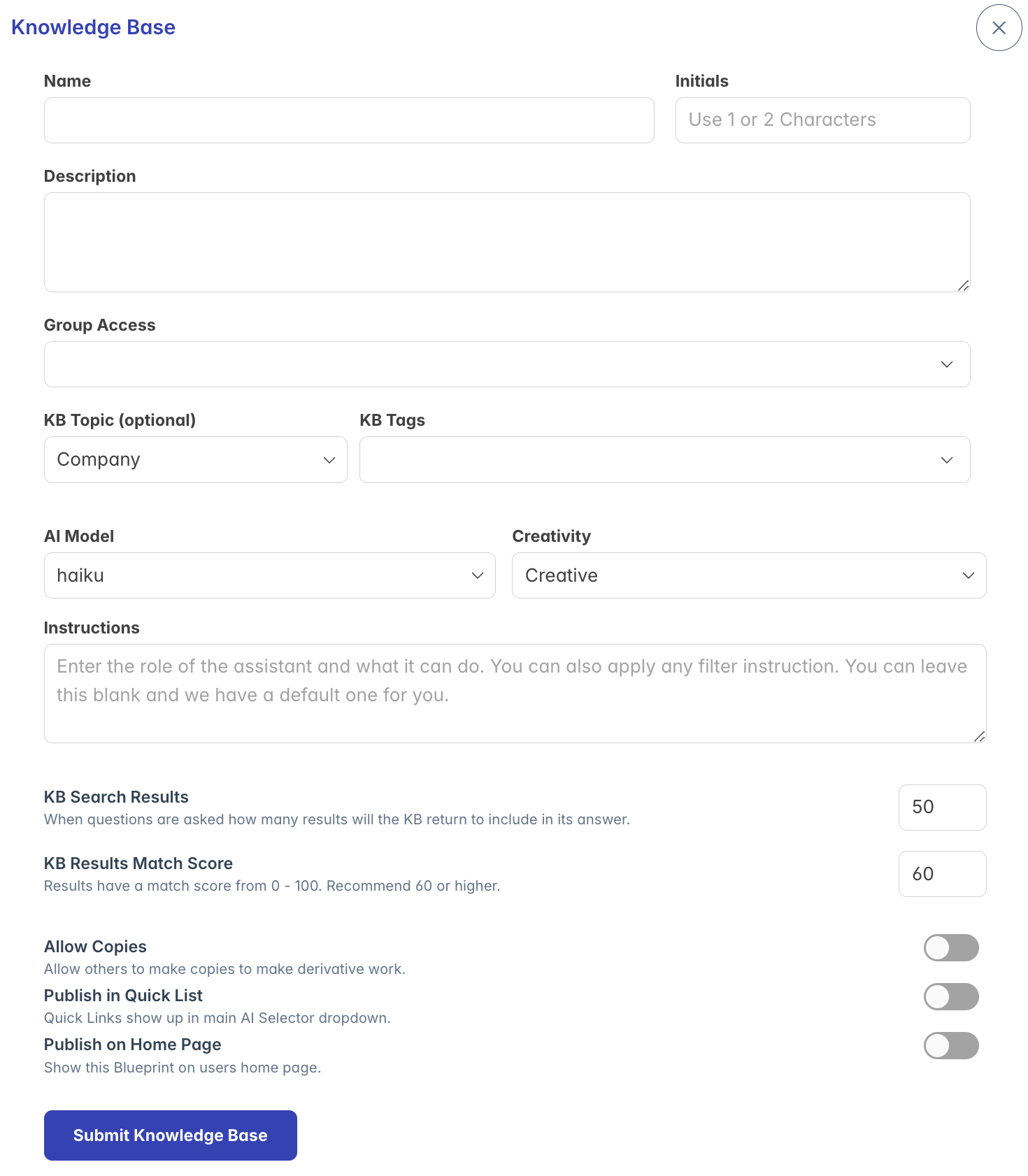
In the KB Settings tab, configure the fundamental properties of your knowledge base:
Name: Provide a descriptive title (required)
- Should clearly identify the knowledge base's purpose or content domain
- Appears in selection menus and search results
Initials: Set 1-2 characters that appear in the knowledge base avatar
- Auto-generated from the name if left blank
- Used as a visual identifier in lists and UI elements
Description: Provide details about the knowledge base's purpose
- Helps users understand what information the knowledge base contains
- Appears when browsing or selecting knowledge bases
Topic: Categorize your knowledge base for easier discovery
- Select from predefined topics in your organization
- Helps with organizing and filtering knowledge bases
Tags: Add keywords to make your knowledge base discoverable
- Enter multiple tags separated by commas or select from existing tags
- Helps users find relevant knowledge bases when searching
AI Model Configuration
Configure how the AI processes and responds to queries:
AI Model: Select which large language model powers the knowledge base
- Different models offer various capabilities and performance characteristics
- Options depend on which models are enabled for your organization
AI Mode: Determines how the AI processes information
- Question & Answers: Simple direct responses using only knowledge base content
- Agentic: Advanced mode with reasoning and analysis capabilities
Instructions: Provide guidance to the AI about how it should respond
- Define the AI's role, tone, and response format
- Specify any limitations or requirements for answers
- Can include detailed instructions up to 30,000 characters
Knowledge Retrieval Settings
Fine-tune how the AI searches through your content:
KB Search Results: Control how many matching chunks to retrieve
- Higher values (e.g., 100) provide more comprehensive but potentially redundant information
- Lower values (e.g., 20) focus on just the most relevant matches
- Recommended range: 30-100 depending on knowledge base size
KB Results Match Score: Set the minimum relevance threshold
- Scale of 0-100 (higher values ensure stronger relevance)
- Recommended setting: 60 or higher
- Lower thresholds retrieve more results but may include less relevant content
Response Behavior Controls
Configure how the AI generates responses:
Allow LLM to Answer: Toggle whether the AI can use its training data
- When enabled: AI combines knowledge base content with its general knowledge
- When disabled: AI uses only the knowledge base content for answers
- Disabling is useful for strict adherence to your specific content
Show Citations: Control whether sources are referenced
- When enabled: Responses include references to source documents
- When disabled: Responses provide information without citing sources
- Citations help users verify information and find related content
Access Control Settings
Define visibility and sharing options:
Secret: Hide the knowledge base's settings from users
- When enabled: Users can use the knowledge base but cannot see its configuration
- When disabled: Settings are visible to users with access
- Helps protect proprietary prompts or sensitive configuration details
Allow Copies: Control whether others can duplicate your knowledge base
- When enabled: Users can create copies with the same settings
- When disabled: Users can use but not duplicate the knowledge base
- Useful for maintaining control over standardized configurations
Publish in Quick List: Feature the knowledge base in selection menus
- When enabled: Knowledge base appears in quick access dropdown menus
- When disabled: Knowledge base is still accessible but less prominent
- Helps highlight frequently used or important knowledge bases
Publish on Home Page: Show on the user home screen
- When enabled: Knowledge base is featured on the AI Assistant home page
- When disabled: Knowledge base is only accessible through navigation or search
- Makes the knowledge base more discoverable for users
Conversation Starters Configuration
The Conversation Starters tab allows you to create predefined prompts that help users interact with your knowledge base:
Creating Conversation Starters
- Click "Add Conversation" to create a new starter
- Configure each starter with:
- Title: Short, descriptive name for the prompt (appears on the card)
- Instructions: The actual query text sent to the AI when selected
Managing Conversation Starters
- Drag and drop starters to reorder them
- Click the trash icon to remove a starter
- Each starter appears as a card in the preview panel
- There is no limit to how many starters you can create
Best Practices for Conversation Starters
- Create starters that address common questions
- Include starters that demonstrate different capabilities
- Use clear, concise titles that indicate the purpose
- Structure instructions as complete questions or commands
- Group related starters together through ordering
Assigned Content Management
The Assigned Content tab shows all documents and files included in the knowledge base:
Viewing Content
- The tab displays a filterable, searchable list of all content items
- Columns show content name, type, size, and status
- You can see when content was added and its processing status
Adding Content
To add content to the knowledge base:
- Click "Add Content" in the content list
- Select files from your content repository to include
- Content will be processed and indexed for AI retrieval
Removing Content
To remove content from the knowledge base:
- Select the items you want to remove
- Click "Remove from KB" in the actions menu
- Confirm the removal in the dialog
Note: Removing content from a knowledge base doesn't delete the actual files from your content repository.
Sharing and Access Control
The Share tab allows you to control who can access and manage your knowledge base:
Group Assignments
Determine which groups can access the knowledge base:
- Select groups in the Group Assignments section
- All members of selected groups will have read access
- Users must belong to at least one assigned group to use the knowledge base
Owner Management
Control who can edit and administer the knowledge base:
- Search for users or groups in the owner search field
- Click "Add Owner" to grant edit permissions
- Remove owners by clicking the trash icon next to their name
Note: Knowledge bases must have at least one owner at all times.
Saving Knowledge Base Configuration
After configuring all settings:
- Click the "Submit Knowledge Base" button at the bottom of any tab
- The system validates your settings
- If validation succeeds, the knowledge base is created or updated
- A success message appears confirming the operation
Troubleshooting
Issue: Cannot save knowledge base due to validation errors
- Check for red error messages below required fields
- Ensure name and initials are provided
- Verify that instructions are under the 30,000 character limit
Issue: Knowledge base content not appearing in responses
- Check that content has been properly processed (status column)
- Verify the minimum match score isn't set too high
- Ensure the content contains information relevant to queries
Issue: Users cannot access the knowledge base
- Verify group assignments include the user's groups
- Check if the knowledge base is active and enabled
- Ensure content has been properly processed and indexed
Issue: Cannot edit certain settings
- Some knowledge bases may have restricted editing
- "Limited" badges indicate restricted access
- Check if you have owner permissions for the knowledge base
For additional assistance with Knowledge Base configuration, please contact your system administrator.