Appearance
AI Card Designer User Guide
Introduction
The AI Card Designer is a powerful tool that allows you to create rich, interactive content cards for your AI Assistant. Cards are structured content items that appear in AI responses, providing users with formatted information, visual elements, and interactive buttons. This guide explains how to use the Card Designer to create engaging and effective AI content.
Accessing the Card Designer
The Card Designer is accessible to users with specific roles:
- Admin
- Content
- Manager
To access this component:
- Navigate to the Content section in the main menu
- Select "Add" and choose "Create a Card"
- Or, select an existing card from the Content Manager to edit it
Card Designer Interface Overview
The AI Card Designer consists of four main sections:
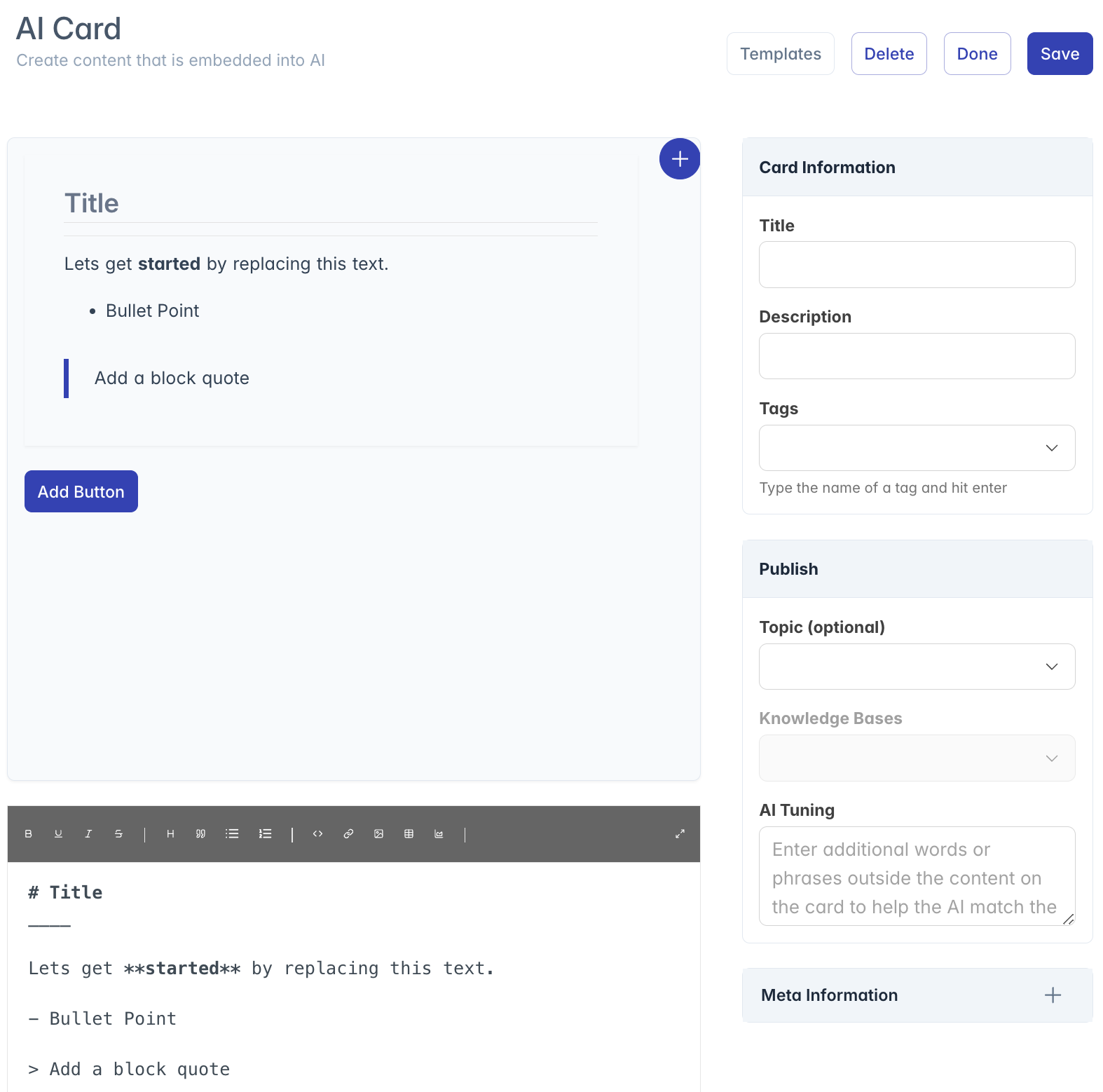
- Header Bar: Contains the title, action buttons (Templates, Delete, Done, Save), and description
- Content Preview: Shows how your card will appear to users, with a live preview that updates as you edit
- Markdown Editor: The text editor where you create and format your card content
- Configuration Panels: Right-side panels for card information, publishing settings, and metadata
Creating and Editing Cards
Card Content Creation
Cards are created using Markdown, a simple formatting syntax:
Basic Formatting:
- Headings: Use # symbols (# Title, ## Heading, ### Subheading)
- Text Style: Italics (surround with *), Bold (surround with **)
- Lists: Create with - or numbers (1. 2. 3.)
- Quotes: Begin lines with >
- Horizontal Lines: Insert with --- or ___
Advanced Elements:
- Tables: Create structured data tables
- Links: Insert clickable URLs
- Images: Add images
Using Templates
To speed up card creation:
- Click the "Templates" button in the top-right corner
- Choose from two template sources:
- System Templates: Pre-built templates provided by the platform
- My Templates: Your saved custom templates
- Select a template from the list
- The editor will populate with the template content
- Customize the template to fit your needs
Markdown Editor
The markdown editor appears at the bottom of the left column:
- Toolbar: Contains formatting buttons for common Markdown elements
- Editor Area: Where you type and edit your content
- Editor Controls: Options for viewing modes and additional settings
The editor supports:
- Text formatting (bold, italic, underline)
- Lists (ordered and unordered)
- Headings and subheadings
- Tables and blockquotes
- Links and images
Live Preview
Above the editor is a live preview showing how your card will appear:
- The preview updates in real-time as you edit
- Shows exactly how users will see the card
- Includes any interactive buttons you've added
- Can be resized to simulate different device views
Card Configuration
Card Information
Configure basic card details in the Card Information panel:
Title: The headline of your card (required)
- Should be concise and descriptive
- Appears at the top of the card
Description: Optional explanation of the card's purpose
- Helps with search and discovery
- Does not appear on the card itself
Tags: Add multiple relevant tags
- Type a tag and press Enter to add it
- Select from existing tags or create new ones
- Helps with content organization and discovery
Publishing Settings
Control where and how your card is used:
Topic: Select a single primary topic
- Choose from predefined topic list
- Used for high-level categorization and reporting
Knowledge Bases: Select which KBs can use this card
- Cards must be associated with at least one knowledge base
- The AI will only use the card when using selected knowledge bases
- Multiple knowledge bases can be selected
AI Tuning
Help the AI understand when to show your card:
- AI Tuning Field: Enter additional keywords and phrases
- These words don't appear in the card content
- Help the AI match user questions to this card
- Include synonyms and alternative phrasings
- This improves the accuracy of card suggestions
Interactive Elements
Adding Navigation Buttons
Cards can include interactive buttons for user navigation:
- Click the "Add Button" link below the card preview
- The Button Manager panel will open
- Click "Add Navigation Button to Card" to create a new button
- Configure the button details (described below)
- Add multiple buttons by repeating the process
Button Types
Four types of buttons are available:
Card: Links to another card
- Button Value: The name or ID of the destination card
Web Link: Opens an external website
- Button Value: Complete URL (https://example.com)
Prompt: Sends a predefined query to the AI
- Button Value: The text query to send
Document: Opens a document in the system
- Button Value: The document ID or name
Button Management
Manage your card's interactive buttons:
Adding: Click "Add Navigation Button to Card"
Configuring:
- Button Name: Text that appears on the button
- Button Type: Card, Web Link, Prompt, or Document
- Button Value: Destination or action
Reordering: Drag and drop buttons to change their order
Removing: Click the trash icon to delete a button
Display Options
Preview Sizing
Control the preview size to test different viewing contexts:
Height Toggle: Click the FullScreen button in the speed dial menu
- Toggles between normal height (38vh) and expanded height (78vh)
- Helps visualize how longer cards will appear
Width Settings: Use the speed dial menu to simulate different devices
Device Simulation
Test how your card appears on different devices:
Desktop View: Default view, full width
- Access by clicking the Computer icon
Tablet View: 768px width
- Access by clicking the Tablet icon
Phone View: 400px width
- Access by clicking the Mobile icon
- Important for testing responsiveness
Managing Cards
Saving Cards
To save your card:
- Click the "Save" button in the top-right corner
- The system will validate required fields
- A success message confirms when the card is saved
- For new cards, you'll be redirected to the edit view for the saved card
Deleting Cards
To delete a card:
- Click the "Delete" button in the top-right corner
- A confirmation dialog will appear
- Click "Delete" in the dialog to confirm
- The card will be permanently removed
- You'll be redirected to the Content Manager
Best Practices
For creating effective AI cards:
Clear Structure:
- Use headings to organize content
- Keep paragraphs short and focused
- Use lists for sequential information
- Include a clear title that summarizes the card's purpose
Visual Appeal:
- Use formatting to highlight important information
- Include horizontal rules to separate sections
- Don't overuse bold or italics
- Consider adding relevant images when helpful
Interactive Elements:
- Add buttons for common follow-up actions
- Name buttons with clear action verbs
- Limit to 3-5 buttons per card for clarity
- Ensure button destinations exist and work
AI Optimization:
- Use the AI Tuning field for synonyms and variations
- Include industry-specific terminology
- Think about how users might phrase questions
- Test cards with sample questions
Knowledge Base Association:
- Associate cards with all relevant knowledge bases
- Consider creating specialized versions for different departments
- Review KB assignments when content changes
Troubleshooting
Issue: Preview not updating
- Check if you've toggled the preview mode off
- Try clicking the refresh button
- Ensure your markdown syntax is correct
Issue: Cannot save card
- Verify the required Title field is completed
- Check that at least one knowledge base is selected
- Look for error messages in the toast notifications
Issue: Buttons not appearing in preview
- Ensure button configuration is complete (name, type, value)
- Save the card and reload if necessary
- Check that the button manager is properly closed
Issue: Templates not loading
- Try selecting a different template and then your preferred one
- Refresh the page and try again
- Check your network connection
Issue: Card markdown looks different in preview vs. actual use
- Some advanced markdown features may render differently
- Stick to common formatting elements for consistency
- Test your card in the actual AI interface
Issue: Button destinations not working
- Verify the button value is correct (URL, card ID, etc.)
- For card links, ensure the destination card exists
- For web links, include the complete URL with https://
For additional assistance with the AI Card Designer, please contact your system administrator or refer to the platform documentation.