Appearance
User Activities and Analytics Guide
Introduction
The User Activities component provides comprehensive analytics and tracking information about a user's system interactions, including AI token usage, login history, device access, and metadata. This tool allows administrators to monitor usage patterns, identify security concerns, and analyze how users are interacting with the platform.
Accessing User Activities
The User Activities component is accessible to users with specific roles:
- Admin
- Content
- Manager
To access this component:
- Navigate to a user profile page (
/user/profile/[user_id]) - Click on the "Activities" tab in the left navigation menu
Activities Interface Overview
The User Activities interface features a tabbed layout with four main sections:
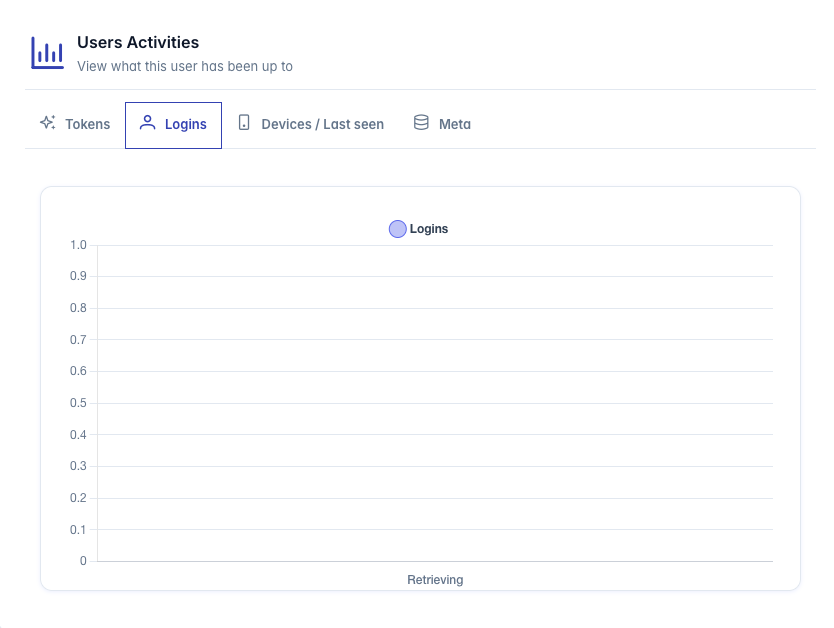
- Tokens: Displays AI token usage statistics and charts
- Logins: Shows login frequency and patterns over time
- Devices / Last seen: Lists devices used to access the system
- Meta: Shows system metadata about the user account
Each tab contains specialized visualizations and data displays relevant to that category of user activity.
Token Usage Analytics
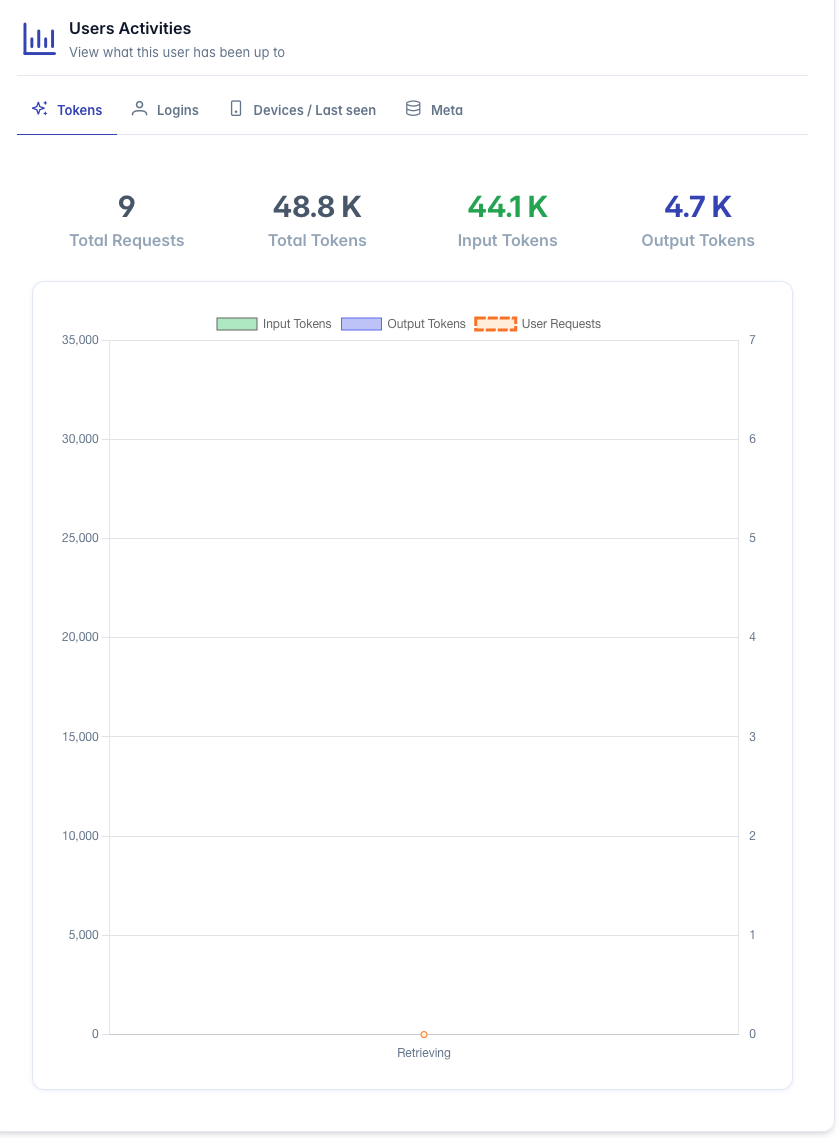
The Tokens tab provides detailed information about a user's AI token consumption:
Key Metrics Displayed
- Total Requests: The number of AI requests made by the user
- Total Tokens: Combined total of input and output tokens used
- Input Tokens: Number of tokens used for prompts sent to AI models
- Output Tokens: Number of tokens used for responses from AI models
Token Usage Chart
The interactive chart shows:
- Input Tokens: Green bars representing daily input token usage
- Output Tokens: Blue bars representing daily output token usage
- User Requests: Orange line showing the number of AI requests made
Features
- Time-based Analysis: View token usage patterns over time
- Automatic Scaling: Large numbers (thousands, millions) are automatically formatted (e.g., 5.2K, 1.3M)
- Tooltip Details: Hover over chart elements to see precise values
- Stacked Display: Input and output tokens are stacked to show total daily usage
This visualization helps administrators monitor AI resource usage and identify unusual patterns or excessive consumption.
Login History
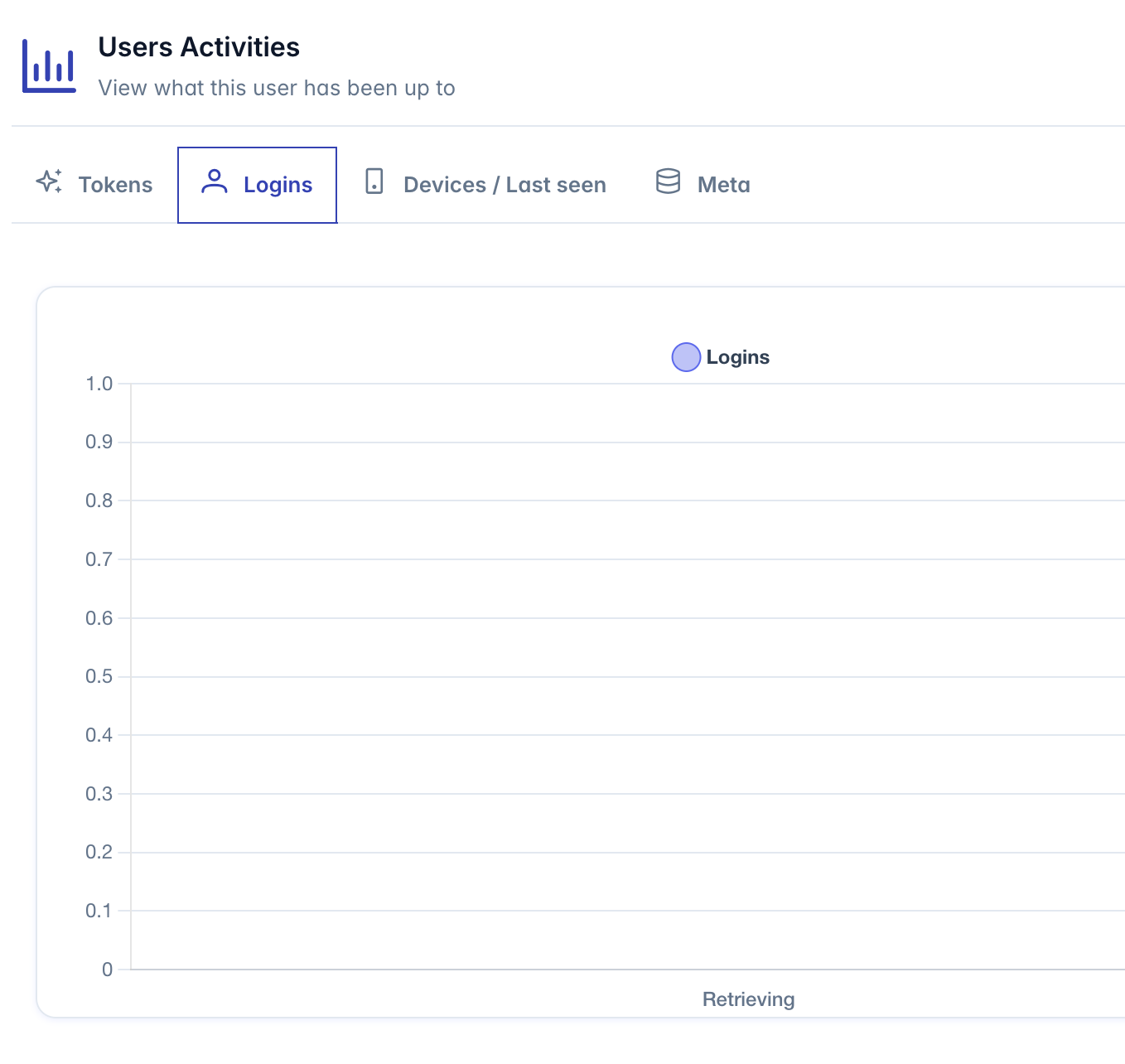
The Logins tab tracks when and how frequently a user has accessed the system:
Login Activity Chart
The chart displays:
- Login Frequency: Blue bars showing the number of logins per day
- Time Period: X-axis shows dates of login activity
Features
- Login Trends: Identify patterns in system access (weekdays vs. weekends, working hours)
- Activity Gaps: Spot periods of inactivity
- High-Volume Access: Identify unusual login frequency that might indicate shared accounts or security issues
Login Statistics
- Total Logins: Cumulative number of times the user has logged in
- Average Logins: Statistical average of login frequency over the displayed period
Device Tracking
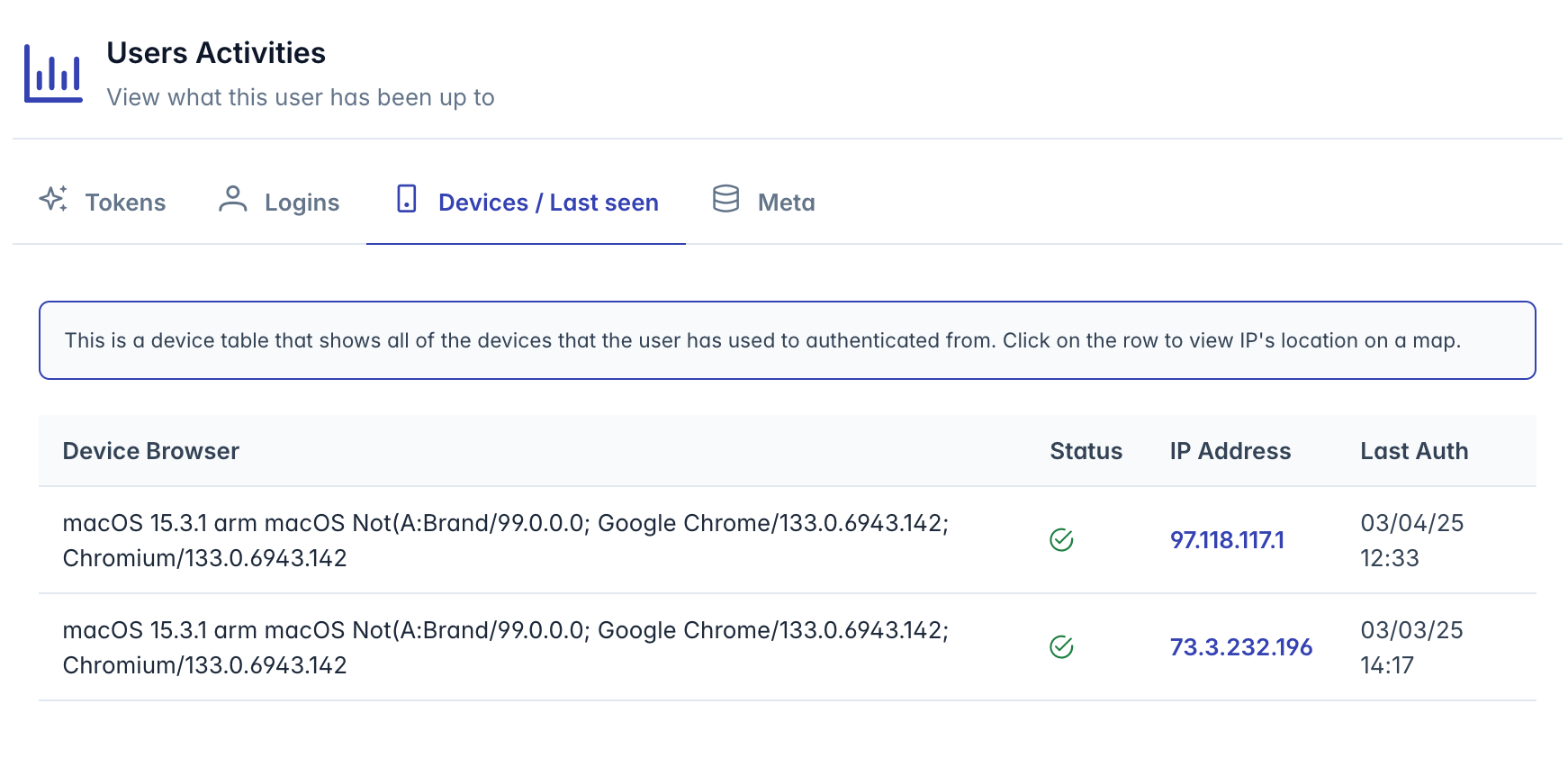
The Devices / Last seen tab shows all devices used to authenticate with the system:
Device Table
The table displays the following information for each device:
- Device Browser: Browser and OS information
- Status: Visual indicator showing if the device is valid (green check) or invalid (red x)
- IP Address: The last IP address used for authentication
- Last Auth: Date and time of the most recent authentication
IP Geolocation
When selecting a device row:
- A dialog opens showing the IP address location
- A map is displayed pinpointing the geographical location
- Additional information is shown:
- ISP (Internet Service Provider)
- Country
- Region
- City
- ZIP/Postal Code
Security Features
- Quickly identify suspicious login locations
- Track multiple devices used by a single user
- Verify authentication from expected locations
User Metadata
The Meta tab displays system information about the user account:
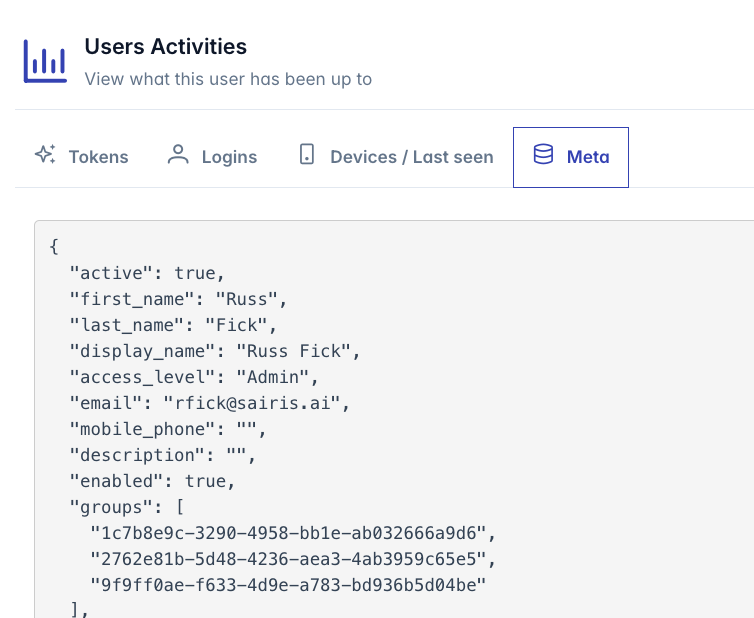
Account Metadata
- Creation Date: When the user account was created
- Last Modified: When the user profile was last updated
- Created By: Administrator who created the account
- Account Status History: Timeline of account status changes
- System Identifiers: Internal IDs and references
This information provides administrative context about the user account's lifecycle.
Data Visualization Features
The User Activities component uses several visualization techniques:
- Bar Charts: For displaying discrete values over time (logins, token usage)
- Line Charts: For showing trends and continuous data
- Stacked Charts: For comparing related values (input vs. output tokens)
- Interactive Maps: For visualizing geographical data
- Data Tables: For presenting detailed information about devices
Common features across visualizations:
- Responsive design that adapts to different screen sizes
- Consistent color coding (green for input, blue for output, orange for requests)
- Interactive tooltips showing precise values
- Automatic data formatting for readability
Security Monitoring
The User Activities component serves an important security function:
Unusual Activity Detection:
- Spikes in token usage
- Logins from new locations
- Multiple devices in different geographic regions
- Logins outside normal working hours
Account Compromise Indicators:
- Sudden changes in usage patterns
- Authentication from unexpected countries
- Multiple failed login attempts
- Unusual token consumption patterns
Resource Abuse Monitoring:
- Excessive token usage
- API request frequency beyond normal patterns
- Multiple concurrent sessions
Troubleshooting
Issue: Token usage data not loading
- Check if the user has made any AI requests
- Verify that the user ID is correct
- Ensure you have permission to view analytics data
Issue: Login chart shows no data
- The user may not have logged in during the selected period
- Check if there are authentication records for this user
- Verify the account has been activated
Issue: Device information is missing
- The user may not have completed any successful logins
- Device tracking may be disabled in system settings
- Check browser cookie settings for the user's browsers
Issue: Geolocation not working
- Network issues may prevent IP lookup
- VPN usage may obscure actual location
- IP address may be internal or not publicly routable
Issue: "Services Error" message
- Note the error code provided in the message
- Check network connectivity
- Contact system administrator if the issue persists
For additional information on user activity monitoring and analytics interpretation, please refer to the System Administration Guide.